Hi there ladyb208,
You referenced the best article for these steps, Add an email account to your iPhone, iPad, or iPod touch. However, if these steps don't resolve this, we'll need some more information to provide additional support.
Are you receiving an error when you try to add your Yahoo email account? What specifically happens when you try to add it?
Have you tried to add it using the Other option to manually add the account? This process is explained in the related article you previously referenced. Here is the steps to set up your account manually:
If you need to set up your email account manually, make sure that you know the email settings for your account. If you don’t know them, you can look them up or contact your email provider. Then follow these steps:
1. Go to Settings > Mail, then tap Accounts.
2. Tap Add Account, tap Other, then tap Add Mail Account.
3. Enter your name, email address, password, and a description for your account.
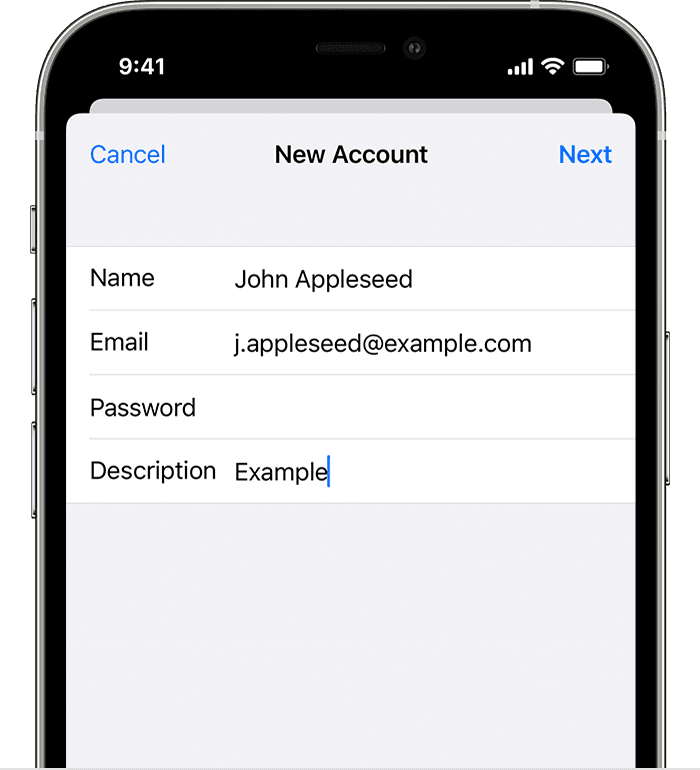
4. Tap Next. Mail will try to find the email settings and finish your account setup. If Mail finds your email settings, tap Done to complete your account setup.

Enter account settings manually
If Mail can't find your email settings, then you need to enter them manually. Tap Next, then follow these steps:
1. Choose IMAP or POP for your new account. If you aren’t sure which one to choose, contact your email provider.
2. Enter the information for Incoming Mail Server and Outgoing Mail Server. Then tap Next. If you don't have this information, try to look it up.
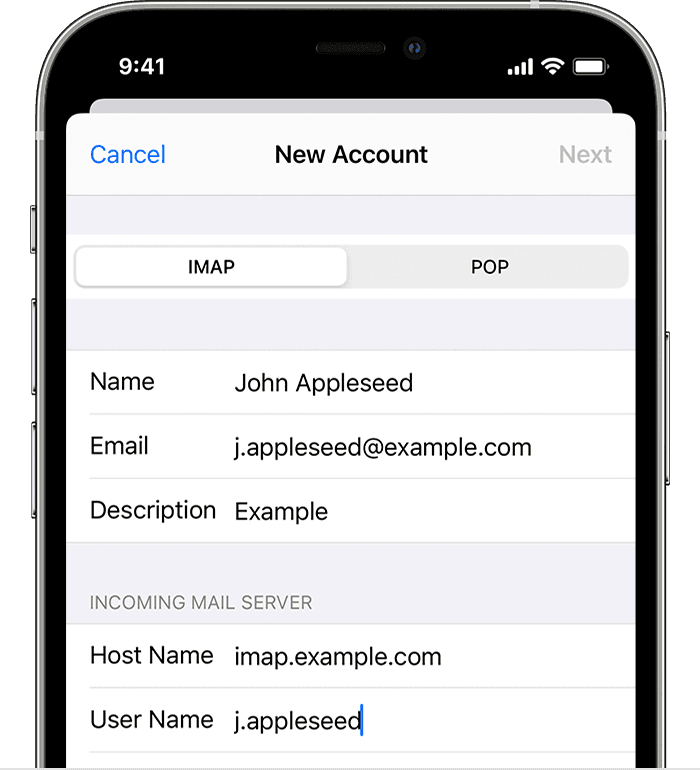
3. If your email settings are correct, tap Save to finish. If the email settings are incorrect, you'll be asked to edit them.
Let us know exactly what steps you're taking and what happens when you try to add your email account. We'll take a closer look from there.
Thanks!


