Hello Loni.mccaskill,
We can see why you'd want to sort this out and would suggest unpairing the Apple Watch from your iPhone and then set it up again to test this further. To do this, follow these steps: Set up Apple Watch for a family member
Set up Apple Watch for a family member
Family Setup lets family members who don't have their own iPhone enjoy the features and benefits of an Apple Watch.
How it works
With Family Setup, your family member who doesn't have their own iPhone can use their Apple Watch to do things like make phone calls, send messages, and share their location with you.
After you set up a watch for a family member, you can use your iPhone to manage some of the watch's capabilities.
Note that some Apple Watch features depend on having a companion iPhone, and aren't available on an Apple Watch that you pair using Family Setup.
Family Setup is not available in Italy, Korea, and more. Learn what's available in your country or region.

What you need
- An Apple Watch Series 4 or later with cellular,* or Apple Watch SE with cellular, with watchOS 7 or later.
- An iPhone 6s or later with iOS 14 or later for the initial watch setup.
- An Apple ID for yourself and one for the family member who will use the Apple Watch. Your Apple ID needs to have two-factor authentication turned on.
- A Family Sharing group that includes the person who'll use the Apple Watch. You need to have the role of organizer or parent/guardian to set up an Apple Watch for a family member.
* A cellular plan isn't required to set up an Apple Watch for a family member, but is necessary for some features.
1. Put on the watch and turn it on
If the Apple Watch isn't new, erase it first.
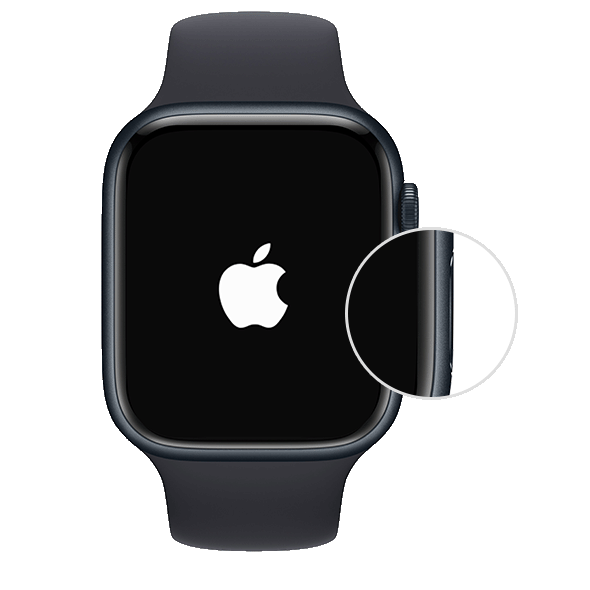
Then put on the watch, or have your family member put it on. Press and hold the side button until you see the Apple logo.
2. Hold the watch near your iPhone
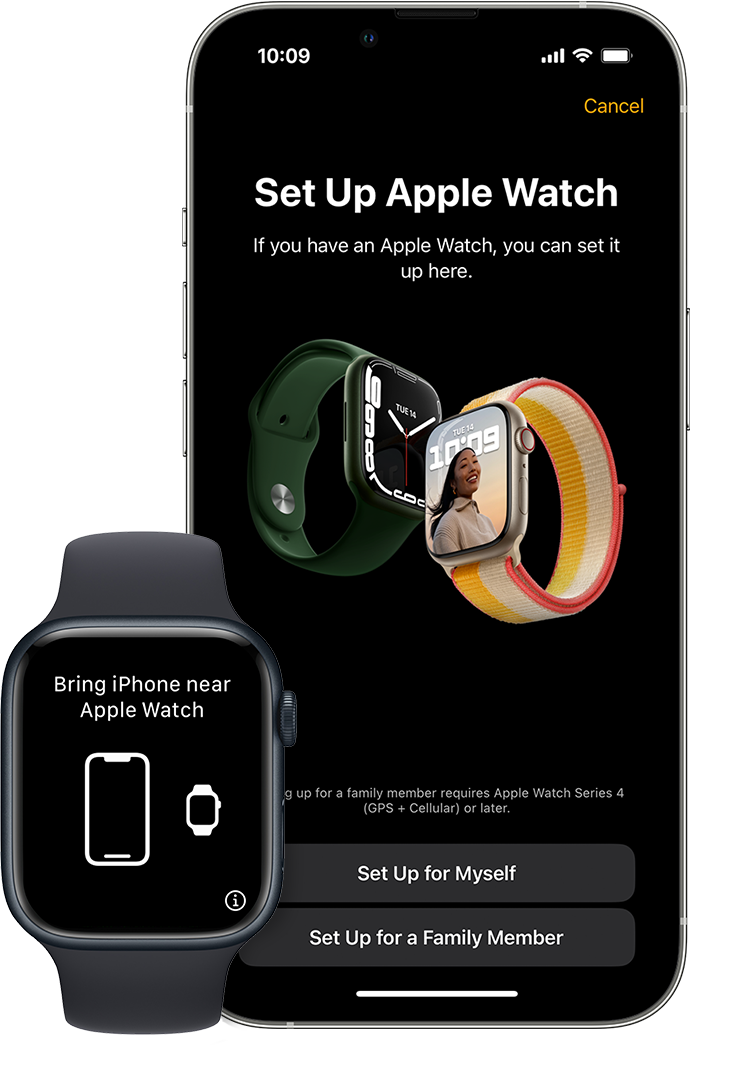
Hold the Apple Watch close to your iPhone. Wait until "Use your iPhone to set up this Apple Watch" appears on your iPhone, then tap Continue. If you don't see this message, open the Apple Watch app on your iPhone, tap All Watches, then tap Add Watch.
Tap Set Up for a Family Member, then tap Continue on the next screen.
3. Pair the watch with your iPhone
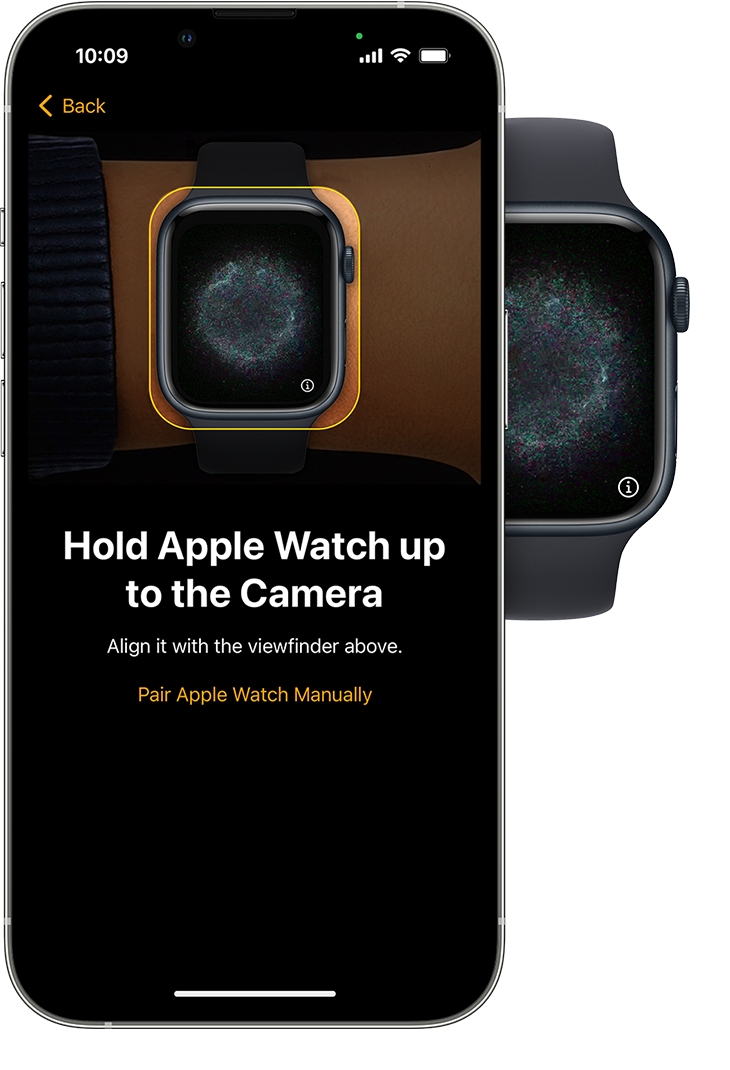
Hold your iPhone over the animation that appears on the watch. Center the watch face in the viewfinder on your iPhone, then wait for a message to say that your Apple Watch is paired. If you can't use the camera, tap Pair Apple Watch Manually, then follow the steps that appear.
Then tap Set Up Apple Watch.
4. Set up a passcode
Tap Agree on the Terms and Conditions screen, then choose a text size for the Apple Watch.
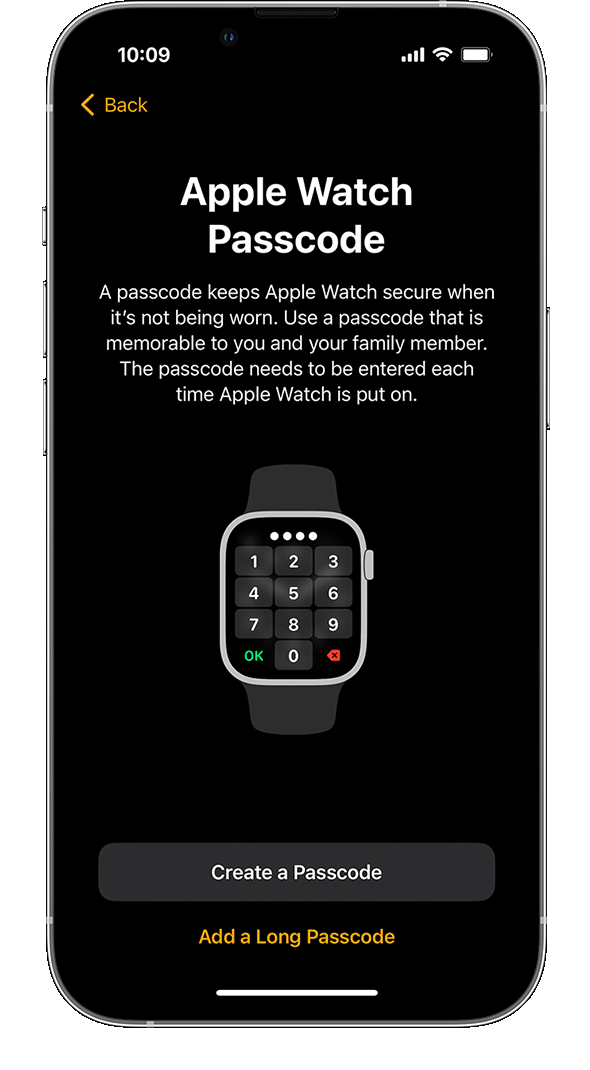
Next, set a passcode to keep the watch secure.
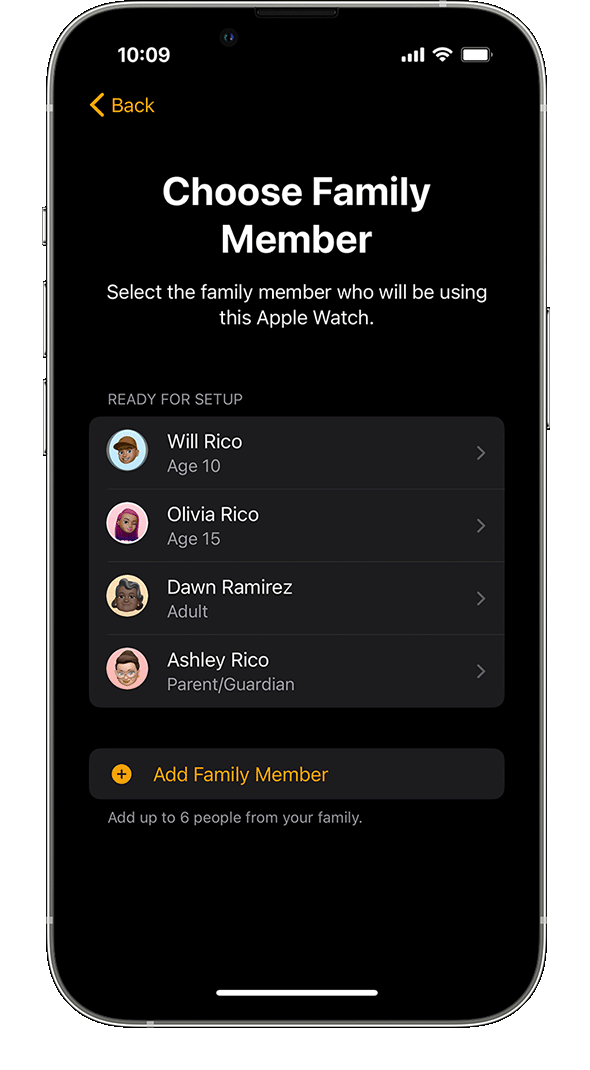
5. Pick a family member
Choose the family member who will use the Apple Watch. If they don't appear, tap Add Family Member.
Enter the family member's Apple ID password, then tap Next.
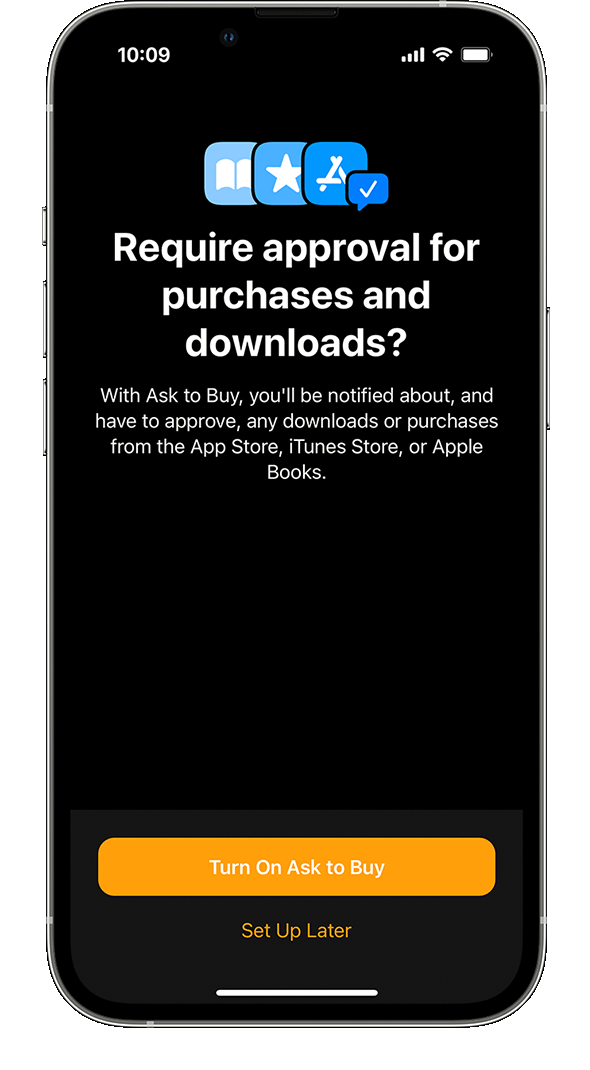
6. Turn on Ask to Buy
Turn on Ask to Buy if you want to give approval for any downloads or purchases made on the Apple Watch.
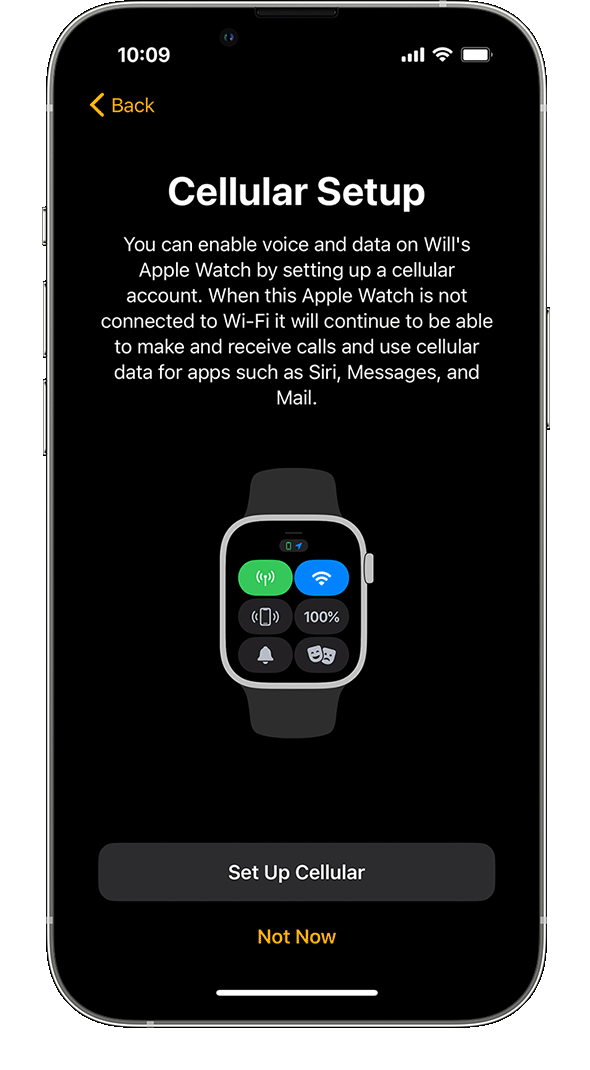
7. Set up cellular and Wi-Fi
If your iPhone cellular provider supports Family Setup, you can add the watch to your plan during this step.
If your carrier doesn't support Family Setup, or you'd like to use a different carrier, select Not Now.* You can choose an alternative carrier from this list of supported carriers and contact them directly to set up your cellular plan.
Next, choose whether to share your current Wi-Fi network with the Apple Watch.
* Some corporate cellular plans don't support Family Setup.
8. Turn on other features
In the screens that follow, choose whether to turn on and set up additional Apple Watch features. These include Location Services for the Find My app, Siri, Apple Cash Family, Messages in iCloud, Health Data, Emergency Contacts, Medical ID, Activity, Workout Route Tracking, and Photos.
9. Set up shared contacts and Schooltime
Now you're asked to set up the contacts that will be available on the Apple Watch. To allow this, you need to have Contacts in iCloud enabled. Go to Settings > [your name] > iCloud on your iPhone and make sure that Contacts is turned on.*
Then you can choose trusted people from your own Contacts app to share on the Apple Watch. You can manage these shared contacts later, and set up restrictions, in Screen Time on your iPhone.
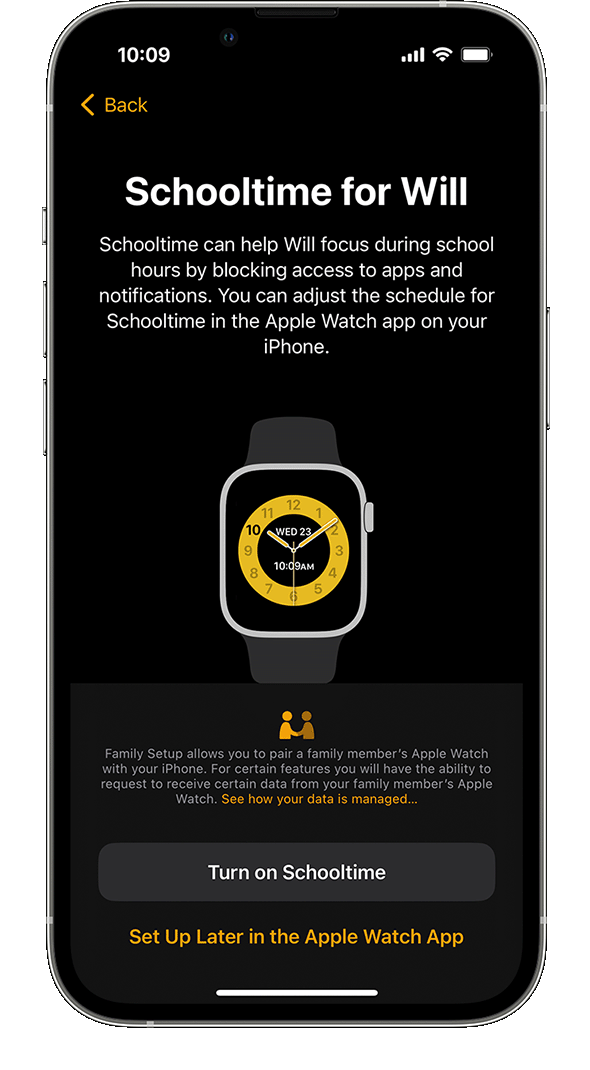
Finally, set a Screen Time passcode for the watch, and turn on Schooltime. When you're finished, tap OK to begin using the Apple Watch.
* If you're in China mainland, you also need to make sure that the Contacts app on your iPhone can use wireless data. Open Contacts, then tap one of the options to allow data use.
Manage a family member's Apple Watch after you set it up
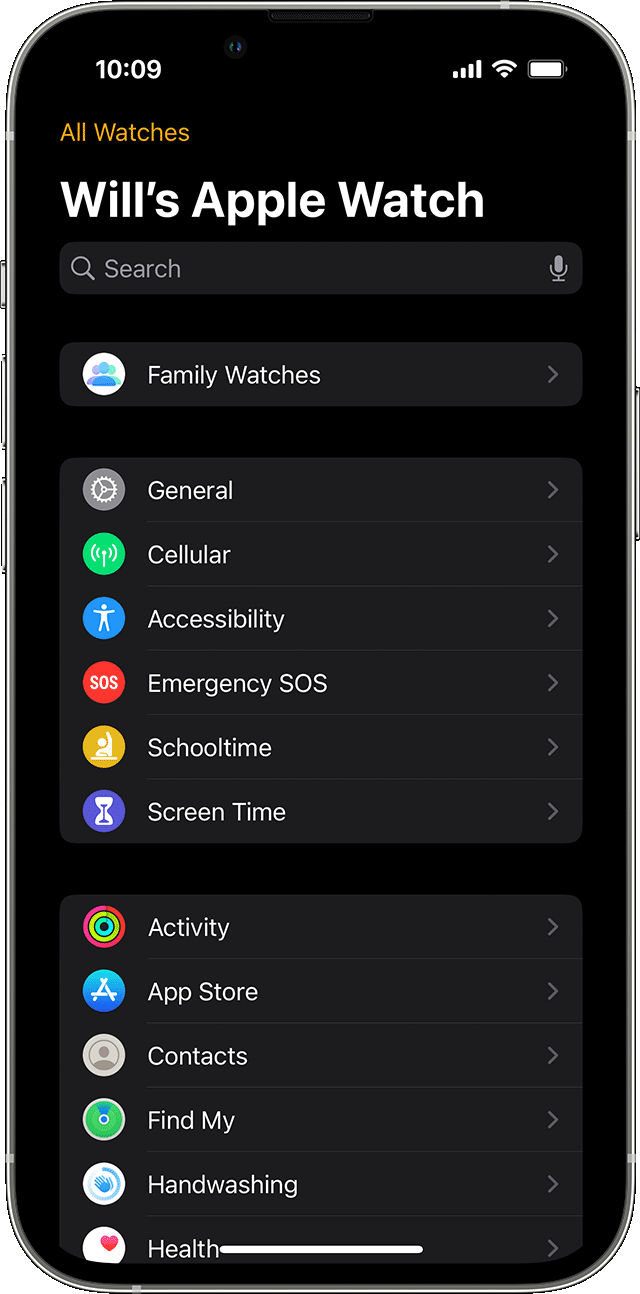
You can use your iPhone to adjust settings and customize features on a Family Setup watch:
1. Open the Apple Watch app on the iPhone that you used to set up the watch.
2. Tap All Watches, tap the watch under Family Watches, then tap Done.
3. Choose a setting to adjust.
Availability of features and apps
Health and fitness features:
- High and low heart rate notifications are available for users 13 and older.
- Heart Rate Variability (HRV) is available for users 18 and older.
- Walking Steadiness and Fall Detection are available for users 18 and older.
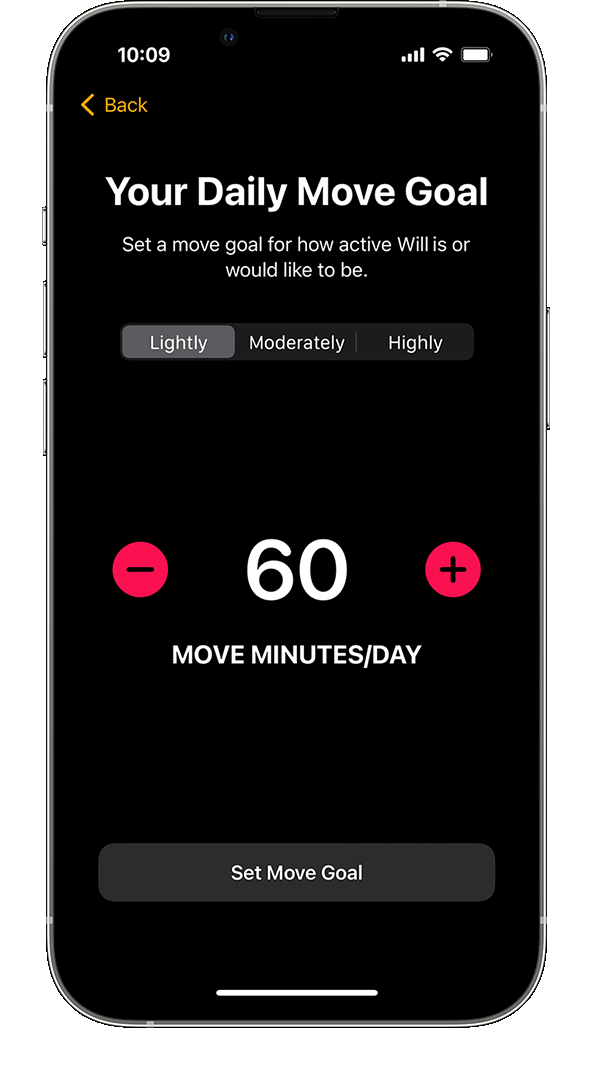
- Users under the age of 13 can use move minutes, rather than active calories, for their Move goal in the Activity app.
- Apple Pay features:
- Apple Cash Family is available to users under the age of 18, allowing them to make purchases and send and receive money in Messages with Apple Pay (United States only).
- Apple Pay using a credit or debit card in the Wallet app is not available with Family Setup.
The following features and apps are not available: Medications, respiratory rate, irregular heart rhythm notifications, ECG, Cycle Tracking, Sleep, Wrist Temperature, Blood Oxygen, Audiobooks, Remote, News, Home, and Shortcuts.
Next steps
Learn about the Activity app and how you can set move and exercise goals suitable for younger users.
Learn about Schooltime, a feature that limits Apple Watch features during a child's school hours.
Should this issue continue to occur, then it would be best to contact Apple Support directly: Official - Apple Support They'll need to take it from here.
Wishing you well, take care.


