Can you put a SIM card from an iPhone into an ipad

Can you put a SIM card from an iPhone 13 Pro into an ipad

iMac 21.5″, OS X 10.11

Posted on Dec 28, 2022 11:35 AM

Reply
2 replies

Dec 29, 2022 11:36 AM in response to Brookesilk

Hello Brookesilk,


Thanks for choosing the Apple Support Communities. this would depend on the type of SIM card the iPad takes, and if it has cellular capabilities.


For more info on how to use an iPad with cellular service, try following:


Use cellular data on your iPhone or iPad - Apple Support


"Turn cellular data on or off 

To turn cellular data on or off, go to Settings, then tap Cellular or Mobile Data. If you're using an iPad, you might see Settings > Cellular Data.
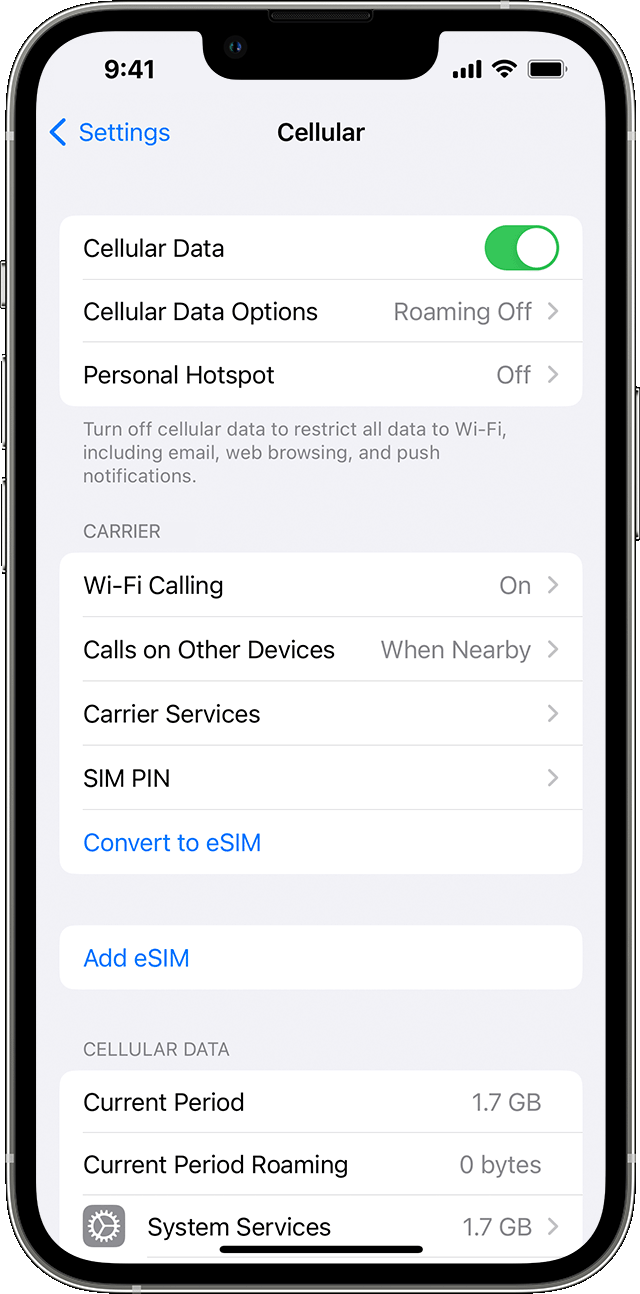
An iPhone screen showing cellular data settings 

Depending on your carrier and device, you might have additional options listed under Cellular Data Options:

  • Enable LTE, 4G, or 3G: You can select what type of network connection to use for voice and data. Learn more about these options. Learn about data options with 5G on your iPhone or iPad.
  • Turn Voice Roaming on or off: With CDMA networks, you can turn off Voice Roaming to avoid charges from using other carriers' networks.
  • Turn Data Roaming on or off: When you're traveling internationally, you can turn off data roaming to avoid roaming charges. If you have an international data plan, you may need to keep Data Roaming on. Learn more about traveling internationally with your iPhone or iPad.

Depending on your carrier, data roaming might be used if you travel domestically. Contact your carrier for more information about your data roaming policy or other cellular data settings. You can turn cellular data on or off to limit apps and services from using the cellular network to connect to the internet. When cellular data is on, apps and services use your cellular connection when Wi-Fi isn't available. As a result, you might be charged for using certain features and services with cellular data. Contact your carrier for more information about possible charges.


View how much data you're using 

To see how much cellular data you've used, go to Settings > Cellular or Settings > Mobile Data. If you're using an iPad, you might see Settings > Cellular Data instead.
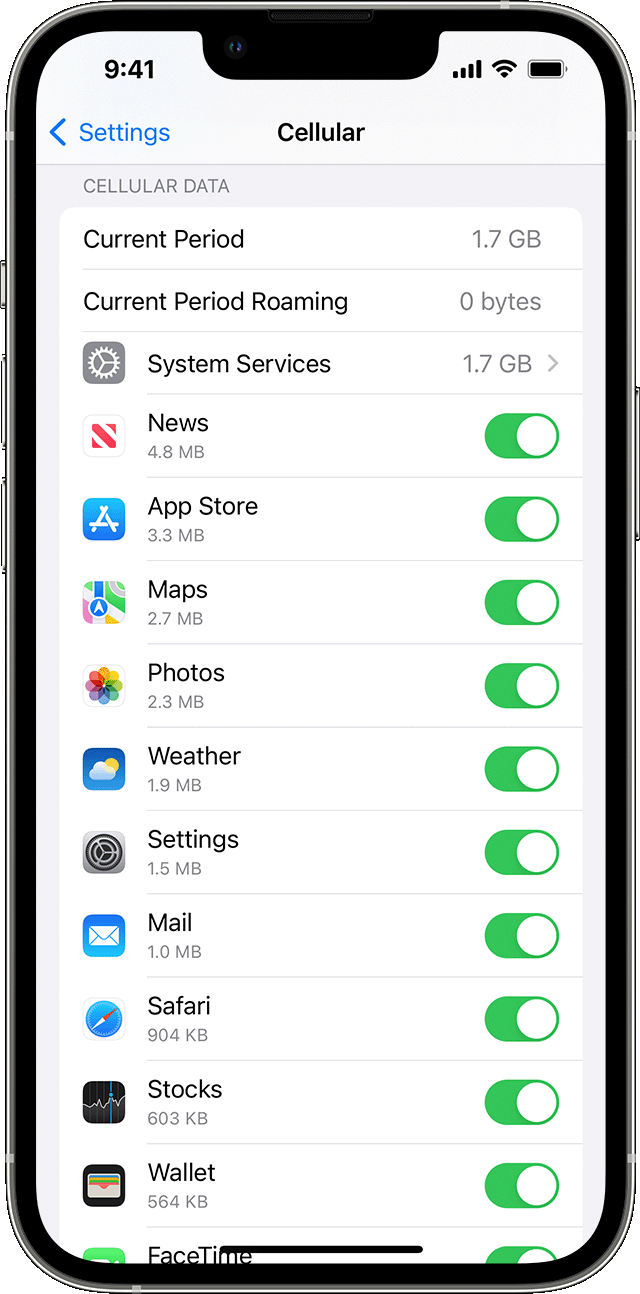
An iPhone screen showing cellular data usage 

  • Scroll down to find which apps are using cellular data. If you don't want an app to use cellular data, you can turn it off for that app. When cellular data is off, apps will use only Wi-Fi for data.
  • To see the cellular data usage for individual System Services, go to Settings > Cellular or Settings > Mobile Data. Then tap System Services, in the list under Cellular Data. Cellular data can't be turned on or off for individual System Services.
  • You can view the data-usage statistics for an app from a current period, or view app data statistics for apps that use data when you were roaming. To reset these statistics, go to Settings > Cellular or Settings > Mobile Data, and tap Reset Statistics.
  • When you’re using an iPhone with Dual SIM, you can see how much cellular data you’ve used with your selected cellular data number.

To get the most accurate cellular data usage from a current period, contact your carrier.


Get help

  • Learn what to do if you still can't connect to a cellular network.
  • If you use an Exchange ActiveSync account, it might continue to use cellular data even if you turn it off for Mail and Calendar. To see the cellular data usage of your Exchange ActiveSync account, go to Settings > Cellular > System Services.
  • If activated, Wi-Fi Assist automatically switches to use cellular data when Wi-Fi connectivity is poor. Wi-Fi Assist is on by default. This might result in additional cellular data use, which could incur additional charges depending on your data plan. You can turn off Wi-Fi Assist in Settings. For more information, see About Wi-Fi Assist."


For help to insert a SIM card in your iPad, follow:


Remove or switch the SIM card in your iPad - Apple Support


"Learn how to remove or transfer the SIM card in your iPad (Wi-Fi + Cellular models).


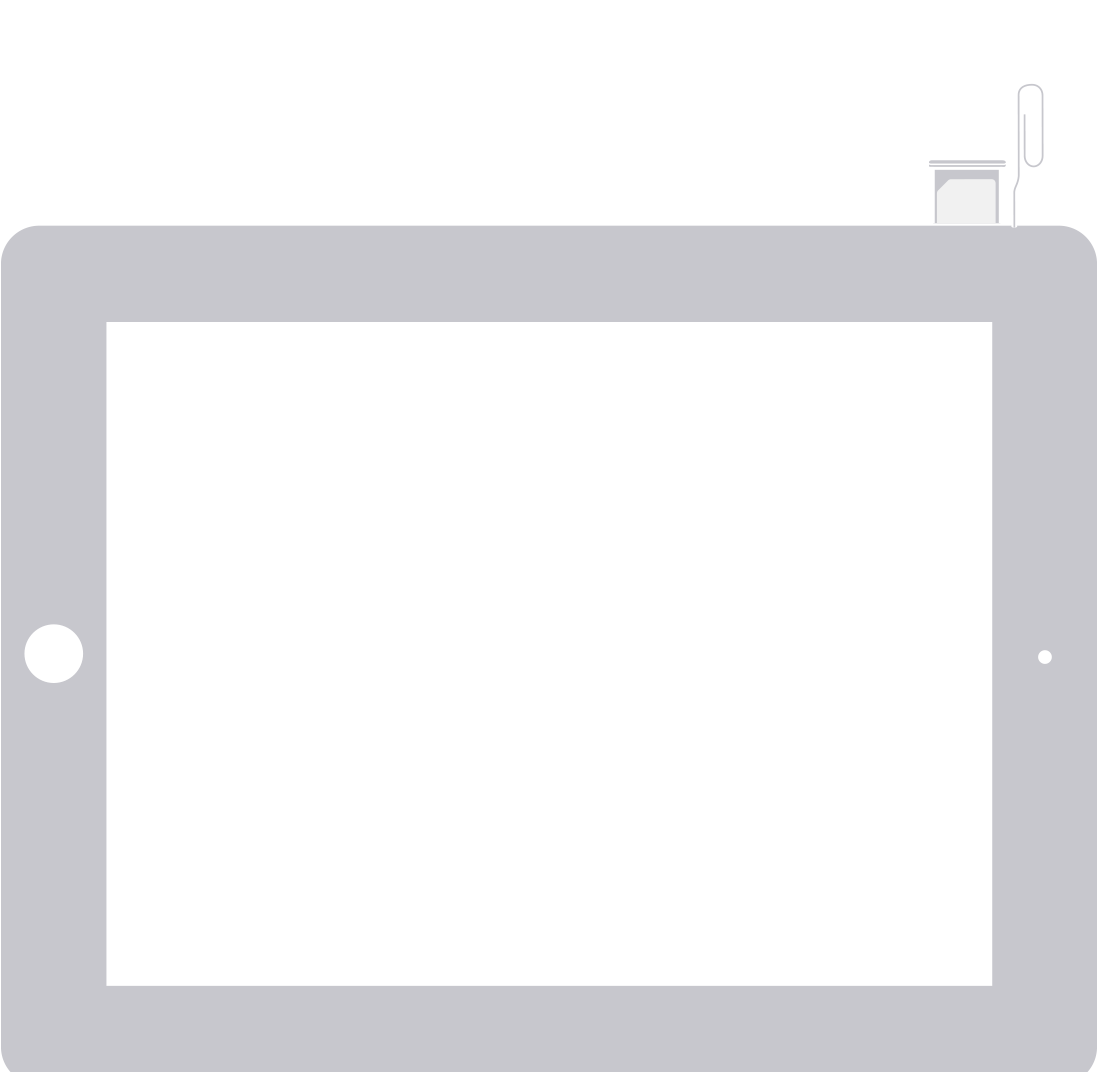
Find your model below to locate the SIM tray. To pop open the SIM tray, insert a paper clip or a SIM-eject tool into the hole beside the tray. Push in, towards the iPad, but don’t force it. If you're having difficulty ejecting the SIM tray, take your device to your carrier or an Apple Store for assistance.

After you remove your SIM card from the tray, notice the notch in one corner of the new SIM card. Place the new SIM card into the tray—it will fit only one way, because of the notch. Then insert the tray into the device completely and in the same orientation that you removed it. The tray also fits only one way.
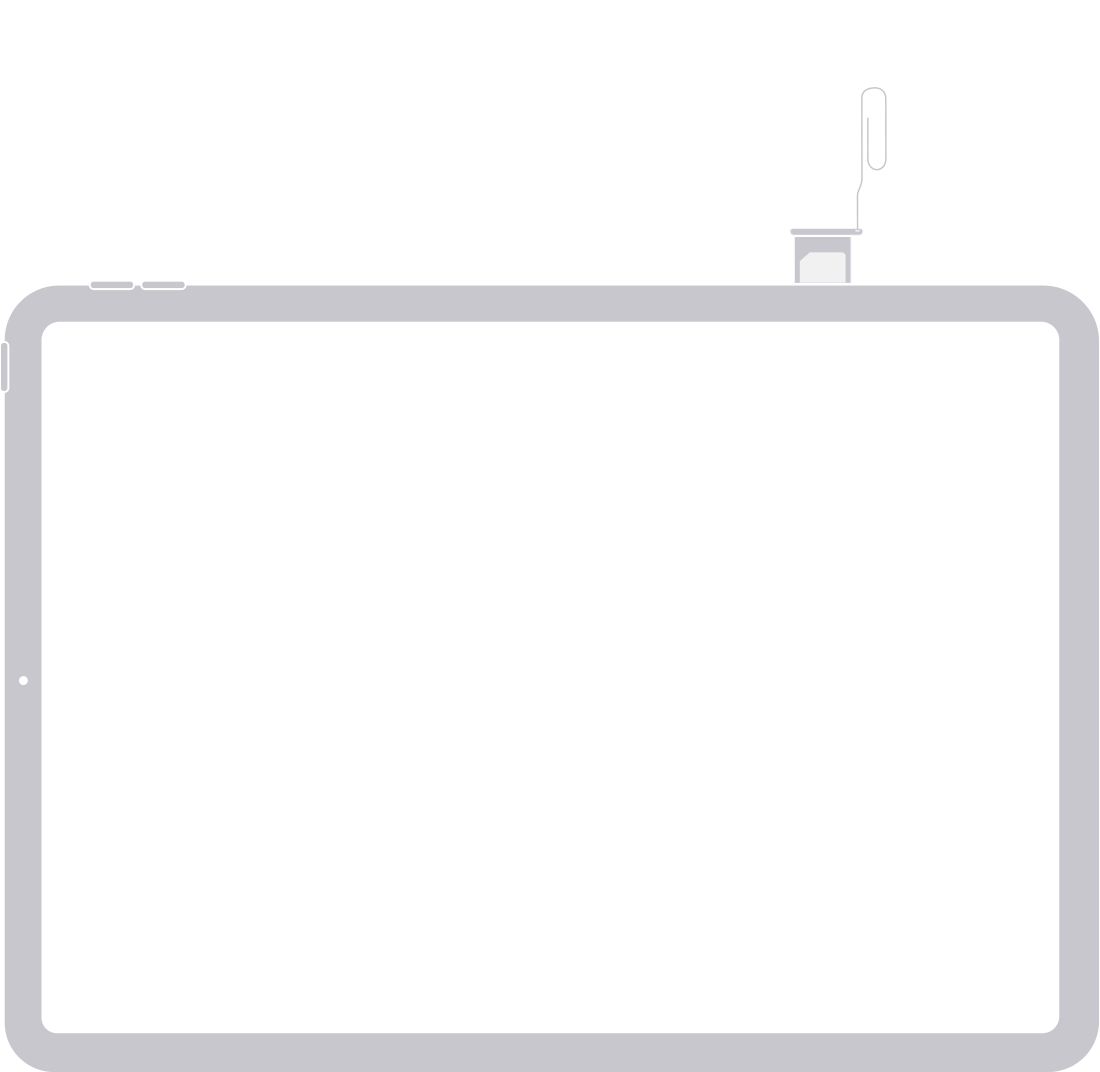
Find the SIM tray on the right side, near the bottom:
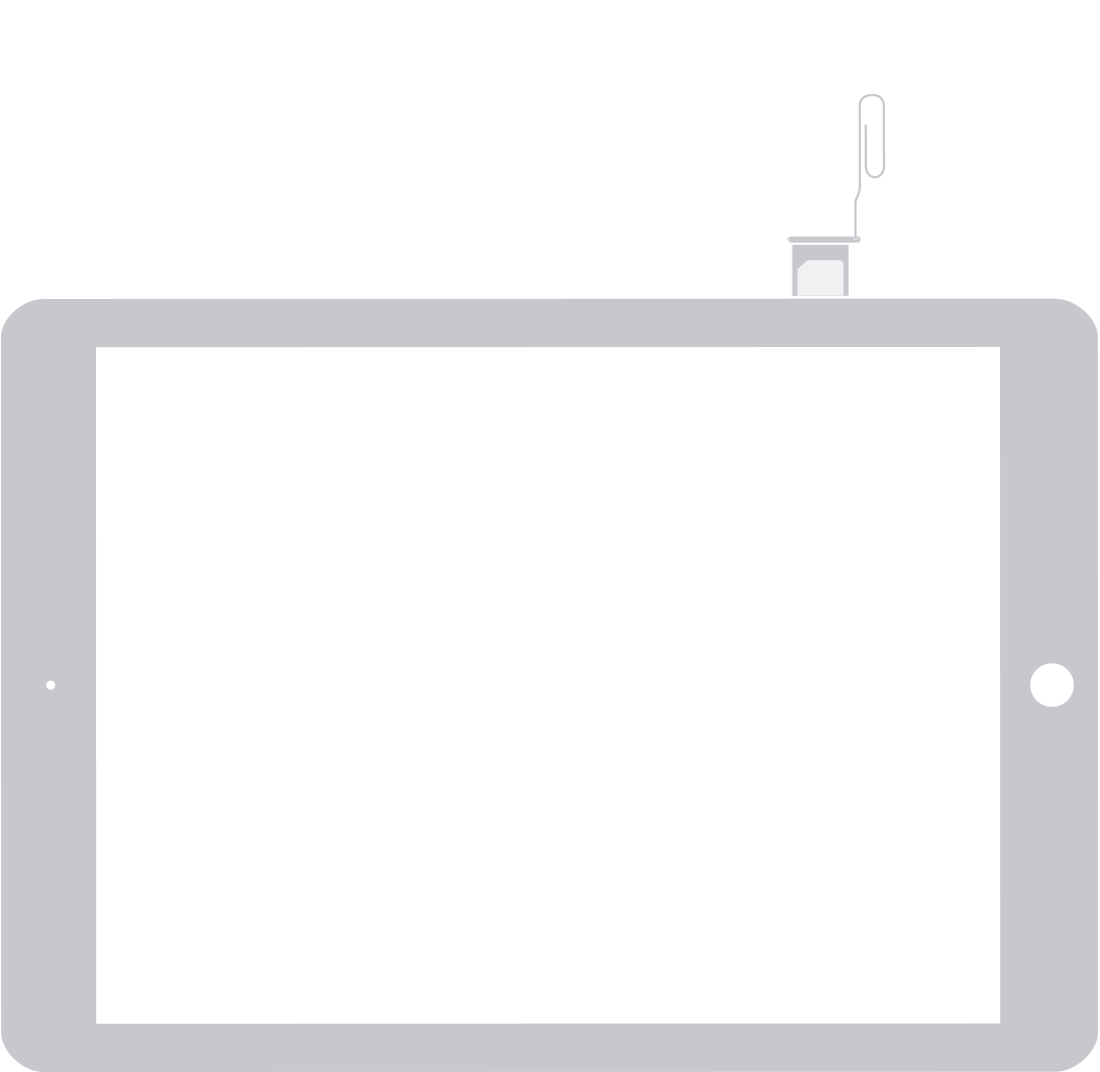
  • iPad mini (6th generation)
  • iPad Pro 11-inch
  • iPad Pro 12.9-inch (5th generation)
  • iPad Pro 12.9-inch (4th generation)
  • iPad Pro 12.9-inch (3rd generation)

Find the SIM tray on the right side, near the bottom:

  • iPad Pro 12.9-inch (2nd generation)
  • iPad Pro 12.9-inch (1st generation)
  • iPad Pro (10.5-inch)
  • iPad Pro (9.7-inch)
  • iPad (9th generation)
  • iPad (8th generation)
  • iPad (7th generation)
  • iPad (6th generation)
  • iPad (5th generation)
  • iPad Air (4th generation)
  • iPad Air (3rd generation)
  • iPad Air 2
  • iPad Air
  • iPad mini (5th generation)
  • iPad mini 4
  • iPad mini 3
  • iPad mini 2
  • iPad mini


Find the SIM tray on the left side, near the top:

  • iPad (4th generation)*
  • iPad (3rd generation)*
  • iPad 2 Wi-Fi + 3G (GSM model)*

* When you insert your paper clip or included SIM-eject tool, use a 45° angle
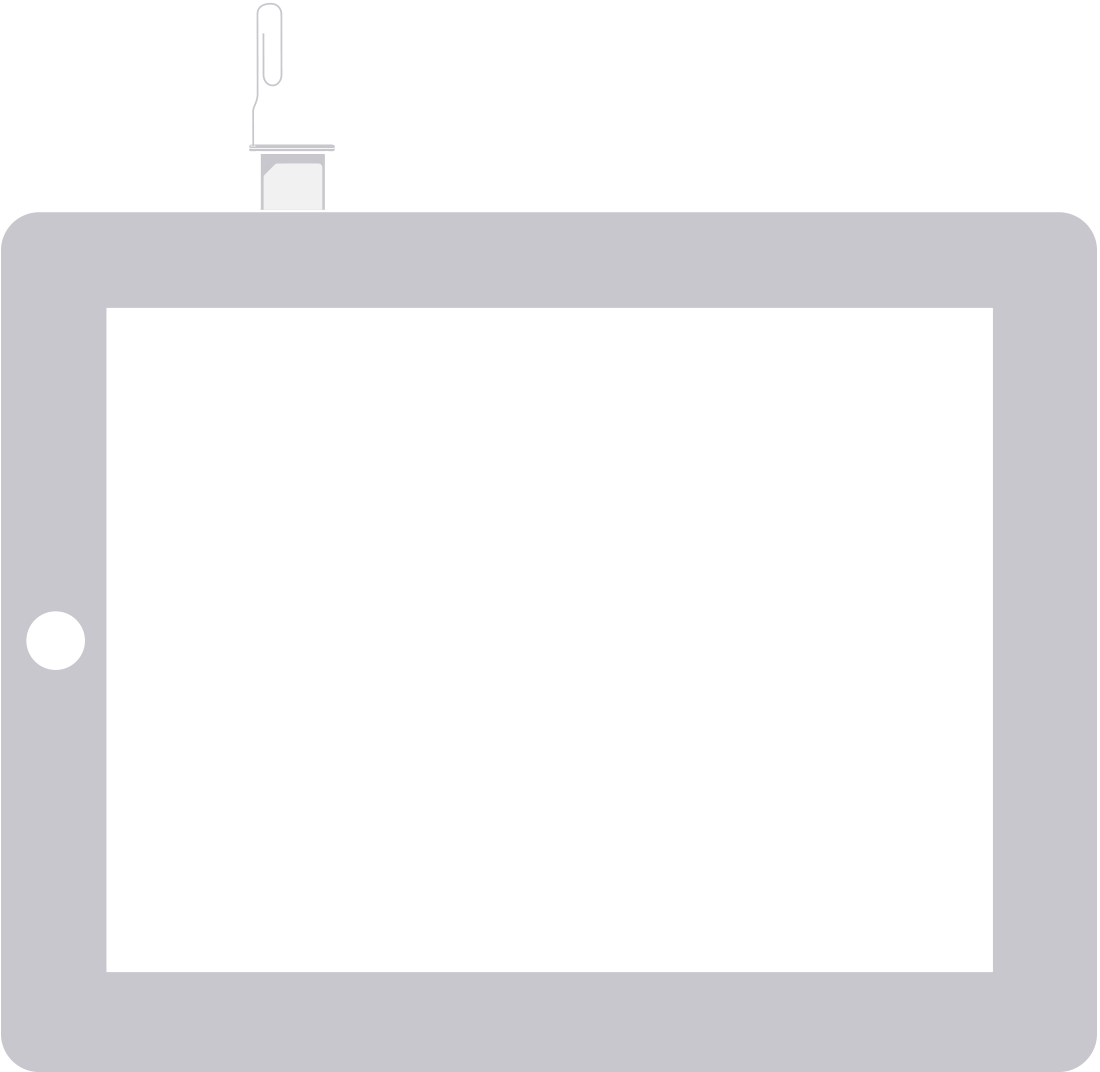

On iPad Wi-Fi + 3G, you can find the SIM tray on the left side, near the bottom."


We hope this helps.


Cheers!


This thread has been closed by the system or the community team. You may vote for any posts you find helpful, or search the Community for additional answers.

Can you put a SIM card from an iPhone into an ipad

Welcome to Apple Support Community
A forum where Apple customers help each other with their products. Get started with your Apple Account.