Hello studioscheeffer,
Let's see if any of the steps below corrects the issue of the effects changing colors all the time.
"After you take a photo or video, use the tools in the Photos app  to edit it on your iPhone. You can adjust the light and color, crop, rotate, add a filter, and more. If you don’t like how your changes look, tap Cancel to revert back to the original.
When you use iCloud Photos, any edits you make to your photos and videos are saved across all your devices.
Adjust light and color
- In Photos, tap a photo or video thumbnail to view it in full screen.
- Tap Edit, then swipe left under the photo to view the effects you can edit such as Exposure, Brilliance, Highlights, and Shadows.
- Tap the effect you want to edit, then drag the slider to make precise adjustments.
- The level of adjustment you make for each effect is indicated by the outline around the button, so you can see at a glance which effects have been increased or decreased. Tap the effect button to toggle between the edited effect and the original.

- Tap Done to save your edits, or if you don’t like your changes, tap Cancel, then tap Discard Changes.
Tip: Tap  to automatically edit your photos or videos with effects.
Crop, rotate, or flip a photo or video
- In Photos, tap a photo or video thumbnail to view it in full screen.
- Tap Edit, tap
 , then do any of the following :
- Crop manually: Drag the rectangle corners to enclose the area you want to keep in the photo, or you can pinch the photo open or closed.
- Crop to a standard preset ratio: Tap
 , then choose an option such as square, 16:9, or 5:4.
 - Rotate: Tap
 to rotate the photo 90 degrees.
 - Flip: Tap
 to flip the image horizontally.
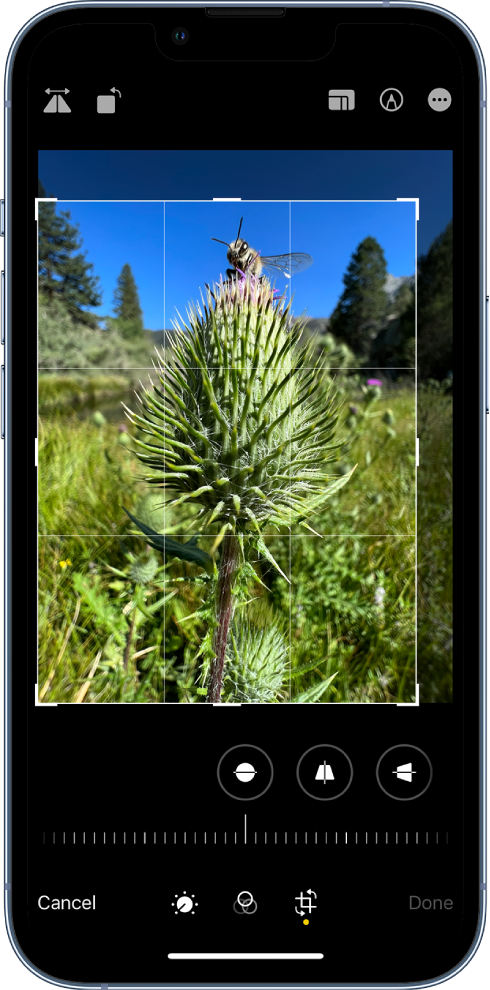
- Tap Done to save your edits, or if you don’t like your changes, tap Cancel, then tap Discard Changes.
Straighten and adjust perspective
- In Photos, tap a photo or video thumbnail to view it in full screen.
- Tap Edit, then tap .
- Swipe left under the photo to view the effects you can edit: Straighten, Vertical, or Horizontal.
- Tap the effect you want to edit, then drag the slider to make precise adjustments.
- The level of adjustment you make for each effect is displayed by the outline around the button, so you can see at a glance which effects have been increased or decreased. Tap the button to toggle between the edited effect and the original.
- Tap Done to save your edits, or if you don’t like your changes, tap Cancel, then tap Discard Changes.
Apply filter effects
- In Photos, tap a photo or video thumbnail to view it in full screen.
- Tap Edit, then tap
 to apply filter effects such as Vivid, Dramatic, or Silvertone.
 - Tap a filter, then drag the slider to adjust the effect.
- To compare the edited photo to the original, tap the photo.
- Tap Done to save your edits, or if you don’t like your changes, tap Cancel, then tap Discard Changes.
Undo and redo edits
As you edit a photo or video, tap  and
and  at the top of the screen to undo and redo multiple edit steps.
Tip: You can tap the photo or video to compare the edited version to the original."
More information can be found in this article: Edit photos and videos on iPhone
If the above steps don't help let us know what app are you using to add the effects and the mp4 so we may point you in the right direction for resolution.
Thank you for using Apple Support Communities.
Take care!