I forgot my airpods pro now it won’t connect again

Airpods pro not connecting

Posted on Dec 30, 2022 6:34 AM

Reply
Question marked as Top-ranking reply

Posted on Dec 31, 2022 1:15 PM

Hi Enzo2101,


Take a look over the tips here since they specifically relate to issues connecting AirPods:


If you need help connecting to your AirPods, learn what to do.


If you can't connect to your iPhone, iPad, or iPod touch
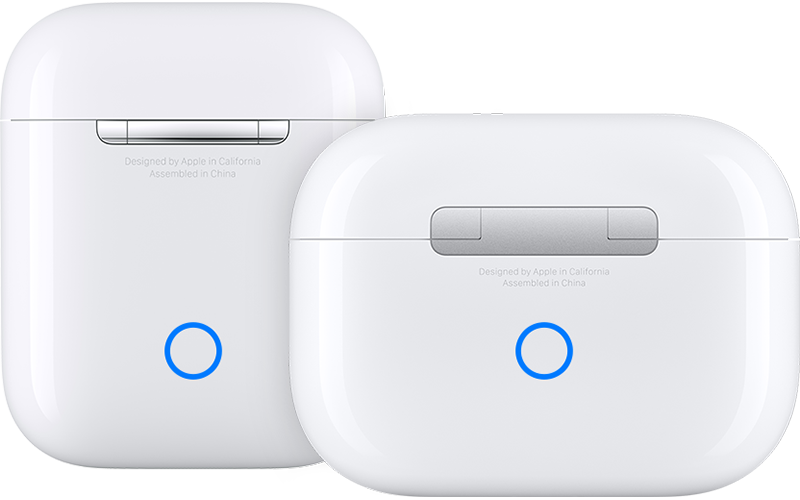
  1. Make sure that your iPhone or iPod touch has the latest version of iOS or that your iPad has the latest version of iPadOS.
  2. Put both AirPods in the charging case and make sure that both AirPods are charging.
  3. To make sure that Bluetooth is on, go to Settings > Bluetooth.
  4. If your AirPods are connected, make sure that they're selected as your audio device. If your AirPods appear in the list of devices but they don't connect, go to the next step.
  5. Close the lid, wait 15 seconds, then open the lid. Press and hold the setup button on the back of the charging case for up to 10 seconds. The status light on the front of the charging case should flash white, which means that your AirPods are ready to connect.
  6. AirPods charging cases
  7. Hold the charging case, with your AirPods inside and the lid open, next to your iPhone, iPad, or iPod touch.
  8. Follow the steps on the screen of your iPhone, iPad, or iPod touch.
  9. Test your AirPods. If you still can't connect, reset your AirPods.


If you can't connect to your Mac

  1. Make sure that you have a Mac with the latest version of macOS.
  2. Put both AirPods in the charging case and make sure that both AirPods are charging.
  3. To make sure that Bluetooth is on, choose Apple menu  > System Settings, then click Bluetooth.
  4. If your AirPods are connected, make sure that they're selected as your audio device. If your AirPods appear in the list of devices but they don't connect, click the X to the right of your AirPods to remove them from the list.
  5. Close the lid, wait 15 seconds, then open the lid. Press and hold the setup button on the charging case for up to 10 seconds. The status light should flash white, which means that your AirPods are ready to connect.
  6. Hold the charging case, with your AirPods inside and the lid open, next to your Mac.
  7. Follow the steps on the screen of your Mac.
  8. Test your AirPods. If you still can't connect, reset your AirPods.


Should they still not connect, follow the link in Step 8 to reset them. If the issue persists beyond that, we'd recommend contacting Apple support for additional assistance.


Take care.

3 replies
Question marked as Top-ranking reply

Dec 31, 2022 1:15 PM in response to Enzo2101

Hi Enzo2101,


Take a look over the tips here since they specifically relate to issues connecting AirPods:


If you need help connecting to your AirPods, learn what to do.


If you can't connect to your iPhone, iPad, or iPod touch

  1. Make sure that your iPhone or iPod touch has the latest version of iOS or that your iPad has the latest version of iPadOS.
  2. Put both AirPods in the charging case and make sure that both AirPods are charging.
  3. To make sure that Bluetooth is on, go to Settings > Bluetooth.
  4. If your AirPods are connected, make sure that they're selected as your audio device. If your AirPods appear in the list of devices but they don't connect, go to the next step.
  5. Close the lid, wait 15 seconds, then open the lid. Press and hold the setup button on the back of the charging case for up to 10 seconds. The status light on the front of the charging case should flash white, which means that your AirPods are ready to connect.
  6. AirPods charging cases
  7. Hold the charging case, with your AirPods inside and the lid open, next to your iPhone, iPad, or iPod touch.
  8. Follow the steps on the screen of your iPhone, iPad, or iPod touch.
  9. Test your AirPods. If you still can't connect, reset your AirPods.


If you can't connect to your Mac

  1. Make sure that you have a Mac with the latest version of macOS.
  2. Put both AirPods in the charging case and make sure that both AirPods are charging.
  3. To make sure that Bluetooth is on, choose Apple menu  > System Settings, then click Bluetooth.
  4. If your AirPods are connected, make sure that they're selected as your audio device. If your AirPods appear in the list of devices but they don't connect, click the X to the right of your AirPods to remove them from the list.
  5. Close the lid, wait 15 seconds, then open the lid. Press and hold the setup button on the charging case for up to 10 seconds. The status light should flash white, which means that your AirPods are ready to connect.
  6. Hold the charging case, with your AirPods inside and the lid open, next to your Mac.
  7. Follow the steps on the screen of your Mac.
  8. Test your AirPods. If you still can't connect, reset your AirPods.


Should they still not connect, follow the link in Step 8 to reset them. If the issue persists beyond that, we'd recommend contacting Apple support for additional assistance.


Take care.

Jan 2, 2023 7:57 PM in response to Enzo2101

Enzo2101 Said:

"I forgot my airpods pro now it won’t connect again: Airpods pro not connecting"

-------


Troubleshooting AirPods Connectivity:


Start by wiggling it in your ear. No success? Charge these to 100%. If still not success, refer to the following...


Troubleshooting AirPod Connectivity:

A Few Thoughts to Try:

A. Visit Apple Support links:


B. Verify the Balance:

  1. Go to: Settings
  2. Tap: General
  3. Tap: Accessibility
  4. Scroll Down: to Hearing
  5. Adjust: the audio volume balance


C. Also, Clear Out Earwax:

How to Clean your AirPods and EarPods - Apple Support

This thread has been closed by the system or the community team. You may vote for any posts you find helpful, or search the Community for additional answers.

I forgot my airpods pro now it won’t connect again

Welcome to Apple Support Community
A forum where Apple customers help each other with their products. Get started with your Apple Account.
