
No sound in external speakers. Headphones work.
Both lights for my external speakers are dim. It seems to be muted. no option for external speakers on output. Mac support is 2 hrs away. please help.
MacBook Pro 13″, macOS 13.1
Both lights for my external speakers are dim. It seems to be muted. no option for external speakers on output. Mac support is 2 hrs away. please help.
MacBook Pro 13″, macOS 13.1
Hi Bdrury5,
It is possible this may be a hardware issue. If so, the computer would need to be serviced in order to restore functionality to the speakers.
That being said, we'd advise unplugging all peripherals from your MacBook and then run the built in diagnostic to see if it flags an issue with the speakers.
Apple Diagnostics, formerly known as Apple Hardware Test, can check your Mac for hardware issues.
If you think your Mac might have a hardware issue, you can use Apple Diagnostics to help determine which hardware component might be at fault. Apple Diagnostics also suggests solutions and helps you contact Apple Support for assistance.
Prepare your Mac
Start Apple Diagnostics
Determine whether you're using a Mac with Apple silicon, then follow the appropriate steps:
Apple silicon
Intel processor

View the test results
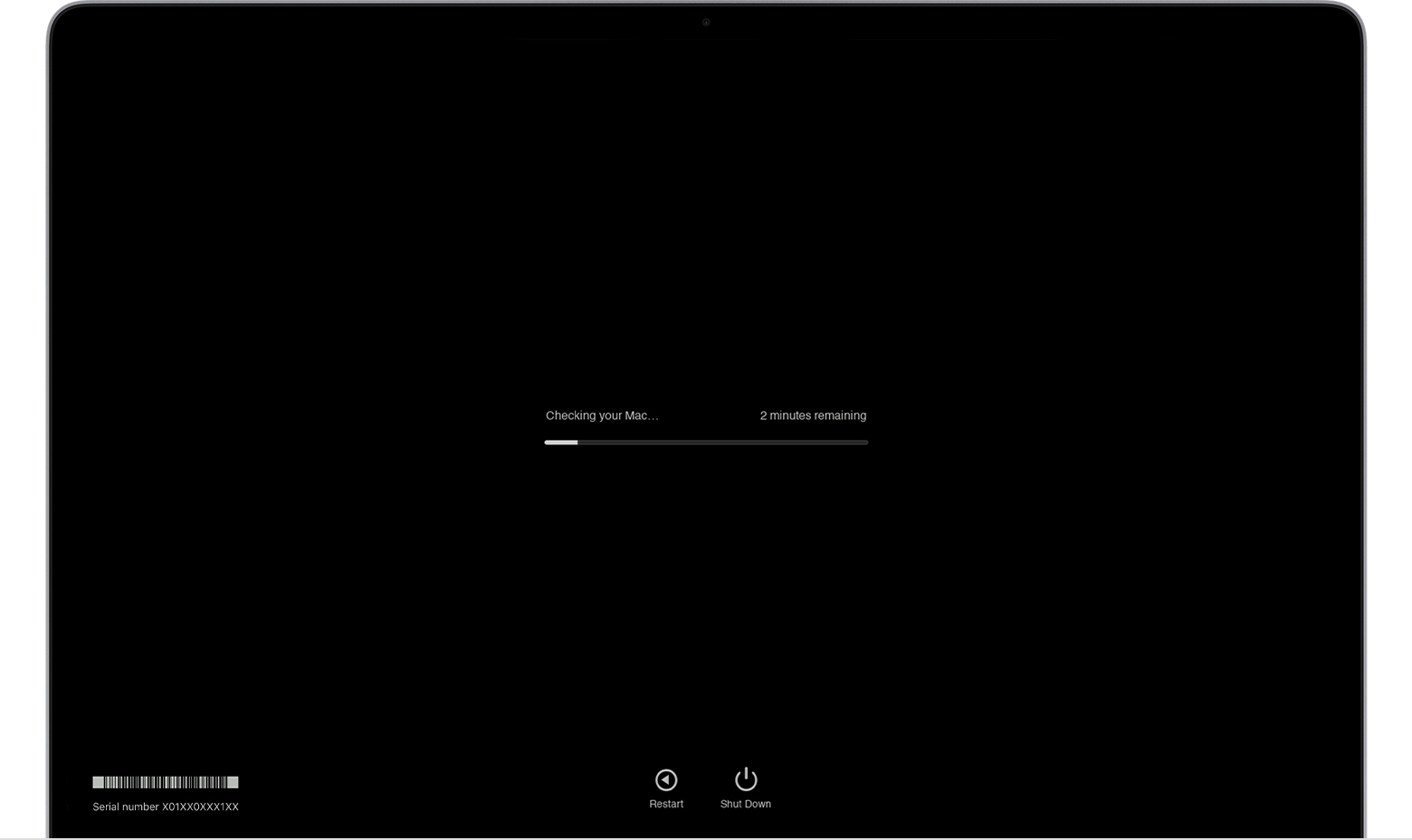
Apple Diagnostics shows a progress bar while it's checking your Mac:
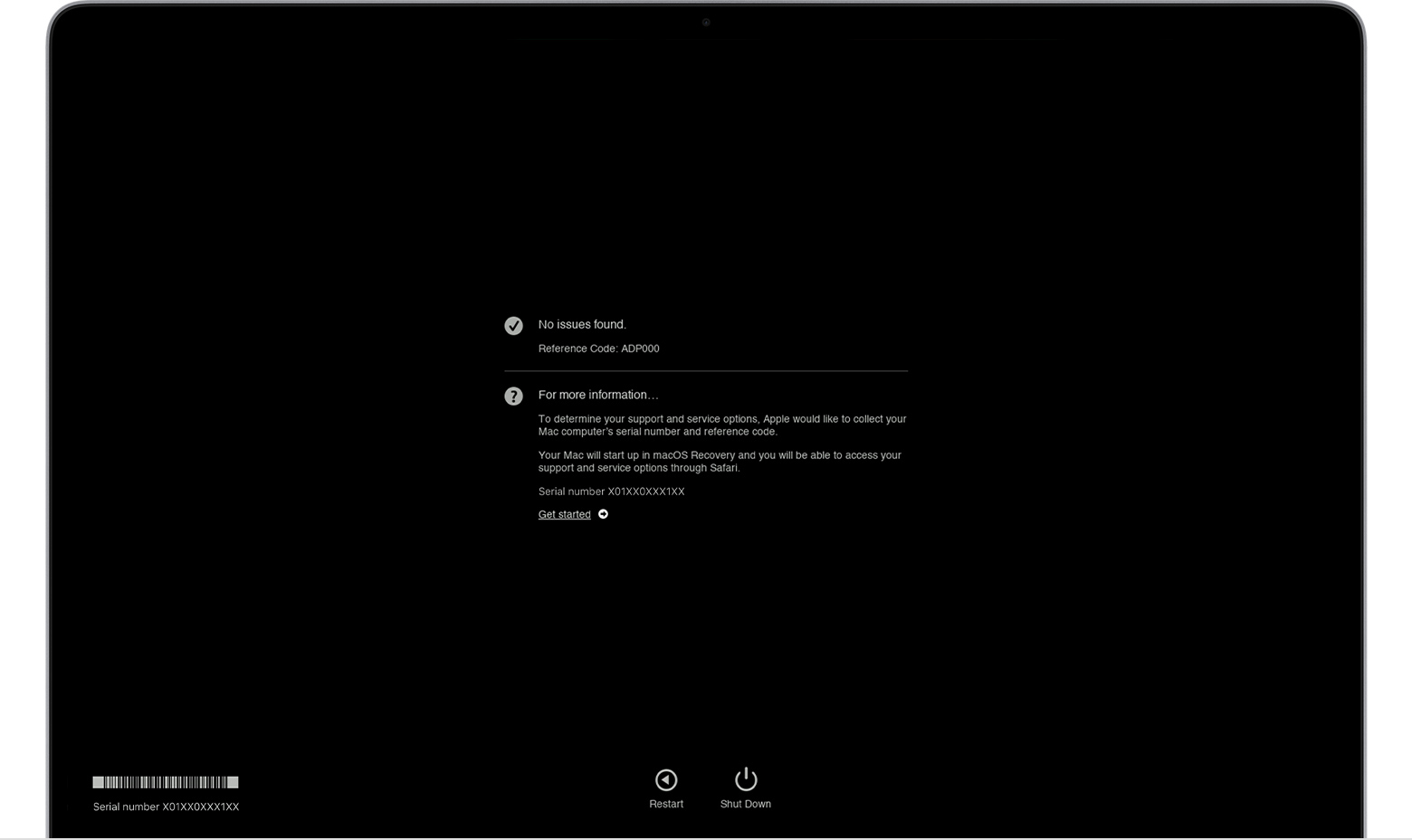
When testing is complete, Apple Diagnostics shows the results, including one or more reference codes. Learn about Apple Diagnostics reference codes.
To repeat the test, click “Run the test again” or press Command-R.
To restart your Mac, click Restart or press R.
To shut down, click Shut Down or press S.
To get information about your service and support options, make sure that your Mac is connected to the internet, then click ”Get started” or press Command-G. Your Mac will restart to a webpage with more information. When you're done, choose Restart or Shut Down from the Apple menu.
Learn more
On an Intel-based Mac, if you can't start Apple Diagnostics with the D key, try these solutions:
We'd also recommend looking over the tips here:
Cheers!
Hi Bdrury5,
It is possible this may be a hardware issue. If so, the computer would need to be serviced in order to restore functionality to the speakers.
That being said, we'd advise unplugging all peripherals from your MacBook and then run the built in diagnostic to see if it flags an issue with the speakers.
Apple Diagnostics, formerly known as Apple Hardware Test, can check your Mac for hardware issues.
If you think your Mac might have a hardware issue, you can use Apple Diagnostics to help determine which hardware component might be at fault. Apple Diagnostics also suggests solutions and helps you contact Apple Support for assistance.
Prepare your Mac
Start Apple Diagnostics
Determine whether you're using a Mac with Apple silicon, then follow the appropriate steps:
Apple silicon
Intel processor
View the test results
Apple Diagnostics shows a progress bar while it's checking your Mac:
When testing is complete, Apple Diagnostics shows the results, including one or more reference codes. Learn about Apple Diagnostics reference codes.
To repeat the test, click “Run the test again” or press Command-R.
To restart your Mac, click Restart or press R.
To shut down, click Shut Down or press S.
To get information about your service and support options, make sure that your Mac is connected to the internet, then click ”Get started” or press Command-G. Your Mac will restart to a webpage with more information. When you're done, choose Restart or Shut Down from the Apple menu.
Learn more
On an Intel-based Mac, if you can't start Apple Diagnostics with the D key, try these solutions:
We'd also recommend looking over the tips here:
Cheers!
Thank you for your very detailed and helpful answer. I was able to correct the problem by disconnecting, both Wi-Fi and Bluetooth and restarting. It seems that it was trying to connect to a new TV in the living room.
Hi Bdrury5,
You're welcome! Also, thank you for returning to share with the community what resolved your issue.
Cheers!
No sound in external speakers. Headphones work.

