Hi Dana Higbee,
If you haven't done so yet, restart your iPhone and Mac. Although simple, this step can help correct some unexpected issues. It's also a good idea to update our Mac to the latest macOS version (13.1), since this can help with overall performance: Update macOS on Mac. If an update is available, be sure to create a backup before installing it.
If the issue persists, confirm that you're following the steps outlined in this resource to transfer your photos: Transfer photos and videos from your iPhone or iPad to your Mac or PC.
Import to your Mac
You can import photos and videos to your Mac by connecting your device to your Mac. However, if you use iCloud Photos, then you don't need to import.
To import to your Mac:
1. Connect your iPhone or iPad to your Mac with a USB cable.
2. Open the Photos app on your computer.
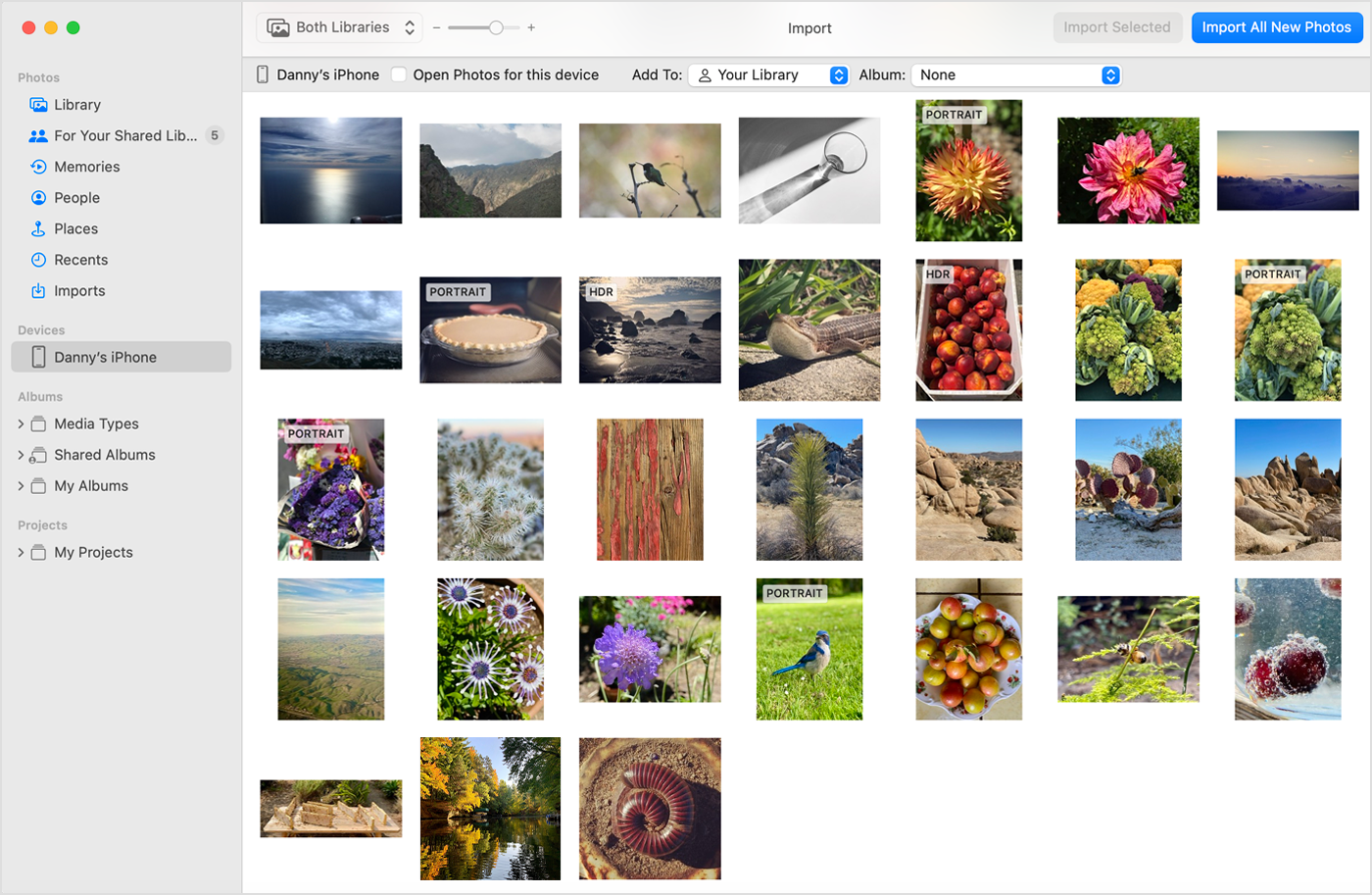
3. The Photos app shows an Import screen with all the photos and videos that are on your connected device. If the Import screen doesn't automatically appear, click the device's name in the Photos sidebar.
4. If asked, unlock your iOS or iPadOS device using your passcode. If you see a prompt on your iOS or iPadOS device asking you to Trust This Computer, tap Trust to continue.
5. Choose where you want to import your photos. Next to "Import to," you can choose an existing album or create a new one.
6. Select the photos you want to import and click Import Selected, or click Import All New Photos.
7. Wait for the process to finish, then disconnect your device from your Mac.
Regards.