two users with one avatar?

Hi,

On my MacBookAir I have 2 different users with 2 different AppleID's. When one of us changes his avatar, the other one changes aswel. So the two users/accounts always keep the same avatar no matter what we do.


How can we have our own avatar without changing the avatar of the other user?

MacBook Air 13″, macOS 13.0

Posted on Jan 10, 2023 5:24 AM

Reply
Question marked as Top-ranking reply

Posted on Jan 13, 2023 11:22 AM

Give this a try: boot into Safe Mode according to How to use safe mode on your Mac and change the pictures for both users from there. Reboot normally and check to see if the changes stuck.


NOTE 1: Safe Mode boot can take up to 3 - 5 minutes as it's doing the following; 

• Verifies your startup disk and attempts to repair directory issues, if needed

• Loads only required kernel extensions (prevents 3rd party kernel/extensions from loading)

• Prevents Startup Items and Login Items from opening automatically

• Disables user-installed fonts 

• Deletes font caches, kernel cache, and other system cache files


NOTE 2: if you have a wireless keyboard with rechargeable batteries connect it with its charging cable before booting into Safe Mode. This makes it act as a wired keyboard as will insure a successful boot into Safe Mode.



Similar questions

6 replies
Question marked as Top-ranking reply

Jan 13, 2023 11:22 AM in response to marjolijn241

Give this a try: boot into Safe Mode according to How to use safe mode on your Mac and change the pictures for both users from there. Reboot normally and check to see if the changes stuck.


NOTE 1: Safe Mode boot can take up to 3 - 5 minutes as it's doing the following; 

• Verifies your startup disk and attempts to repair directory issues, if needed

• Loads only required kernel extensions (prevents 3rd party kernel/extensions from loading)

• Prevents Startup Items and Login Items from opening automatically

• Disables user-installed fonts 

• Deletes font caches, kernel cache, and other system cache files


NOTE 2: if you have a wireless keyboard with rechargeable batteries connect it with its charging cable before booting into Safe Mode. This makes it act as a wired keyboard as will insure a successful boot into Safe Mode.


Jan 13, 2023 10:48 AM in response to marjolijn241

Hello marjolijn241,


It sounds like you need some help changing your login picture on your Mac.


We will be happy to provide some guidance.


We recommend that you try the steps in the link below.


Change a user’s login picture on Mac


1) On your Mac, choose Apple menu  > System Settings, then click Users & Groups in the sidebar. (You may need to scroll down.)
2) Click the user picture on the right, then do any of the following:
*Select a Memoji: Click Memoji, then click the Add button  to select and compose a facial image. Or select one of the displayed Memoji, then select a pose and style you like.
The Apple ID picture dialog with Memoji selected in the sidebar and various Memoji shown on the right.
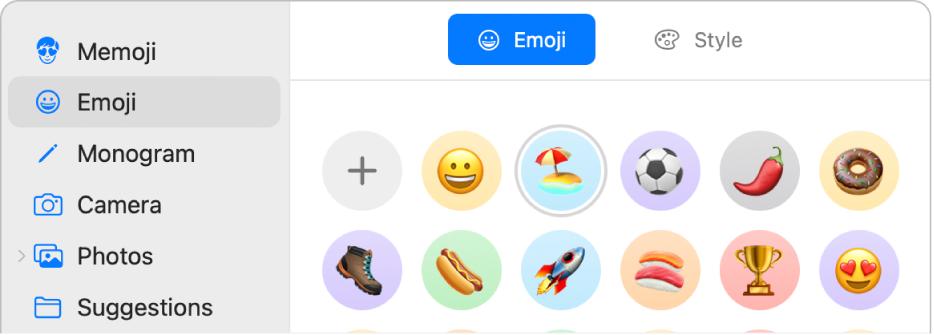
*Select an emoji: Click Emoji, then click the Add button  to select an image from the emoji library. Or select one of the displayed emoji and select a style.
The Apple ID picture dialog with emoji selected in the sidebar and various emoji shown on the right.
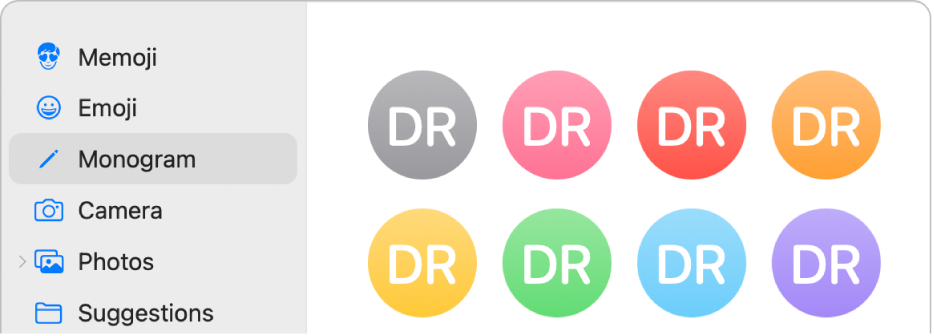
*Select a monogram: Click Monogram, select a background color, then enter initials.
The Apple ID picture dialog with Monogram selected in the sidebar and monogram backgrounds shown on the right.
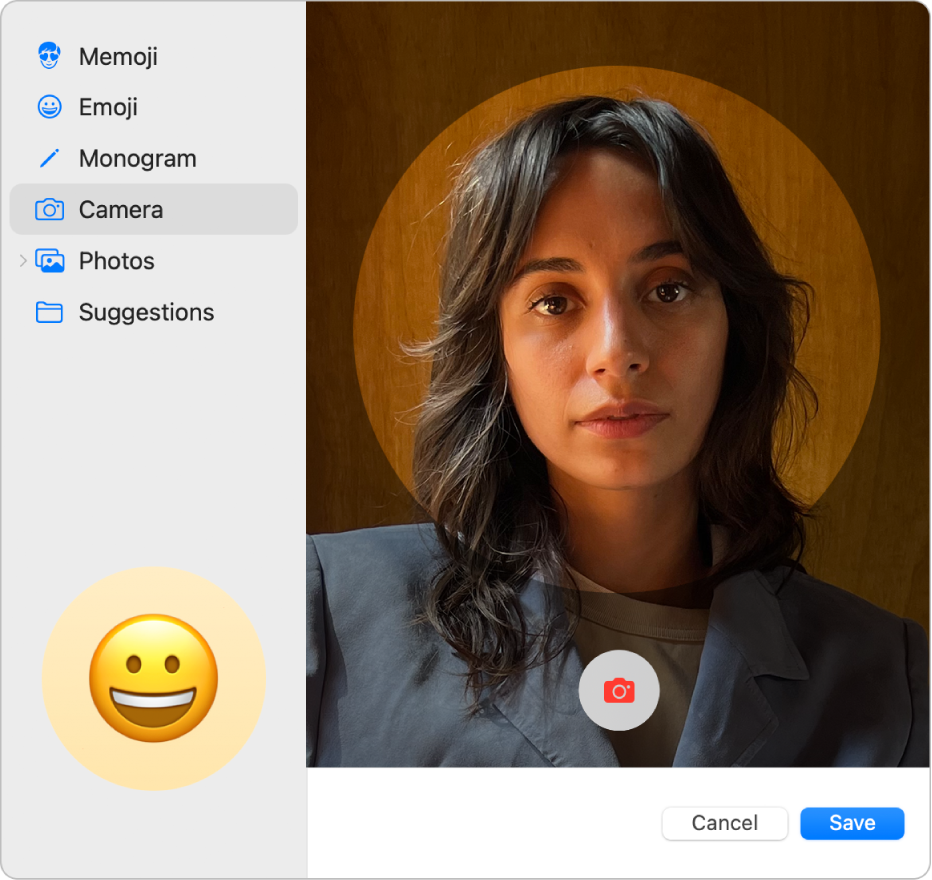
*Take a picture using your Mac camera: Click Camera. Set up your shot, then click the Camera button. You can retake the photo as many times as you need to. See Update your user picture using Photo Booth.
The Apple ID picture dialog with Camera selected in the sidebar and a person posed in the viewfinder on the right.
*Select a photo from your Photos library: Click Photos. To see photos from a specific album, click the arrow  next to Photos in the sidebar, click the album you want, then select a photo.
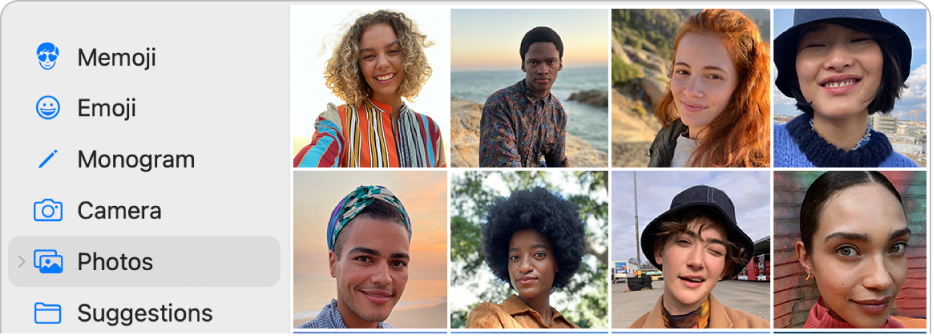
The Apple ID picture dialog with Photos selected in the sidebar and photos shown on the right.
Tip: To quickly replace the current Apple ID picture with an image on your Mac, just drag the image from the Finder onto the current picture.
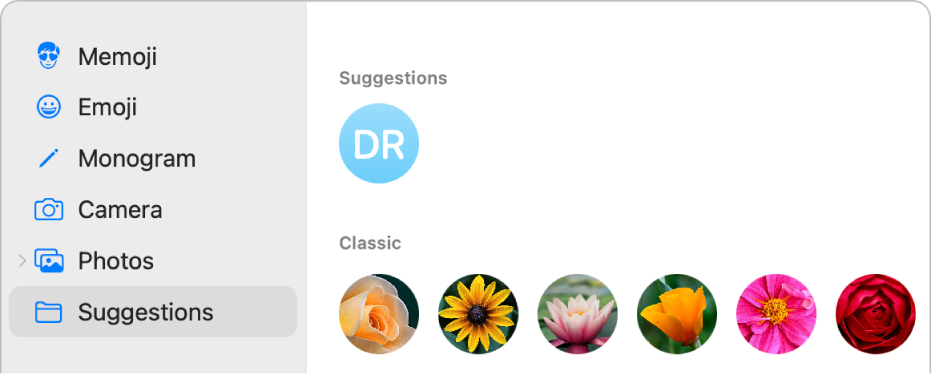
*Select a suggested image: Click Suggestions, then select a picture.
The Apple ID picture dialog with Suggestions selected in the sidebar and suggested pictures shown on the right.
3) After you select an image, you can adjust its look. Do any of the following:
*Adjust the image location: Drag the picture around within the circle.
*Zoom in or out: Drag the slider left or right.
4) Click Save.


If you’re still experiencing the same issue, try setting up a test user to see if you're still experiencing the same problem.


Set up users, guests, and groups on Mac


If the original problem persists after trying the previous steps, please provide us with specifics on what you see for more help, and we will continue from there. 


Thanks for using the Apple Support Communities.


Cheers!

Jan 16, 2023 3:44 AM in response to J_Johnnyboy

Hi Johnnyboy,


Thanks for your reply. Each time I change my avatar the other one "flickers" (when I open system settings in the second user account) a moment and changes into the changed avatar of the first user account. Sometimes I see the "original" avatar from the other user in the system settings but it changes after closing and opening the system settings. Seems to be random.


I tried your suggestion with test account and ... it doesn't change when I change an avatar of the other users!


What do I have to do to keep having the two avatars according to their own user? If the test user works fine, why don't the other two?

This thread has been closed by the system or the community team. You may vote for any posts you find helpful, or search the Community for additional answers.

two users with one avatar?

Welcome to Apple Support Community
A forum where Apple customers help each other with their products. Get started with your Apple Account.