My iPhone 14 froze up during software update.

What do I do with an iPhone 14 when it freezes up during iOS update. A hard restart still does not complete the update and is frozen with the words. "swipe up to upgrade," then it stops updating any ideas.


Posted on Jan 14, 2023 10:38 AM

Reply
Question marked as Top-ranking reply

Posted on Jan 16, 2023 2:34 PM

Hello Steve-S-2020,


We'd recommend the step below which can help resolve issues with updating: If you can't update or restore your iPhone or iPod touch


"You can put your iOS device in recovery mode, then restore it using your computer.


In these situations, you might need to use recovery mode to restore your device:

  • Your computer doesn't recognize your device or says it's in recovery mode.
  • If your screen is stuck on the Apple logo for several minutes with no progress bar.
  • You see the recovery mode screen.

Learn what to do if you see the progress bar on your screen for several minutes.

Put your device in recovery mode and set it up again

  1. Make sure that your Mac is up to date. If you're using iTunes, make sure you have the latest version of iTunes
  2. On a Mac with macOS Catalina or later, open Finder. On a Mac with macOS Mojave or earlier, or on a PC, open iTunes. If iTunes is already open, close it, then open it again. Find out which macOS your Mac is using.
  3. Keep your device connected and wait until the recovery mode screen appears:


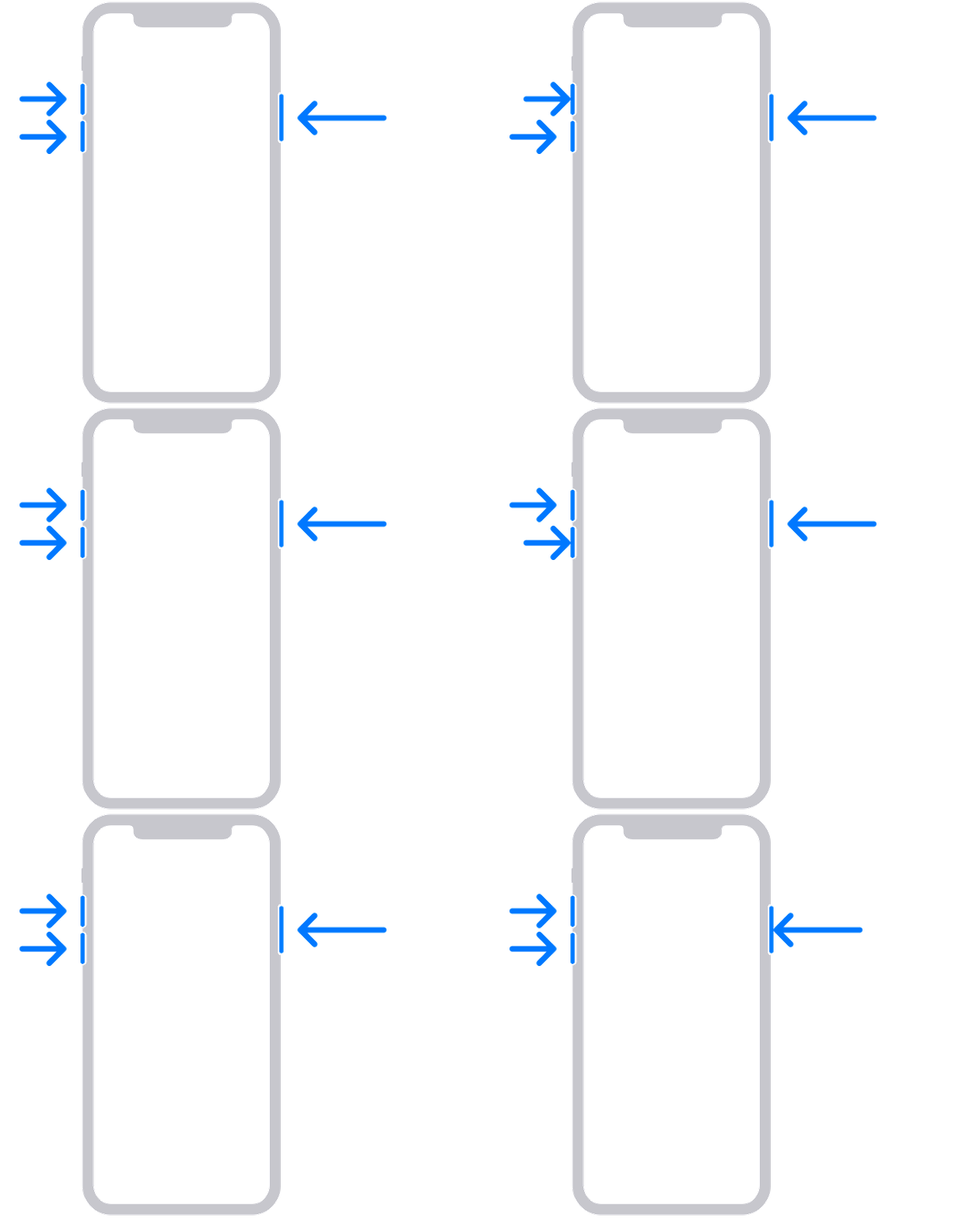
  • iPhone 8 or later, including iPhone SE (2nd generation): Press and quickly release the volume up button. Press and quickly release the volume down button. Then, press and hold the side button until you see the recovery mode screen.
  • Locate your device on your computer. When you see the option to Restore or Update, choose Update. Your computer will try to reinstall the software without erasing your data. Wait while your computer downloads the software for your device. If the download takes more than 15 minutes and your device exits the recovery mode screen, let the download finish, then repeat step 3.
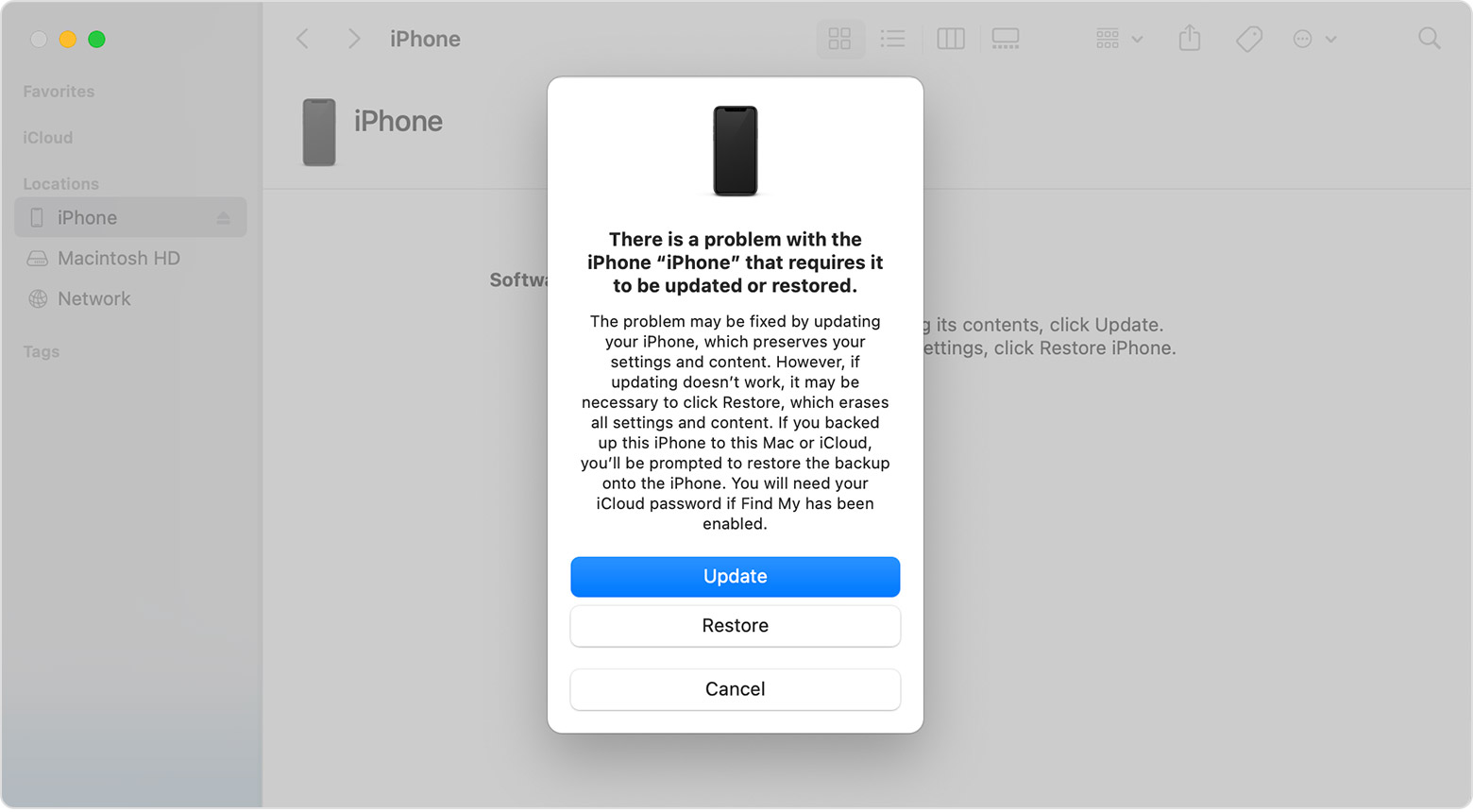
  1. A Finder window on a Mac showing options to restore or update your iPhone.
  2. After the Update or Restore completes, set up your device.

Get more help

  • If you see an error when you update or restore your iPhone or iPod, learn what to do.
  • If you can’t update or restore your device with recovery mode, you can't use recovery mode because of broken buttons, or your device is stuck in Activation Lock, contact Apple Support. "


Cheers.


1 reply
Question marked as Top-ranking reply

Jan 16, 2023 2:34 PM in response to Steve-S-2020

Hello Steve-S-2020,


We'd recommend the step below which can help resolve issues with updating: If you can't update or restore your iPhone or iPod touch


"You can put your iOS device in recovery mode, then restore it using your computer.


In these situations, you might need to use recovery mode to restore your device:

  • Your computer doesn't recognize your device or says it's in recovery mode.
  • If your screen is stuck on the Apple logo for several minutes with no progress bar.
  • You see the recovery mode screen.

Learn what to do if you see the progress bar on your screen for several minutes.

Put your device in recovery mode and set it up again

  1. Make sure that your Mac is up to date. If you're using iTunes, make sure you have the latest version of iTunes
  2. On a Mac with macOS Catalina or later, open Finder. On a Mac with macOS Mojave or earlier, or on a PC, open iTunes. If iTunes is already open, close it, then open it again. Find out which macOS your Mac is using.
  3. Keep your device connected and wait until the recovery mode screen appears:


  • iPhone 8 or later, including iPhone SE (2nd generation): Press and quickly release the volume up button. Press and quickly release the volume down button. Then, press and hold the side button until you see the recovery mode screen.
  • Locate your device on your computer. When you see the option to Restore or Update, choose Update. Your computer will try to reinstall the software without erasing your data. Wait while your computer downloads the software for your device. If the download takes more than 15 minutes and your device exits the recovery mode screen, let the download finish, then repeat step 3.
  1. A Finder window on a Mac showing options to restore or update your iPhone.
  2. After the Update or Restore completes, set up your device.

Get more help

  • If you see an error when you update or restore your iPhone or iPod, learn what to do.
  • If you can’t update or restore your device with recovery mode, you can't use recovery mode because of broken buttons, or your device is stuck in Activation Lock, contact Apple Support. "


Cheers.


This thread has been closed by the system or the community team. You may vote for any posts you find helpful, or search the Community for additional answers.

My iPhone 14 froze up during software update.

Welcome to Apple Support Community
A forum where Apple customers help each other with their products. Get started with your Apple Account.