
Question marks after update
Updated phone and have question marks In messages and pictures missing .
iPhone SE, iOS 13
Updated phone and have question marks In messages and pictures missing .
iPhone SE, iOS 13
Hello Amalgamguy,
Thank you for reaching out to Apple Support Communities, and we'll be happy to help in any way we can. We understand you're having issues with question marks in iMessage and missing pictures. Are the photos missing in iMessage or in the Photos app? If you have photos missing in the Photos app, follow these steps to get them back: If you're missing photos or videos in the Photos app - Apple Support
"Check your Recently Deleted album
If you accidentally deleted your photo or video, it goes to the Recently Deleted album. Go to Photos > Albums, and tap Recently Deleted in the Utilities section.
On your iPhone or iPad
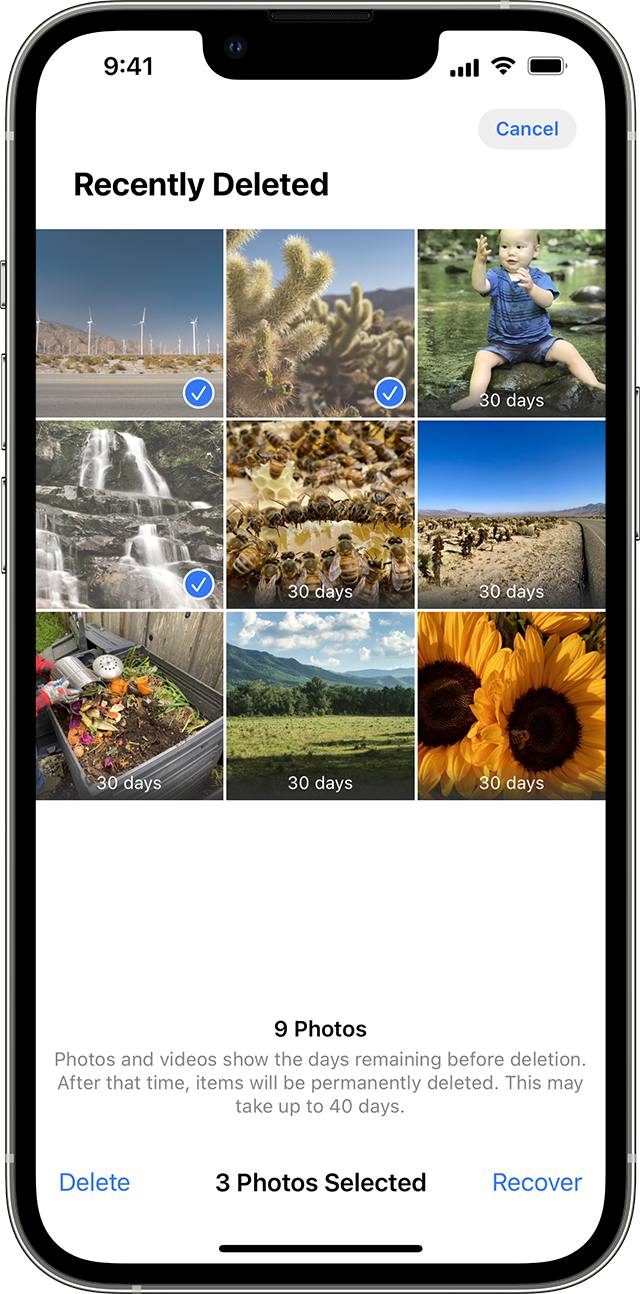
On your Mac
Anything in your Recently Deleted album stays there for 30 days. After 30 days, it's permanently deleted and you can't get it back.
Unhide your photos
If you hide photos and videos, you'll see them only in your Hidden album, so it might seem like they're missing. But you can unhide your photos and videos whenever you want. With iOS 14 and later, you can hide the Hidden album so it doesn't appear anywhere in the Photos app. So if you're missing photos or videos, make sure the Hidden album is turned on so you can see it.
If you use iCloud Photos, the photos that you hide on one device are hidden on your other devices too.
On your iPhone or iPad
 , then tap Unhide.
On your Mac
Make sure that iCloud Photos is turned on
iCloud Photos securely stores all of your photos and videos in iCloud, so that you can access them on all your devices. If you took a photo on your iPhone with iCloud Photos turned on but later turned the feature off, you might still be able to find a missing photo in iCloud Photos.
On your iPhone or iPad
On your Mac
After you turn on iCloud Photos, you might need to connect to Wi-Fi and wait a few minutes. Then look for your photos again.
Check your iCloud Shared Photo Library
In iOS 16.1, iPadOS 16.1, and later, you can start or join an iCloud Shared Photo Library with up to five contacts. After you join a Shared Library, your photos might appear there even if the same photo doesn't appear in your Personal Library.
To see your iCloud Shared Photo Library:
Sign in with the same Apple ID
For your photos and videos to stay up to date on all your devices, make sure that you sign in to iCloud with the same Apple ID on every device.
You can check which Apple ID your device is using in Settings. You'll see your name and email address. Your email address is your Apple ID.
Learn more
We hope this helps.
Cheers!
Question marks after update

