How to stop my icons from shaking when I pick up my iPhone?
How to stop my icons from shaking when I pick up my iPhone 14 pro max
[Re-Titled by Moderator]
Windows, Windows 10
How to stop my icons from shaking when I pick up my iPhone 14 pro max
[Re-Titled by Moderator]
Windows, Windows 10
When the icons shake, it is because when you have picked up your phone, you have come to hold a finger on one or more icons. When holding a finger on an icon, it will start to shake to indicate that you can move the icon around on the home screen, or delete the app.
To avoid that, it's a good idea to have a passcode on your iPhone. This will prevent accidental interaction before you hold the phone in front of your face.
You can read how to set up a passcode here:
Use a passcode with your iPhone, iPad, or iPod touch - Apple Support
When the icons shake, it is because when you have picked up your phone, you have come to hold a finger on one or more icons. When holding a finger on an icon, it will start to shake to indicate that you can move the icon around on the home screen, or delete the app.
To avoid that, it's a good idea to have a passcode on your iPhone. This will prevent accidental interaction before you hold the phone in front of your face.
You can read how to set up a passcode here:
Use a passcode with your iPhone, iPad, or iPod touch - Apple Support
Hello Deerfieldwestin,
This page can help to provide info on the apps jiggling: Move apps and widgets on the Home Screen on iPhone - Apple Support
You can change the layout of your Home Screen—move apps and widgets around or drag them to other Home Screen pages, temporarily hide Home Screen pages, change where new apps get downloaded, and more.
Move apps and widgets around on your iPhone
1. Touch and hold any app or widget on the Home Screen, then tap Edit Home Screen.
The apps begin to jiggle.
2. Drag an app to one of the following locations:
•Another location on the same page
•Another Home Screen page
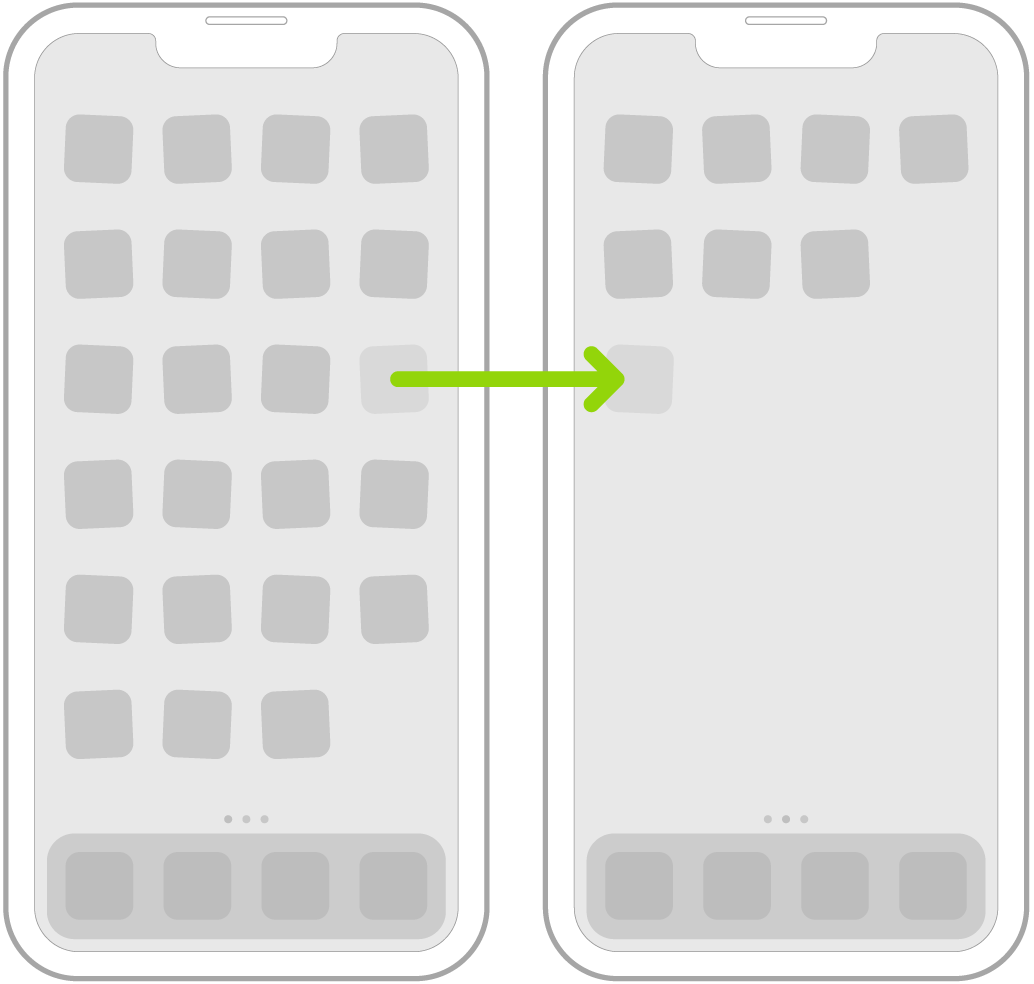
Drag the app or widget to the right edge of the screen. You might need to wait a second for the new page to appear. The dots above the Dock show how many pages you have and which one you’re viewing.
3. When you’re finished, press the Home button (on an iPhone with a Home button) or tap Done (on other iPhone models).
If the apps are jiggling this will generally be the result of an app (or blank area on the Home Screen) being touch and held down.
Cheers.
That shouldn't be possible either.
After all, when the phone is locked, the icons on the home screen cannot be moved.
Just so I understand correctly. You pick up your iPhone, unlock it with a code or FaceID, and when you're on the home screen your icons shake?
At the risk of using an old Steve Jobs solution - but are you holding your iPhone wrong? So do you hold your phone at the bottom so that you trigger the icons in the dock as soon as your iPhone is unlocked?
I already have a pass code and I know that when they shake it’s to move or delete them. I don’t understand why it does that when I pick up the phone. My iPhone 12 Pro Max was not that sensitive.
How to stop my icons from shaking when I pick up my iPhone?