how do I delete hide my email account
how do I delete hide my email account?
MacBook Pro
how do I delete hide my email account?
MacBook Pro
Hey Grannygrampa,
That's a great question! Here's how to manage addresses used with the Hide My Email feature, including how to delete them: Use Hide My Email on Mac - Apple Support
Manage addresses created with Hide My Email
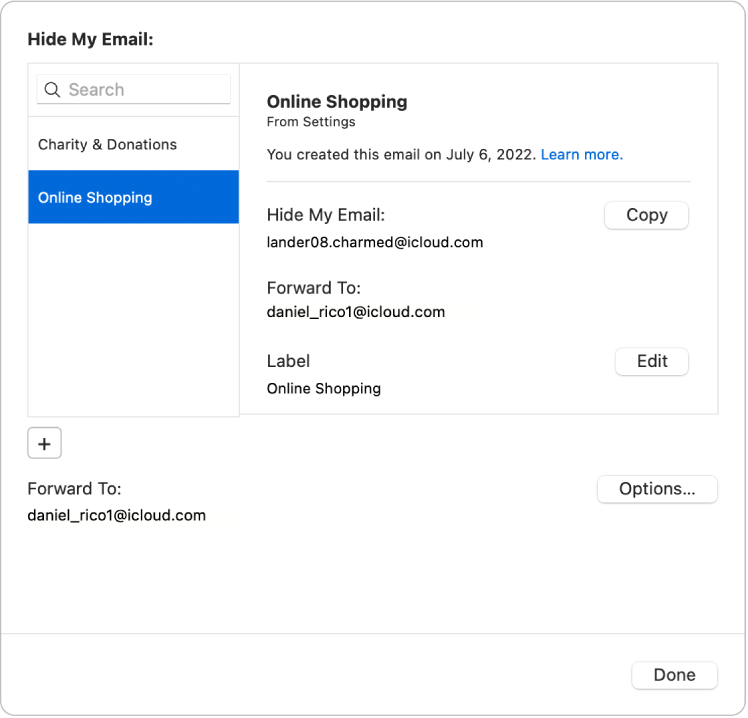
You can copy an address, change labels, create new addresses, deactivate or delete addresses, and select the personal email address you want email forwarded to.
1. On your Mac, choose Apple menu> System Settings, then click [your name] at the top of the sidebar. If you don’t see your name, click Sign in with your Apple ID to enter your Apple ID or to create one.
2. Click iCloud on the right, then click Hide My Email.
If requested, enter your Apple ID password and click Continue.
3. In the dialog that appears, do any of the following:
• Edit a label: Select an address on the left, click Edit on the right, make changes to the label, then click Done.
• Edit a note: Select an address on the left, scroll down to Note on the right, click Edit, make changes to the note, then click Done.
• Deactivate an address: Select an address on the left, scroll down to Deactivate Email Address on the right, click Deactivate Email Address, then click Deactivate.
• Reactivate an inactive address: Next to Inactive Addresses, click Options. Select an inactive address in the list on the left, click Reactivate Address, then click Reactivate.
• Delete an inactive address: Next to Inactive Addresses, click Options. Select an inactive address in the list on the left, click Delete Address, then click Delete.
• Choose a personal email address to forward to: If you have more than one personal email address, click Options beside Forward To, select the address that Hide My Email should forward mail to, then click Done.
4. Click Done.
Thanks for using Apple Support Communities.
Take care!
Hey Grannygrampa,
That's a great question! Here's how to manage addresses used with the Hide My Email feature, including how to delete them: Use Hide My Email on Mac - Apple Support
Manage addresses created with Hide My Email
You can copy an address, change labels, create new addresses, deactivate or delete addresses, and select the personal email address you want email forwarded to.
1. On your Mac, choose Apple menu
2. Click iCloud on the right, then click Hide My Email.
If requested, enter your Apple ID password and click Continue.
3. In the dialog that appears, do any of the following:
• Edit a label: Select an address on the left, click Edit on the right, make changes to the label, then click Done.
• Edit a note: Select an address on the left, scroll down to Note on the right, click Edit, make changes to the note, then click Done.
• Deactivate an address: Select an address on the left, scroll down to Deactivate Email Address on the right, click Deactivate Email Address, then click Deactivate.
• Reactivate an inactive address: Next to Inactive Addresses, click Options. Select an inactive address in the list on the left, click Reactivate Address, then click Reactivate.
• Delete an inactive address: Next to Inactive Addresses, click Options. Select an inactive address in the list on the left, click Delete Address, then click Delete.
• Choose a personal email address to forward to: If you have more than one personal email address, click Options beside Forward To, select the address that Hide My Email should forward mail to, then click Done.
4. Click Done.
Thanks for using Apple Support Communities.
Take care!
how do I delete hide my email account