Sleep tracking
What is the best sleep tracking app to used with your Apple Watch?
iPhone SE, iOS 16
What is the best sleep tracking app to used with your Apple Watch?
iPhone SE, iOS 16
Hello JLynn22-,
This page can assist with providing some helpful info regarding tracking your sleep on the Apple Watch: Track your sleep on Apple Watch and use Sleep on iPhone - Apple Support
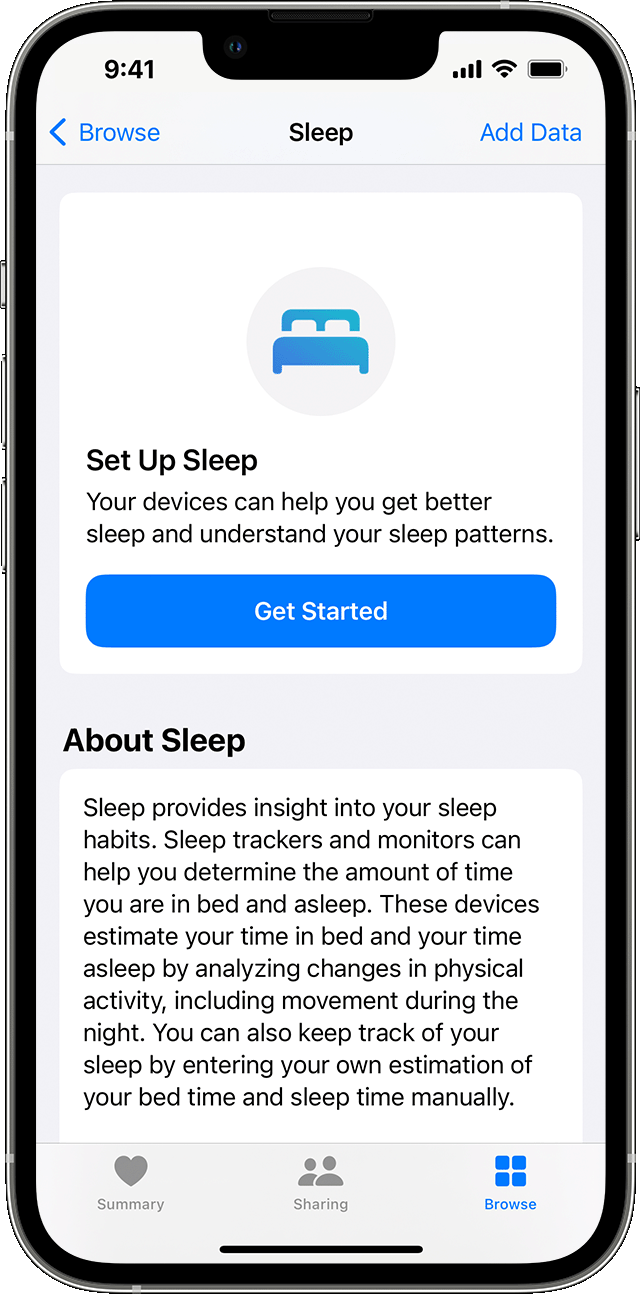
Set up Sleep
Getting enough sleep is important to your overall health. The Health app on iPhone can help you set a sleep goal, and track your progress over time in meeting that goal.
1. Open the Health app on your iPhone.
2. Tap Get Started under Set Up Sleep1, then tap Next.
3. Follow the onscreen prompts to establish:
•Sleep Goals: Set the number of hours you'd like to spend asleep.
•Bedtime and Wake Up times: Set when you'd like to go to bed and wake up.
•Sleep Focus: To reduce distractions, iPhone can simplify your Lock Screen and turn on Sleep Focus at your scheduled bedtime. You can also give certain people or apps permission to notify you. Learn how to customize a Focus.
•Track Sleep with Apple Watch: Wear your watch to bed to track your sleep. This option is available during setup if you've paired your Apple Watch with your iPhone beforehand. If you pair your Apple Watch after setup, you can still turn on Track Sleep with Apple Watch later.
The info here can help with viewing your sleep history:
Based on your iPhone usage at night, Sleep on iPhone tracks and charts your Time In Bed. To receive sleep data from Apple Watch, sleep tracking must be enabled for at least 4 hours each night.
To view your sleep history, open the Health app on your iPhone, tap Browse at bottom of the screen, then tap Sleep. If you have Sleep saved as a favorite, you can access it from the Summary page in the Health app.
The bar graph by default is set to D for daily. Tap W at the top of the chart to view your sleep history for the past week, M for the past month, or 6M for the past 6 months. Tap Show More Sleep Data and select a category to review additional sleep details.
•Stages: View the time and percentage you spent Awake or in REM, Core, or Deep sleep.
•Amounts: View your Sleep Duration details such as Average Time in Bed and Average Time Asleep.
•Comparisons: View your Heart Rate and Respiratory Rate in relation to your time spent asleep. If you have Apple Watch Series 8 or Apple Watch Ultra, you can also compare changes in your nightly wrist temperature data.
Cheers.
Sleep tracking