Beats fit pro
The full setting options for my beats fit pro will not display on my phone when I click on the more information icon in settings. I want to turn on the transparency mode for my headphones, what should I do?
iPhone 13 mini, iOS 16
The full setting options for my beats fit pro will not display on my phone when I click on the more information icon in settings. I want to turn on the transparency mode for my headphones, what should I do?
iPhone 13 mini, iOS 16
Hello kmsetzer,
Thanks for posting in the Apple Support Communities. We're happy to look into this with you. Looking over the article below, it appears there are 3 options for changing the listening modes for your headphones. Have you tried one of the other options outside of Settings?
Beats Studio Buds and Beats Fit Pro Active Noise Cancellation and Transparency mode - Apple Support
Switch between listening modes
You can switch between listening modes right from your Beats Studio Buds or Beats Fit Pro, or you can use your iOS or iPadOS device, your Apple Watch, or your Mac. When you switch between modes, you hear a chime.
When you use iOS, iPadOS, watchOS, or macOS to switch between listening modes, you’ll see Active Noise Cancellation available as Noise Cancellation.
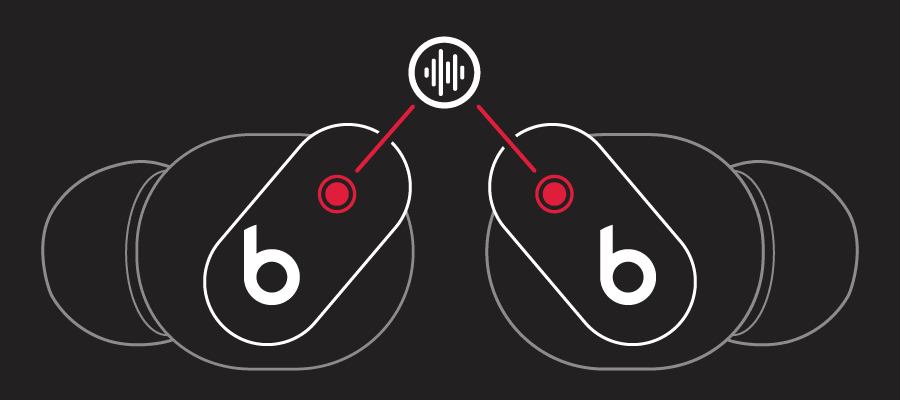
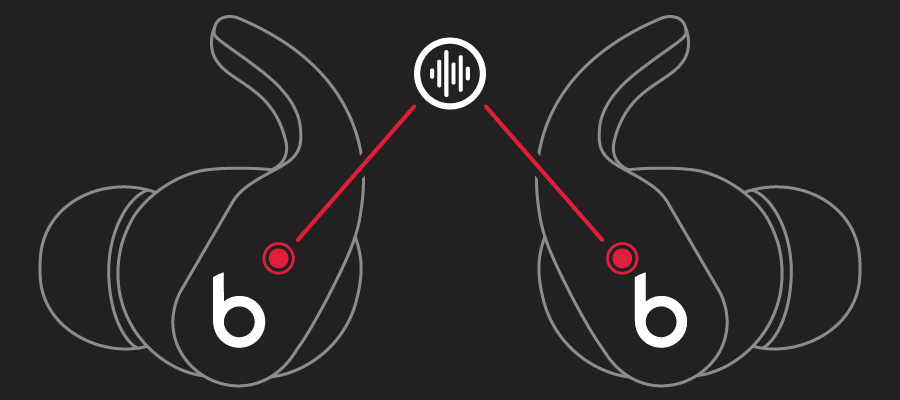
Press and hold the Beats logo button on either earbud until you hear a chime.
When you're wearing both Beats Studio Buds or Beats Fit Pro, press and hold the Beats logo button on either earbud to switch between Active Noise Cancellation and Transparency mode. You can customize which modes to switch between (Active Noise Cancellation, Transparency mode, and Off) in Settings.
Switch modes on your iOS or iPadOS device
1. Open Control Center on your iOS or iPadOS device.
2. While wearing your Beats Studio Buds or Beats Fit Pro, touch and hold the volume slider until you see the additional controls.
3. Tap the Noise Control buttonin the lower-left corner.
4. Tap Noise Cancellation, Transparency, or Off.
You can also switch between listening modes in Settings:
1. On your iOS or iPadOS device, go to Settings > Bluetooth.
2. Tap the More Info buttonnext to your Beats Studio Buds or Beats Fit Pro in the list of devices.
3. Under Noise Control, tap Noise Cancellation, Transparency, or Off.
To help figure out why your options aren't appearing in Settings, we'd like to ask a couple of questions to help narrow down the best solution.
If there are actions listed above that you haven't tried, go ahead and give them a go. They are the most likely options to correct this issue. Let us know if they help.
Best regards.
Hello kmsetzer,
Thanks for posting in the Apple Support Communities. We're happy to look into this with you. Looking over the article below, it appears there are 3 options for changing the listening modes for your headphones. Have you tried one of the other options outside of Settings?
Beats Studio Buds and Beats Fit Pro Active Noise Cancellation and Transparency mode - Apple Support
Switch between listening modes
You can switch between listening modes right from your Beats Studio Buds or Beats Fit Pro, or you can use your iOS or iPadOS device, your Apple Watch, or your Mac. When you switch between modes, you hear a chime.
When you use iOS, iPadOS, watchOS, or macOS to switch between listening modes, you’ll see Active Noise Cancellation available as Noise Cancellation.
Press and hold the Beats logo button on either earbud until you hear a chime.
When you're wearing both Beats Studio Buds or Beats Fit Pro, press and hold the Beats logo button on either earbud to switch between Active Noise Cancellation and Transparency mode. You can customize which modes to switch between (Active Noise Cancellation, Transparency mode, and Off) in Settings.
Switch modes on your iOS or iPadOS device
1. Open Control Center on your iOS or iPadOS device.
2. While wearing your Beats Studio Buds or Beats Fit Pro, touch and hold the volume slider until you see the additional controls.
3. Tap the Noise Control button
4. Tap Noise Cancellation, Transparency, or Off.
You can also switch between listening modes in Settings:
1. On your iOS or iPadOS device, go to Settings > Bluetooth.
2. Tap the More Info button
3. Under Noise Control, tap Noise Cancellation, Transparency, or Off.
To help figure out why your options aren't appearing in Settings, we'd like to ask a couple of questions to help narrow down the best solution.
If there are actions listed above that you haven't tried, go ahead and give them a go. They are the most likely options to correct this issue. Let us know if they help.
Best regards.
Beats fit pro