
Transfer and Reset IPad.
I accidentally pressed transfer and reset ipad,how can I stop?
iPad mini 6, iPadOS 16
I accidentally pressed transfer and reset ipad,how can I stop?
iPad mini 6, iPadOS 16
Fear not…
Nothing is deleted or moved during the “transfer” process - but instead, depending upon the transfer option selected, your data/settings/files are either:
a) copied to a backup - this backup being subsequently used to restore everything to another/new device
b) copied directly from the old to the new device, via WiFi, during initial setup.
In essence, no data is deleted or removed from the donor device until you intentionally elect to do so. If data is “transferred” or restored to the target device, any existing files and data present on the target device will be replaced with the data from the donor.
If you have triggered the transfer process, a temporary backup will be created - as illustrated in your screenshot. This temporary backup doesn’t use your own iCloud storage quota - but is additional storage provided by Apple to facilitate setup of a newly purchased device. This temporary backup will be automatically deleted upon expiry.
Unintentional triggering of the transfer process is benign. Unless the another device is in its initial set-up mode, when the temporary backup will be detected, nothing untoward will happen. Again, to be absolutely clear, nothing will be moved or removed from the device that has initiated a “transfer”.
Should you need to do so, simply restarting your iPad (shut-down and restart) will restore normal operation.
To shut-down your iPad, from iPad settings:
Settings > General > Shut Down
If necessary, perform a forced-restart:
Force restart iPad (models with Face ID or with Touch ID in the top button)
If your iPad doesn’t have the Home button, do the following:
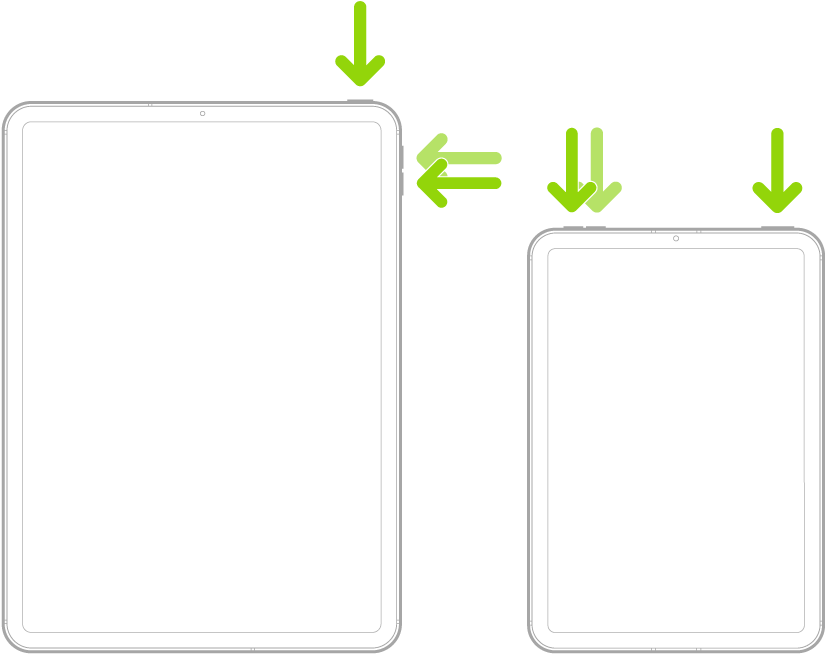
Force restart iPad (models with the Home button)
Press and hold the top button and the Home button at the same time. When the Apple logo appears, release both buttons.
Fear not…
Nothing is deleted or moved during the “transfer” process - but instead, depending upon the transfer option selected, your data/settings/files are either:
a) copied to a backup - this backup being subsequently used to restore everything to another/new device
b) copied directly from the old to the new device, via WiFi, during initial setup.
In essence, no data is deleted or removed from the donor device until you intentionally elect to do so. If data is “transferred” or restored to the target device, any existing files and data present on the target device will be replaced with the data from the donor.
If you have triggered the transfer process, a temporary backup will be created - as illustrated in your screenshot. This temporary backup doesn’t use your own iCloud storage quota - but is additional storage provided by Apple to facilitate setup of a newly purchased device. This temporary backup will be automatically deleted upon expiry.
Unintentional triggering of the transfer process is benign. Unless the another device is in its initial set-up mode, when the temporary backup will be detected, nothing untoward will happen. Again, to be absolutely clear, nothing will be moved or removed from the device that has initiated a “transfer”.
Should you need to do so, simply restarting your iPad (shut-down and restart) will restore normal operation.
To shut-down your iPad, from iPad settings:
Settings > General > Shut Down
If necessary, perform a forced-restart:
Force restart iPad (models with Face ID or with Touch ID in the top button)
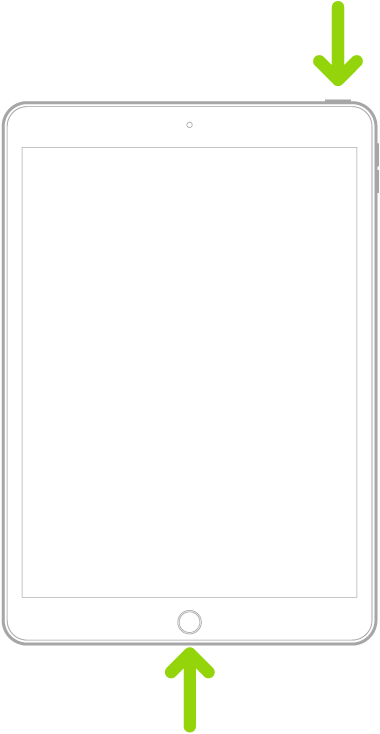
If your iPad doesn’t have the Home button, do the following:
Force restart iPad (models with the Home button)
Press and hold the top button and the Home button at the same time. When the Apple logo appears, release both buttons.
you can try Force restart iPad - Apple Support (IE)
but it might be too late and all your data would be gone unless you have a backup
Transfer and Reset IPad.

