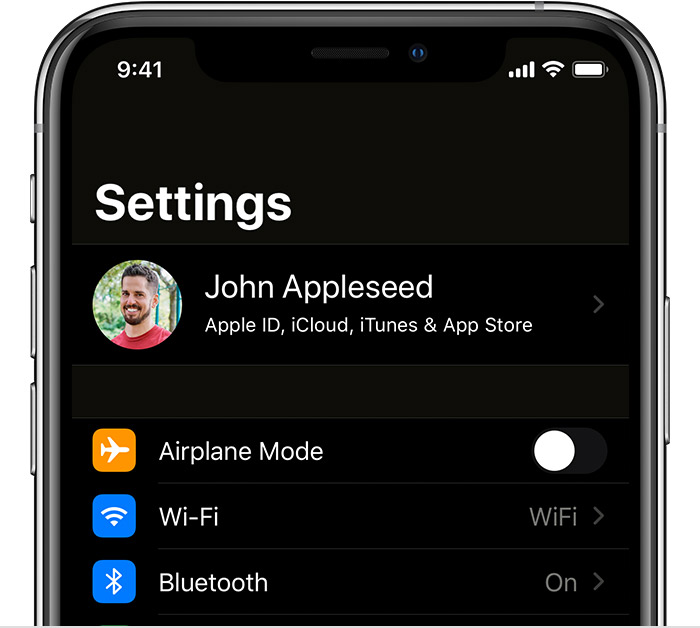
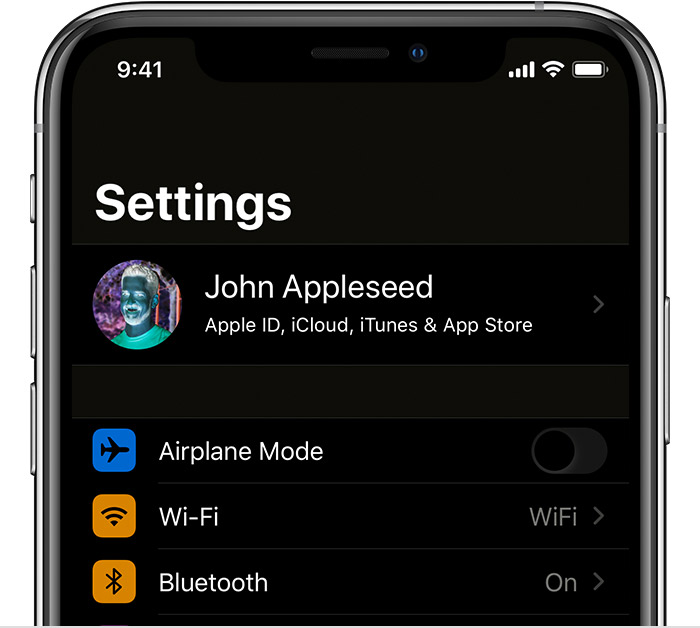
iso 16.3 is posterizing background images

I’ve been using iso 16.2 on my iPhone 13. Suddenly today, the background image posterized. I tried updating to 16.3, but the issue is continuing. I tried selecting a new image from my photos but it also posterized. I tried a plain, purple background, but it posterizes to a bright green. Does anyone have any suggestions? I’ve also rebooted from both ISO’s.

iPhone 13

Posted on Feb 1, 2023 7:38 PM

Reply
Question marked as Top-ranking reply

Posted on Feb 4, 2023 1:14 PM

Hey Rocklady,


If you haven't already, check to make sure there are no Accessibility settings turned on that could cause this to happen. To do that, tap Settings > Accessibility > Display & Text Size. Do you see Smart Invert or Classic Invert turned on here? Just in case, here's more information and those steps: Use display and text size preferences on your iPhone, iPad, and iPod touch - Apple Support


Turn on Invert Colors

If you benefit from viewing items against a dark background, you can use Invert Colors to change how content is displayed on your screen. 

To use Invert Colors, open the Settings app, then tap Accessibility > Display & Text Size. Turn on Smart Invert or Classic Invert.

Smart Invert

Smart Invert reverses the colors on the display, except for images, media, and some apps that use dark color styles.

Classic Invert
Classic Invert reverses all colors on the display.


If those are not turned on, continue through those settings to see if anything else is turned on, such as the Color Filters. Keep us posted on what you find.


Take care!

3 replies
Question marked as Top-ranking reply

Feb 4, 2023 1:14 PM in response to Rocklady

Hey Rocklady,


If you haven't already, check to make sure there are no Accessibility settings turned on that could cause this to happen. To do that, tap Settings > Accessibility > Display & Text Size. Do you see Smart Invert or Classic Invert turned on here? Just in case, here's more information and those steps: Use display and text size preferences on your iPhone, iPad, and iPod touch - Apple Support


Turn on Invert Colors

If you benefit from viewing items against a dark background, you can use Invert Colors to change how content is displayed on your screen. 

To use Invert Colors, open the Settings app, then tap Accessibility > Display & Text Size. Turn on Smart Invert or Classic Invert.

Smart Invert

Smart Invert reverses the colors on the display, except for images, media, and some apps that use dark color styles.

Classic Invert
Classic Invert reverses all colors on the display.


If those are not turned on, continue through those settings to see if anything else is turned on, such as the Color Filters. Keep us posted on what you find.


Take care!

Feb 4, 2023 3:03 PM in response to Rocklady

We appreciate the update and welcome back Rocklady,


Just to confirm, it sounds like you were able to get this resolved already, is that correct? We want to be sure everything is working flawlessly for you.


If so, please don't hesitate to reach out on Apple Support Communities with any questions or concerns in the future.


Have a great day!

This thread has been closed by the system or the community team. You may vote for any posts you find helpful, or search the Community for additional answers.

iso 16.3 is posterizing background images

Welcome to Apple Support Community
A forum where Apple customers help each other with their products. Get started with your Apple Account.