cannot import certain video files, and it's not an HEVC issue

I shot a lot videos on a recent trip, however there are several that will not import to iphoto on my macbook. I have done the steps above for HVEC settings etc, but they still won't come in.

When I do that, it only takes away the thumbnail image. Here is a screenshot of the incomplete error message i get when I try to import. These clips play fine on my phone.

iPhone 13 Pro, iOS 16

Posted on Feb 2, 2023 4:00 AM

Reply
Question marked as Top-ranking reply

Posted on Feb 5, 2023 3:15 AM

Can you tell us, which system version is running on your Mac?

And where is your Photos Library stored? Is it on an external volume or in your Pictures folder in your user home folder?

I am asking, because the error message is very typical for keeping the Photos Library on an external drive with an unsupported file system format. After the upgrade to macOS 13 Ventura you may no longer be able to import videos into your Photos Library, if you are keeping the Photos Library on a drive with filesystem format that is not MacOS Extended (Journaled) or APFS. Move your Photos library to save space on your Mac - Apple Support


Your screenshot is showing a video with the filename extension "MOV". When importing from an iPhone the MOV video are typically using the HEVC codec, which can only be imported on MacOS 10.13 High Sierra or later. How did you change the Settings on your iPhone?


Similar questions

3 replies
Question marked as Top-ranking reply

Feb 5, 2023 3:15 AM in response to spleejockey

Can you tell us, which system version is running on your Mac?

And where is your Photos Library stored? Is it on an external volume or in your Pictures folder in your user home folder?

I am asking, because the error message is very typical for keeping the Photos Library on an external drive with an unsupported file system format. After the upgrade to macOS 13 Ventura you may no longer be able to import videos into your Photos Library, if you are keeping the Photos Library on a drive with filesystem format that is not MacOS Extended (Journaled) or APFS. Move your Photos library to save space on your Mac - Apple Support


Your screenshot is showing a video with the filename extension "MOV". When importing from an iPhone the MOV video are typically using the HEVC codec, which can only be imported on MacOS 10.13 High Sierra or later. How did you change the Settings on your iPhone?


Feb 4, 2023 2:39 PM in response to spleejockey

Hello spleejockey,


Let's isolate this unexpected behavior by force quitting Photos and restarting your Mac then attempt to import your photos.


"To quit a Mac app normally, choose Quit from the app's menu in the menu bar, or press Command-Q. If the app doesn't quit, follow these steps to force the app to quit.


Force an app to quit

Press these three keys together: Option (or Alt), Command, Esc (Escape).1 Or choose Force Quit from the Apple menu  in the corner of your screen.

How to force quit on Mac: Press Option-Command-Esc

A Force Quit window opens. Select the app that you want to quit, then click Force Quit:
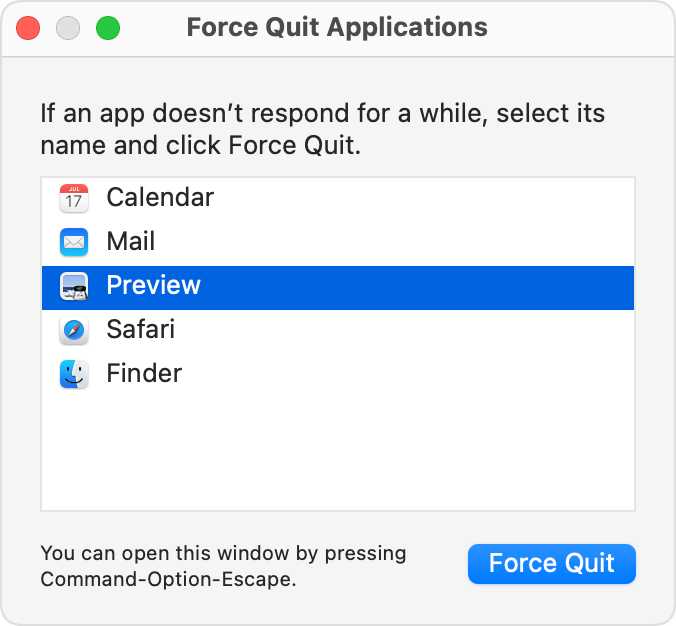
Force Quit Applications window

The Finder is always open, but if it stops responding, you can force it to quit and then open again: Select Finder in the Force Quit window, then click Relaunch. 

Learn how to close an app on your iPhone or close an app on your iPad.


If you can't force the app to quit

If you can't force the app to quit, try restarting your Mac: Choose Apple menu  > Restart.

If your Mac won't restart, force your Mac to turn off:

  1. Press and hold the power button on your Mac for up to 10 seconds, until your Mac turns off.2
  2. Turn your Mac back on."


How to force an app to quit on your Mac - Apple Support


If the problem persists, starting up in safe is also a great way to narrow things a bit more:


"To start up your Mac in safe mode, you need to know what type of Mac you have.

  1. On your Mac, choose Apple menu  > About This Mac.
  2. Look at the information in the window to determine what type of Mac you have:
    • If you see an item labeled Chip, followed by the name of the chip, you have a Mac with Apple silicon.
    • If you see an item labeled Processor, followed by the name of an Intel processor, you have an Intel-based Mac.
  1. Use the corresponding set of instructions below to start up your Mac in safe mode.

Start up your Mac with Apple silicon in safe mode

  1. On your Mac, choose Apple menu  > Shut Down.
  2. Wait for your Mac to shut down completely. A Mac is completely shut down when the screen is black and any lights (including in the Touch Bar) are off.
  3. Press and hold the power button on your Mac until “Loading startup options” appears.
  4. Select a volume.
  5. Press and hold the Shift key, then click Continue in Safe Mode.
  6. The computer restarts automatically. When the login window appears, you should see “Safe Boot” in the menu bar.

Start up your Intel-based Mac in safe mode

  1. Turn on or restart your Mac, then immediately press and hold the Shift key until you see the login window.
  2. Log in to your Mac.
  3. You might be asked to log in again.
  4. On either the first or second login window, you should see “Safe Boot” in the menu bar.

Verify your Mac started up in safe mode

If you’re unsure whether your Mac started up in safe mode, you can use the System Information app to check the mode.

  1. On your Mac, press and hold the Option key, then choose Apple menu  > System Information.
  2. In the System Information app, select Software in the sidebar.
  3. In the System Software Overview, look at the value listed next to the item labeled Boot Mode.
    • Safe: The Mac is using safe mode.
    • Normal: The Mac is not using safe mode.

"

Start up your Mac in safe mode - Apple Support


Cheers.


Feb 5, 2023 7:19 AM in response to léonie

I'm running Mojave 10.14.6, and I am storing my pics on my internal drive (and cloud). I shot hundreds of videos, and about 30 have this issue. They are random, in other words if I shot 10 videos of something, all would import except one, or two. Again, they play fine on phone and I have found that if I duplicate them, or email them and download from there, that sometimes works - but not always. Problem is, using email on my phone, the email program usually fails to "attach" them, and, when duplicating, it usually says "an error occured while duplicating. Please try again later."

This thread has been closed by the system or the community team. You may vote for any posts you find helpful, or search the Community for additional answers.

cannot import certain video files, and it's not an HEVC issue

Welcome to Apple Support Community
A forum where Apple customers help each other with their products. Get started with your Apple Account.