how can set up wifi printer at may mcbook pro

how can set up wifi printer at may mcbook pro

MacBook Pro 13″, macOS 12.3

Posted on Feb 14, 2023 11:11 AM

Reply
Question marked as Top-ranking reply

Posted on Feb 15, 2023 2:32 PM

Hi SmartBryan,


We'll be glad to help out. You can add a primer to your Mac by following the steps outlined in Add a printer to your printer list so you can use it on Mac - Apple Support


"Add a Wi-Fi or network printer

If your Mac and printer are already connected to the same Wi-Fi network, the printer might be available to you without any setup. To check, choose File > Print, click the Printer pop-up menu, choose Nearby Printers or Printers & Scanners settings, then choose your printer. If you don’t see your printer, you can add it.

  1. On your Mac, update your printer software: Check with your printer’s manufacturer to see if any updates are available for your printer model.
  2. If you have an AirPrint printer, you don’t need to check for software updates.
  3. Prepare your printer: Use the instructions that came with your printer to unpack the printer, install ink or toner, and add paper. Turn on the printer and make sure it’s not displaying any errors.
  4. Connect your printer: Follow the instructions that came with the printer to connect it to the network. 
  5. If you have a Wi-Fi printer, you might need to connect the printer to your Mac with a USB cable to set up Wi-Fi printing. After connecting the printer to your Mac, install the Mac software that came with the printer and use the printer’s setup assistant to connect the printer to your Wi-Fi network. After setting up, you can disconnect the cable from your printer and Mac, and the printer should remain connected to the Wi-Fi network. See the Apple Support article Connect an AirPrint printer to a Wi-Fi network.
  6. Add the printer to your list of available printers: Choose Apple menu  > System Settings, then click Printers & Scanners  in the sidebar. (You may need to scroll down.)
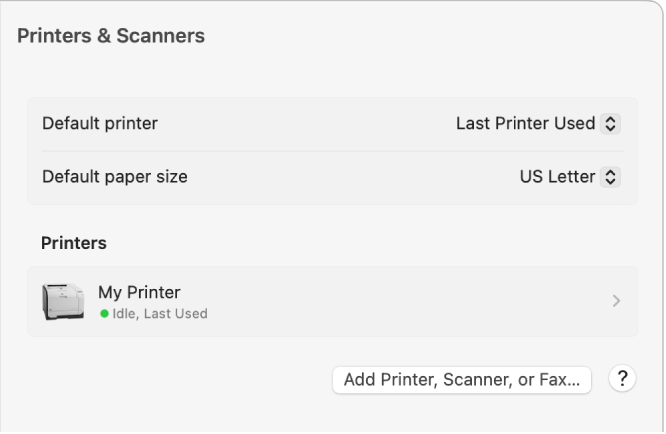
  7. The Printers & Scanners dialog showing options for setting up a printer and a printers list with an Add Printer, Scanner, or Fax button.
  8. If you don’t see your printer listed on the left, click the Add Printer, Scanner, or Fax button on the right.
  9. A dialog appears listing printers on your local network. 
  10. When your printer appears in the list, select your printer, then click Add.
  11. It may take a minute or two for your printer to appear. If you see a message prompting you to download new software, make sure to download and install it.

When you add a printer, macOS can usually detect whether the printer has special accessories installed, such as additional paper trays, extra memory, or a duplex unit. If it can’t, a dialog appears that lets you specify them. Make sure the settings in that dialog accurately reflect your printer’s installed accessories so you can take full advantage of them.

"


For any specific setup requirements, you'll need to reach out to your printer manufacturer for further assistance.


We hope that helps.


Cheers.

1 reply
Question marked as Top-ranking reply

Feb 15, 2023 2:32 PM in response to SmartBryan

Hi SmartBryan,


We'll be glad to help out. You can add a primer to your Mac by following the steps outlined in Add a printer to your printer list so you can use it on Mac - Apple Support


"Add a Wi-Fi or network printer

If your Mac and printer are already connected to the same Wi-Fi network, the printer might be available to you without any setup. To check, choose File > Print, click the Printer pop-up menu, choose Nearby Printers or Printers & Scanners settings, then choose your printer. If you don’t see your printer, you can add it.

  1. On your Mac, update your printer software: Check with your printer’s manufacturer to see if any updates are available for your printer model.
  2. If you have an AirPrint printer, you don’t need to check for software updates.
  3. Prepare your printer: Use the instructions that came with your printer to unpack the printer, install ink or toner, and add paper. Turn on the printer and make sure it’s not displaying any errors.
  4. Connect your printer: Follow the instructions that came with the printer to connect it to the network. 
  5. If you have a Wi-Fi printer, you might need to connect the printer to your Mac with a USB cable to set up Wi-Fi printing. After connecting the printer to your Mac, install the Mac software that came with the printer and use the printer’s setup assistant to connect the printer to your Wi-Fi network. After setting up, you can disconnect the cable from your printer and Mac, and the printer should remain connected to the Wi-Fi network. See the Apple Support article Connect an AirPrint printer to a Wi-Fi network.
  6. Add the printer to your list of available printers: Choose Apple menu  > System Settings, then click Printers & Scanners  in the sidebar. (You may need to scroll down.)
  7. The Printers & Scanners dialog showing options for setting up a printer and a printers list with an Add Printer, Scanner, or Fax button.
  8. If you don’t see your printer listed on the left, click the Add Printer, Scanner, or Fax button on the right.
  9. A dialog appears listing printers on your local network. 
  10. When your printer appears in the list, select your printer, then click Add.
  11. It may take a minute or two for your printer to appear. If you see a message prompting you to download new software, make sure to download and install it.

When you add a printer, macOS can usually detect whether the printer has special accessories installed, such as additional paper trays, extra memory, or a duplex unit. If it can’t, a dialog appears that lets you specify them. Make sure the settings in that dialog accurately reflect your printer’s installed accessories so you can take full advantage of them.

"


For any specific setup requirements, you'll need to reach out to your printer manufacturer for further assistance.


We hope that helps.


Cheers.

This thread has been closed by the system or the community team. You may vote for any posts you find helpful, or search the Community for additional answers.

how can set up wifi printer at may mcbook pro

Welcome to Apple Support Community
A forum where Apple customers help each other with their products. Get started with your Apple Account.