Why "Manage Backups" button in Finder is not working for a connected iPad?

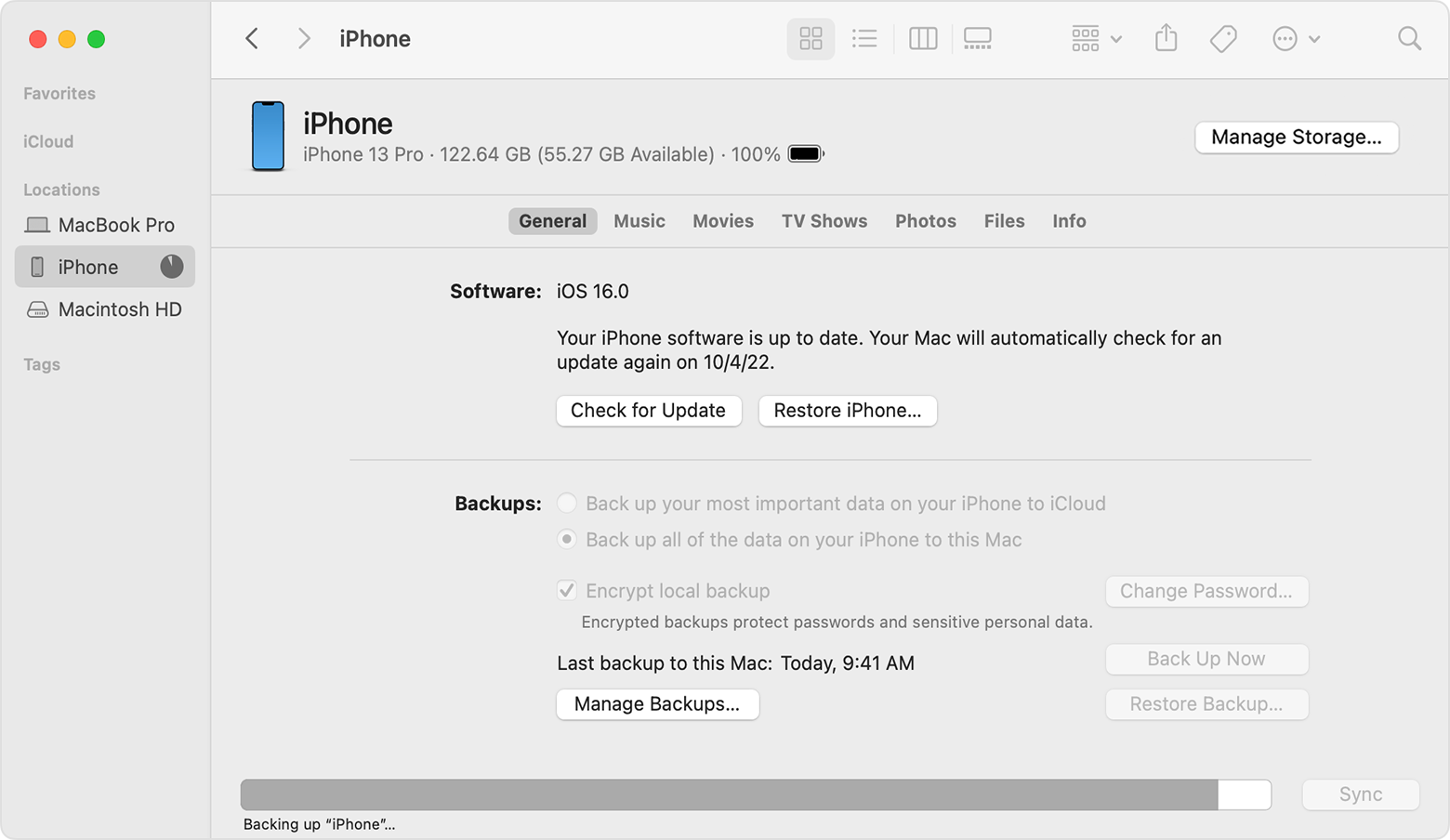
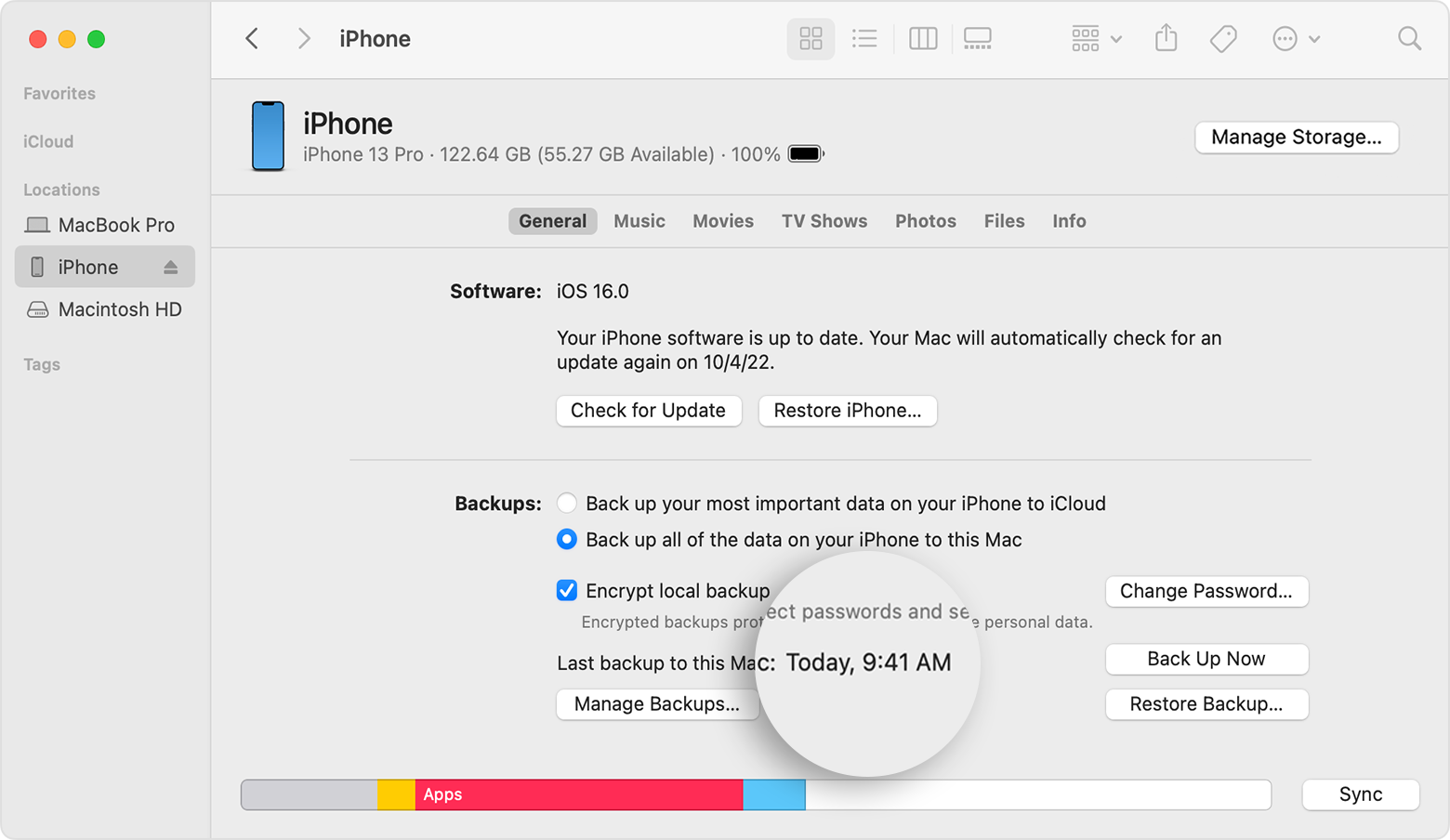
Nothing happens when I click the button. It should spawn a popup window, as shown below in a screenshot from an Apple Support article. Did this button recently die, or become a bug, in a recent macOS update? I'm running Big Sur 11.7.


Thanks!


iMac 27″, macOS 11.7

Posted on Feb 16, 2023 3:32 PM

Reply
Question marked as Top-ranking reply

Posted on Feb 19, 2023 6:16 PM

Hi bentStaple,


Thanks for clarifying that for us.


To help isolate this behavior further, we'd like to determine if the issue also happens in safe mode. This link explains how to use safe mode: How to use safe mode on your Mac


"Safe mode prevents your Mac from loading certain software as it starts up, including login items, system extensions not required by macOS, and fonts not installed by macOS. It also does a basic check of your startup disk, similar to using First Aid in Disk Utility. And it deletes some system caches, including font caches and the kernel cache, which are automatically created again as needed.


Safe mode is particularly useful when you're trying to resolve an issue that doesn't seem to be associated with using any particular app. As always, keeping your software up to date is the first step toward resolving any software issue."


How to use safe mode

Determine whether you're using a Mac with Apple silicon, then follow the appropriate steps:

Apple silicon

1. Shut down your Mac.
2. Turn on your Mac and continue to press and hold the power button until you see the startup options window.
3. Select your startup disk, then press and hold the Shift key while clicking “Continue in Safe Mode.”
4. Log in to your Mac. You might be asked to log in again.

Intel processor

1. Turn on or restart your Mac, then immediately press and hold the Shift key as your Mac starts up.
2. Release the key when you see the login window, then log in to your Mac. 
3. You might be asked to log in again. On either the first or second login window, you should see ”Safe Boot” in the upper-right corner of the window.


Thanks!

9 replies
Question marked as Top-ranking reply

Feb 19, 2023 6:16 PM in response to bentStaple

Hi bentStaple,


Thanks for clarifying that for us.


To help isolate this behavior further, we'd like to determine if the issue also happens in safe mode. This link explains how to use safe mode: How to use safe mode on your Mac


"Safe mode prevents your Mac from loading certain software as it starts up, including login items, system extensions not required by macOS, and fonts not installed by macOS. It also does a basic check of your startup disk, similar to using First Aid in Disk Utility. And it deletes some system caches, including font caches and the kernel cache, which are automatically created again as needed.


Safe mode is particularly useful when you're trying to resolve an issue that doesn't seem to be associated with using any particular app. As always, keeping your software up to date is the first step toward resolving any software issue."


How to use safe mode

Determine whether you're using a Mac with Apple silicon, then follow the appropriate steps:

Apple silicon

1. Shut down your Mac.
2. Turn on your Mac and continue to press and hold the power button until you see the startup options window.
3. Select your startup disk, then press and hold the Shift key while clicking “Continue in Safe Mode.”
4. Log in to your Mac. You might be asked to log in again.

Intel processor

1. Turn on or restart your Mac, then immediately press and hold the Shift key as your Mac starts up.
2. Release the key when you see the login window, then log in to your Mac. 
3. You might be asked to log in again. On either the first or second login window, you should see ”Safe Boot” in the upper-right corner of the window.


Thanks!

Feb 20, 2023 6:58 PM in response to bentStaple

bentStaple,


Thank you for reaching out to Apple Support Communities.


It is expected for your device to run a little bit slower while in safe mode.


It seems you are running an older macOS version as well. Let's back up your Mac and update:


"Use Software Update

Before following these steps, it's a good idea to back up your Mac.

  1. From the Apple menu  in the corner of your screen, choose System Settings or System Preferences.
    • If you chose System Settings, click General on the left side of the window. Then click Software Update on the right.
    • If you chose System Preferences, click Software Update in the window.

2.Software Update then checks for new software. 

    • If Software Update finds new software, click the button to install it. The button might be named Update Now, Upgrade Now, Install Now, or Restart Now, for example. You might then be asked to enter your administrator password.
    • If Software Update says that your Mac is up to date, then no new software is currently available for your Mac model. Software Update shows only software that is compatible with your Mac."


More details can be found here: Update macOS on Mac


Once you update, test to see if the issue persists.


Cheers!


Mar 12, 2023 8:26 PM in response to Eric--F

I reached out to Apple and they didn't have an answer. The promised to get back with me, after they checked with some higher-ups, but that was days ago.


I did try going in under the "Guest account", and with the iPad connected the button actually produced a popup window when I clicked on it.


So this feature does indeed work on my iMac, just not with my user login. How to fix that?


Thank you.


Feb 18, 2023 2:39 PM in response to bentStaple

Hi bentStaple,


To clarify do you manually backup your iPad to your Mac? That button may be greyed out if there are no backups on the Mac to manage. See more info here:


"Back up with the Finder

  1. On a Mac with macOS Catalina or later, open a Finder window.
  2. Connect your device to your computer with a USB cable.
  3. If asked for your device passcode or to Trust This Computer, follow the onscreen steps. Get help if you forgot your passcode.
  4. Select your device on your computerLearn what to do if your device doesn't appear on your computer.
  5. If you want to save Health and Activity data from your device or Apple Watch, you need to encrypt your backup. Select the "Encrypt local backup" checkbox and create a memorable password.
  6. Save your password somewhere safe, because there's no way to recover your backups without this password.
  7. Click Back Up Now.
  8. A Finder window showing an iPhone backup in progress.
  9. When the process ends, you can see if the backup finished successfully. You'll see the date and time of your last backup.
  10. A Finder window with the date and time of the last backup magnified above the Manage Backups button.

"


Let us know, and we'll continue from there.


Cheers!

This thread has been closed by the system or the community team. You may vote for any posts you find helpful, or search the Community for additional answers.

Why "Manage Backups" button in Finder is not working for a connected iPad?

Welcome to Apple Support Community
A forum where Apple customers help each other with their products. Get started with your Apple Account.