Hello Tuffy Nicolas,
Please see the following for the proper steps to charge your AirPods and charging case:
"Charge your AirPods
To charge your AirPods, put them in your case. Your case holds multiple, full charges for your AirPods, so you can charge on the go. To keep your AirPods charged, put them in the case when you're not using them.
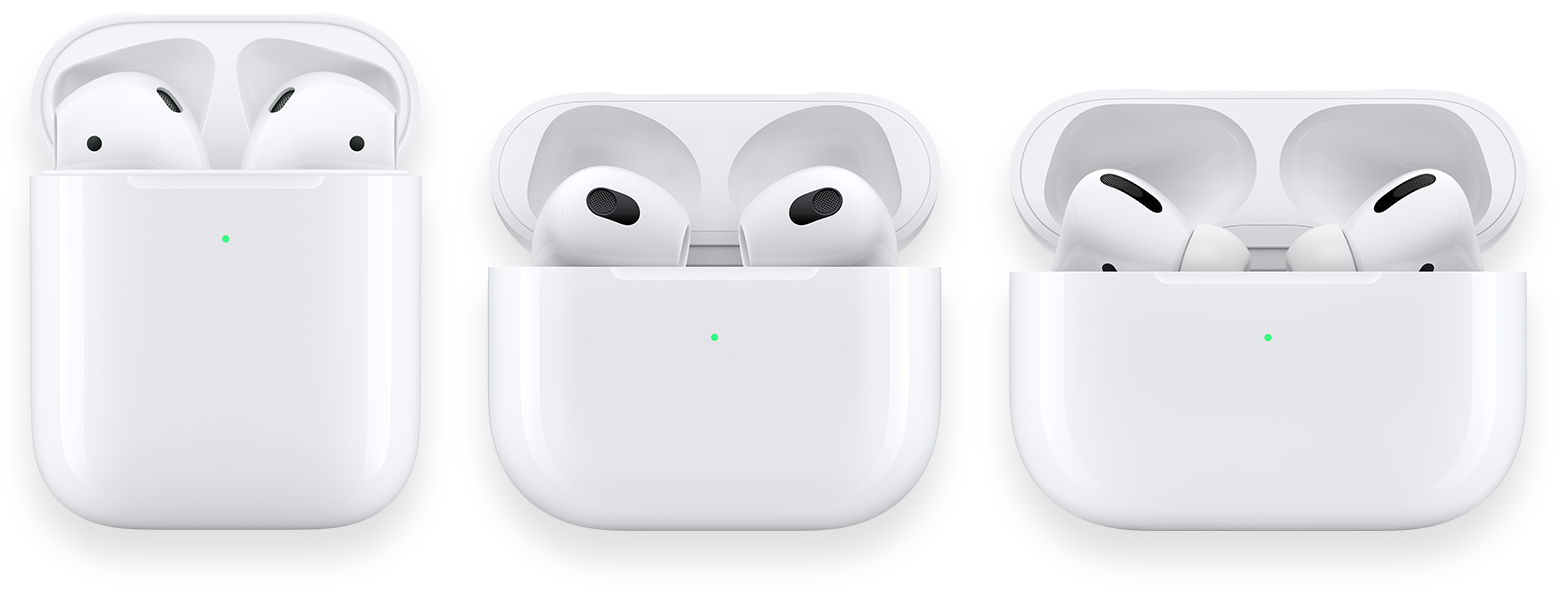
Charge your case
You can charge your MagSafe Charging Case or Wireless Charging Case with a Qi-certified charging mat. Be sure to place your case on the charger with the status light facing up and with the lid closed. The status light should show the current charge level for 8 seconds. If you have AirPods Pro (1st or 2nd generation) or AirPods (3rd generation), you can tap the case when it's on the charging mat to see whether your AirPods Pro or AirPods (3rd generation) are charging (amber light) or fully charged (green light).
You can also charge your MagSafe Charging Case for AirPods Pro (2nd generation) with an Apple Watch charger. Be sure to place your case on the charger with the status light facing up and with the lid closed. The status light should show the current charge level for 8 seconds.
To charge your case via wired connection, plug the Lightning cable that came with your AirPods into the Lightning connector on your case. Then plug the other end of the cable into a USB charger or port. You can charge your case with or without your AirPods inside. Charging is fastest when you use an iPhone or iPad USB charger or plug into your Mac.
Turn off charging case sounds
The MagSafe Charging Case for AirPods Pro (2nd generation) plays a sound when it begins to charge, or when the battery charge is low. You can turn off this sound:
- With your AirPods in your ears and connected to your iPhone, iPad, or iPod touch, go to Settings.
- Tap the name of your AirPods.
- Turn off Enable Charging Case Sounds.

Learn about the status light

MagSafe Charging Case: The status light is on the front of the case.
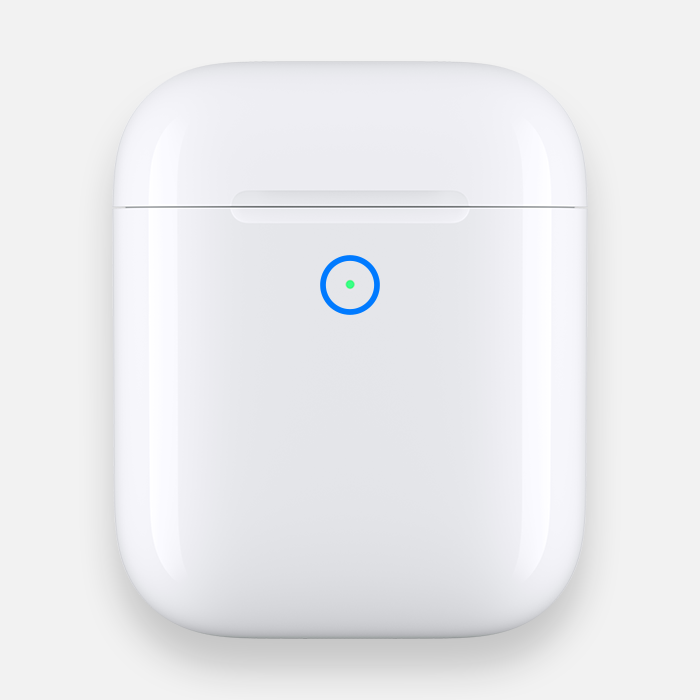
Wireless Charging Case: The status light is on the front of the case.
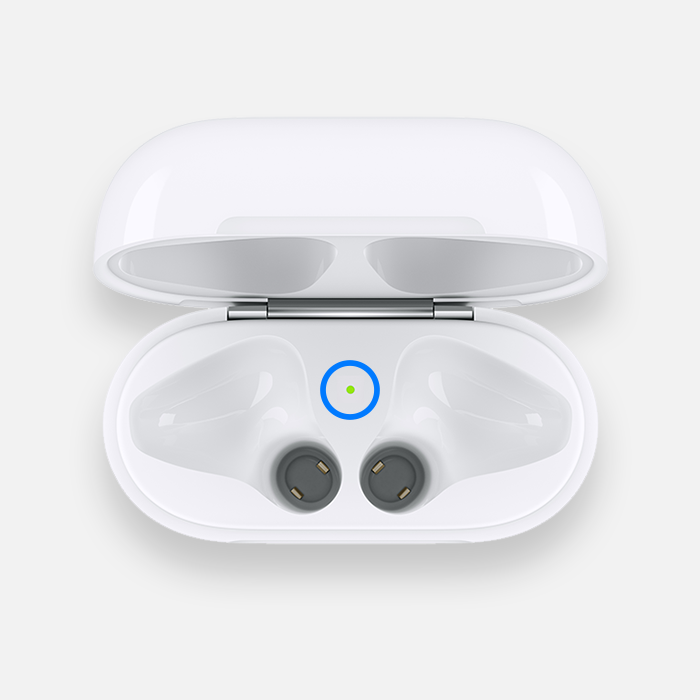
Lightning Charging Case for AirPods (1st and 2nd generation): The status light in your charging case sits between the spaces for your AirPods.

Lightning Charging Case for AirPods (3rd generation): The status light is on the front of the case.
If your AirPods are in your case and the lid is open, then the light shows the charge status of your AirPods. When your AirPods aren't in your case, the light shows the status of your case. Green means fully charged, and amber means less than one full charge remains.
When you connect your case to a charger, or place your MagSafe Charging Case or Wireless Charging Case on a Qi-certified charging mat, the status light will stay on for 8 seconds. If the light flashes white, your AirPods are ready to set up with one of your devices. If the light flashes amber, you might need to set up your AirPods again.
To see the detailed charge status and charge level, see Check the charge status."
Charge your AirPods and learn about battery life - Apple Support
Cheers.


