Shared Reminders work in one direction only

I share several reminder lists with my wife. My device will sync with both all my own devices and mirror perfectly my wife's reminders list. But her devices won't sync back. Today she sent screenshots of our shared reminders – like an animal.


Tried deleting lists, reinstalling reminders app, adding and sharing a new list, turning off and on reminders in iCloud settings, changing name, icon and everything.


Results is always the same: My reminders sync to her devices, but her does not sync to mine.


Weird thing is that SHE can do this if she shares! When she sends me a list, everything works like a charm. So thus far this seems to be the hack. But this should not be an issue. A random search and I found an incident dating back to 2020. C'mon Apple. Shared Reminders work in one direction on… - Apple Community and this one from 2016 https://forums.macrumors.com/threads/icloud-notes-suddenly-syncing-one-way-only.2015541/ (And neither of us are using Gmail notes! :D )


iPhone 13 Pro

Posted on Mar 6, 2023 1:25 PM

Reply

Similar questions

1 reply

Mar 8, 2023 8:37 AM in response to apptastic

Hello apptastic,


For difficulties with syncing reminders, you'll want to follow the steps below:


Things to check first
1. Check the system status of iCloud Contacts, Calendars, or Reminders for services outages or connection issues.
2. If a reminder isn't showing up on some of your devices, make sure that your iPhone and iPad have the latest version of iOS or iPadOS, or that your Mac has the latest version of macOS.
3. Make sure that you're signed in to iCloud with the same Apple ID on all of your devices. Then, check that you turned on Contacts, Calendars, and Reminders in your iCloud settings.
4. Check that the date and time settings on your device are correct for your current location. 


iOS and iPadOS
After each step, check your contacts, calendars, or reminders. 

Restart the Contacts, Calendar, or Reminders app
1. Close the app.
2. Return to your Home Screen.
3. Wait about one minute, then open the app again.

Refresh your contacts and calendars
To refresh your contacts, open the Contacts app and swipe down on the list. To refresh your contact groups, tap Lists in the upper-left corner, then swipe down on the list. 

To refresh your calendars:
1. Open the Calendar app.
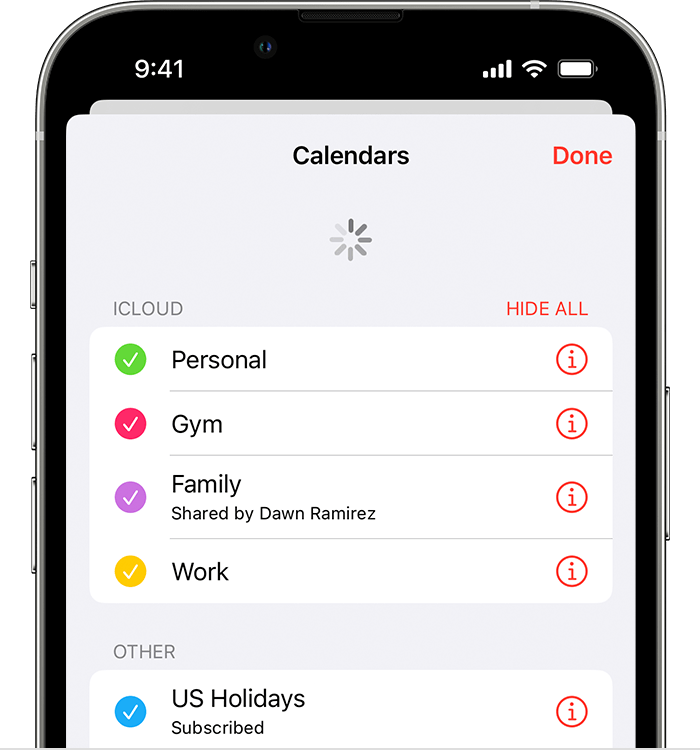
2. Tap the Calendars tab.
3. Swipe down on the list to refresh your events.

Check your app settings
If you use multiple groups or accounts in the Contacts or Calendars app, make sure that your iCloud Contacts and Calendars are set to appear:
* Open the Contacts app and tap Lists in the upper-left corner. Make sure that All iCloud is selected.
* Open the Calendar app and tap the Calendars tab. Make sure that all iCloud calendars are selected. 

Change how often your calendars update: 
1. Tap Settings, then tap Calendar.
2. Tap Sync.
3. If All Events is selected, choose a specific timeframe instead, like Events 1 Month Back. If a specific timeframe is selected, choose All Events instead. 
4. Return to your Home Screen. 
5. Wait a few minutes, then open the Calendar app. Tap the Calendars tab, and swipe down to refresh.

Since the iCloud Birthdays calendar updates daily, changes to birthdays might not appear in the Calendars app until the next day.

Set iCloud Contacts, Calendars, or Reminders as your default
If your contacts, calendars, and reminders are in iCloud, then iCloud automatically updates your information. If your information is in a third-party account, like Google or Yahoo, you can change your default account to iCloud. Changing your default account to iCloud won't move your existing information from a third-party service to iCloud.

Contacts
To see which account your contacts are in:

In iOS 16 or later:
1. Open the Contacts app and tap Lists in the upper-left corner.
2. Select "All iCloud" to see your list of contacts in iCloud. If you don't see the contact you're looking for, it might be stored in a different account.
3. Tap Lists in the upper-left corner, then tap "All [account]" to check each individual account set up for Contacts.
4. If you have a copy of your contacts from a third-party service in vCard format version 3.0 or later, you can import the contacts into iCloud.

In iOS 15 or earlier:
1. Open the Contacts app and tap Groups in the upper-left corner.
2. Deselect the All [account] option for any third-party account, like Gmail or Yahoo.
3. Make sure All iCloud is selected.
4. Tap Done to see your list of contacts. If you don't see the contact you're looking for, it's stored in another account.
5. If you have a copy of your contacts from a third-party service in vCard format version 3.0 or later, you can import the contacts into iCloud.

Set iCloud as the default account for your contacts:
1. Tap Settings, then Contacts.
2. Tap Default Account.
3. Select iCloud.

Calendars and Reminders
To check which account your calendars are in, open the Calendar app, then tap the Calendars tab. 

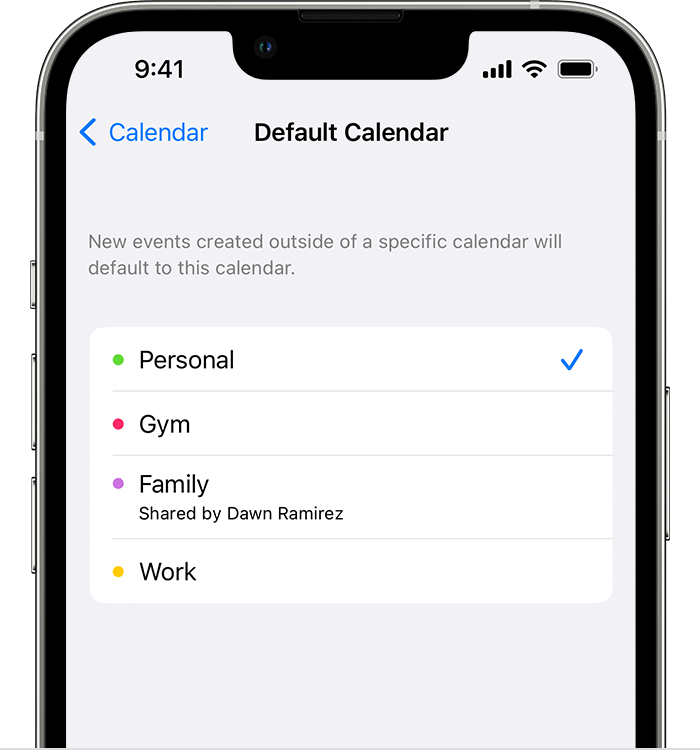
Set an iCloud calendar as the default calendar:
1. Tap Settings, then Calendar.
2. Tap Default Calendar. 
3. Tap a calendar under iCloud to make it your default.

Set an iCloud reminders list as the default list: 
1. Tap Settings, then Reminders.
2. Tap Default List. 
3. Tap a list under iCloud to make it your default.

Delete overdue reminders
1. Open the Reminders app.
2. Go to the Today view and check for any overdue reminders.
3. If you find any, tap the empty circle to complete the reminder, or delete the reminder.

Repeat these steps on each device that's using iCloud Reminders.

Restart your iPhone, iPad, or iPod touch
* Learn how to restart your iPhone.
* Learn how to restart your iPad.
* Learn how to restart your iPod touch.


You can also find those steps in this resource: If your iCloud Contacts, Calendars, or Reminders won’t sync - Apple Support


Should that still persist, you'll want to reach out to Apple Support: Contact - Official Apple Support They'll be in the best position to look into this behavior further.


Take care.

This thread has been closed by the system or the community team. You may vote for any posts you find helpful, or search the Community for additional answers.

Shared Reminders work in one direction only

Welcome to Apple Support Community
A forum where Apple customers help each other with their products. Get started with your Apple Account.