Apple Migration Assistant Help
Does migration assistant copy your downloaded documents over to your new mac too?
MacBook Pro 15″, macOS 10.15
Does migration assistant copy your downloaded documents over to your new mac too?
MacBook Pro 15″, macOS 10.15
Hey Aukiece,
We'll be happy to help answer your question about transferring data using Migration Assistant.
You will get to a point where you can select information you want to transfer. The following information below is found in Move content to a new Mac - Apple Support.
On your old Mac
If you see a security code, make sure that it's the same code shown on your new Mac. Then click Continue.
On your new Mac
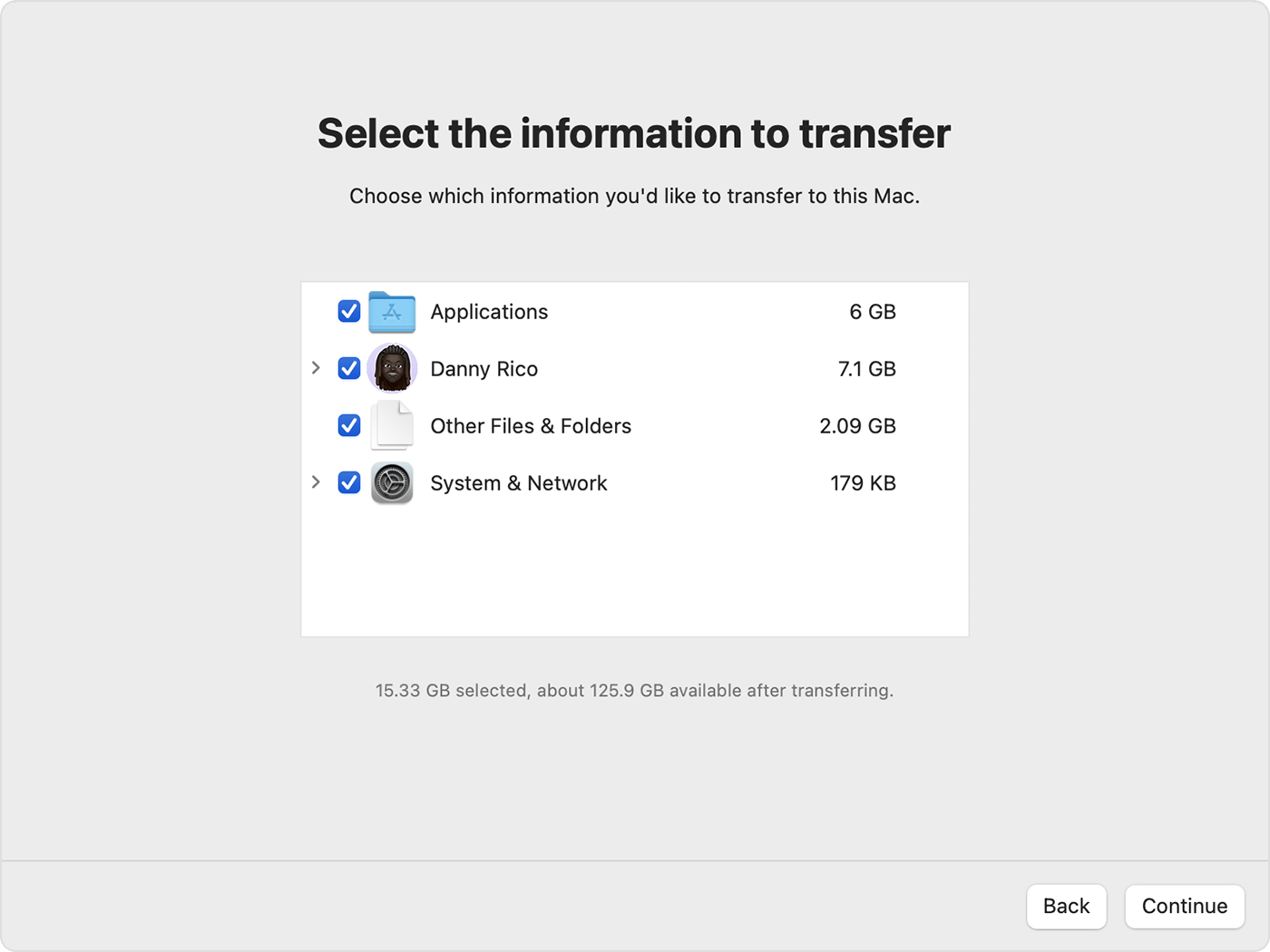
1. Migration Assistant now catalogs all of the content on your old Mac, and calculates how much storage space is used by your apps, user accounts, files, folders, and settings. This can take a few minutes. When ready, select the information to transfer.
2. Before clicking Continue, learn what it means to transfer a user account. In the example pictured here, Danny Rico is a user account. If an account on the new Mac has the same name, Migration Assistant asks whether to rename or replace:
* Rename: The account on your old Mac will appear as an additional user on your new Mac, with a separate login and home folder.
* Replace: The account on your old Mac will replace the identically named account on your new Mac.
3. Large transfers might need hours to complete, and might seem to pause occasionally. You might want to start in the evening and allow migration to complete overnight. Click Continue to start the transfer.
4. After Migration Assistant is done, quit Migration Assistant on both computers, then log in to the migrated account on your new Mac to see its files.
If you have any further questions, let us know.
Take care!
Hey Aukiece,
We'll be happy to help answer your question about transferring data using Migration Assistant.
You will get to a point where you can select information you want to transfer. The following information below is found in Move content to a new Mac - Apple Support.
On your old Mac
If you see a security code, make sure that it's the same code shown on your new Mac. Then click Continue.
On your new Mac
1. Migration Assistant now catalogs all of the content on your old Mac, and calculates how much storage space is used by your apps, user accounts, files, folders, and settings. This can take a few minutes. When ready, select the information to transfer.
2. Before clicking Continue, learn what it means to transfer a user account. In the example pictured here, Danny Rico is a user account. If an account on the new Mac has the same name, Migration Assistant asks whether to rename or replace:
* Rename: The account on your old Mac will appear as an additional user on your new Mac, with a separate login and home folder.
* Replace: The account on your old Mac will replace the identically named account on your new Mac.
3. Large transfers might need hours to complete, and might seem to pause occasionally. You might want to start in the evening and allow migration to complete overnight. Click Continue to start the transfer.
4. After Migration Assistant is done, quit Migration Assistant on both computers, then log in to the migrated account on your new Mac to see its files.
If you have any further questions, let us know.
Take care!
Yes, as long as you don't de-select them when choosing what to migrate.
Apple Migration Assistant Help