Drag window to the left side of the screen or to the right side to pin it for split view

I know this is not really a smart question but I really want to drag my windows to the sides so I can get them in split screen view (exactly like on Microsoft Windows), is there any way to enable this? I know all the other ways of enabling this but this way is faster (at least for me) so this is why I'm asking. Thank you in advance.

MacBook Air 13″, macOS 13.2

Posted on Mar 14, 2023 4:38 PM

Reply
Question marked as Top-ranking reply

Posted on Mar 15, 2023 2:49 PM

Hello AwesomePizza,


Thank you for reaching out to Apple Support Communities, and we'll be happy to help in any way we can. We understand you'd like to use Split View on your Mac. Try these steps to see if they accomplish what you're asking for: Use two Mac apps side by side in Split View - Apple Support


"With Split View, you can fill your Mac screen with two apps, without having to manually move and resize windows. 
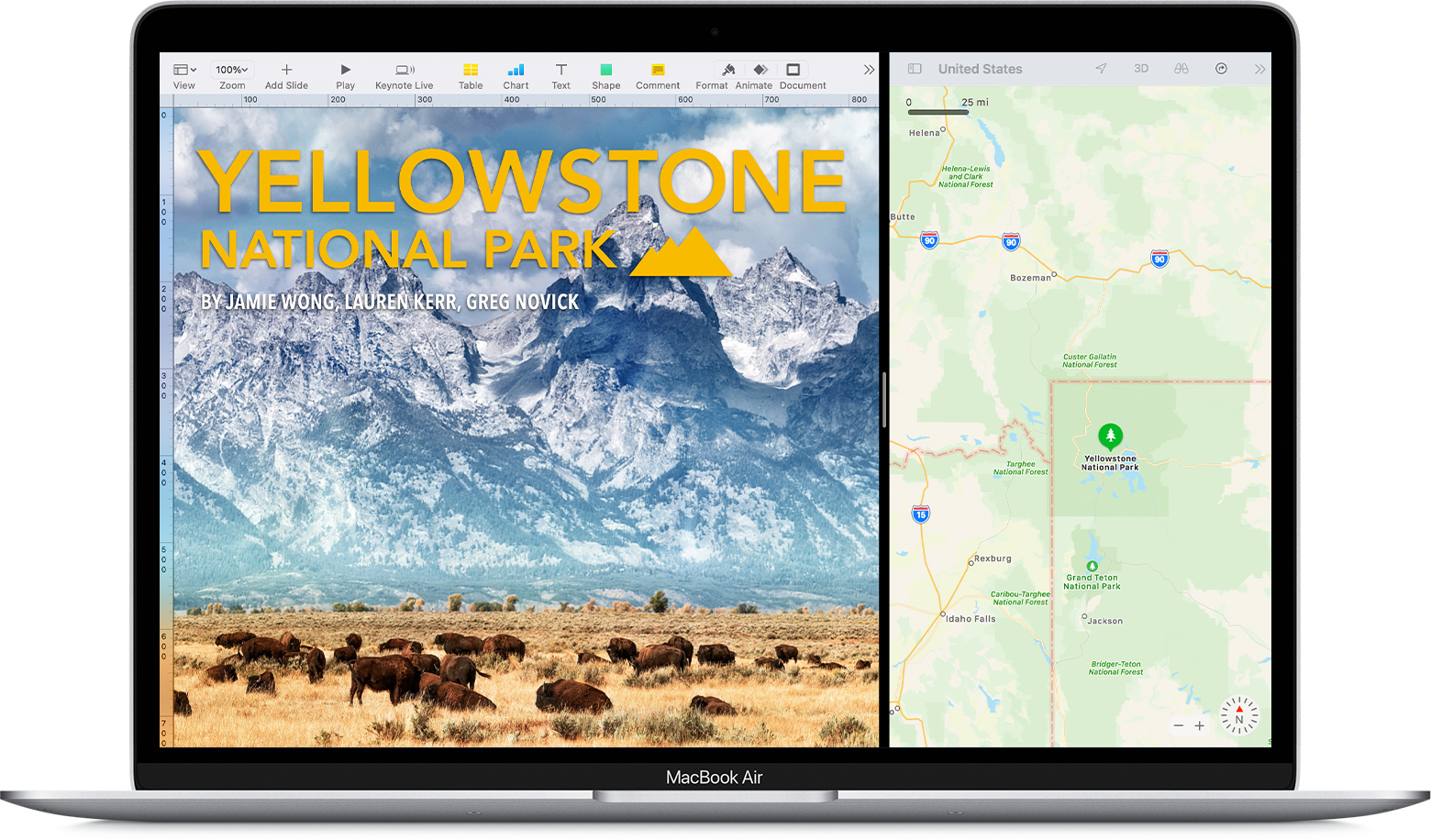

Image showing two windows side by side

Enter Split View

Follow the appropriate steps, depending on which version of macOS you're using.

macOS Catalina or later

  1. Hold your pointer over the full-screen button  in the upper-left corner of a window. Or click and hold the button.
  2. Choose ”Tile Window to Left of Screen” or ”Tile Window to Right of Screen” from the menu. The window then fills that side of the screen.
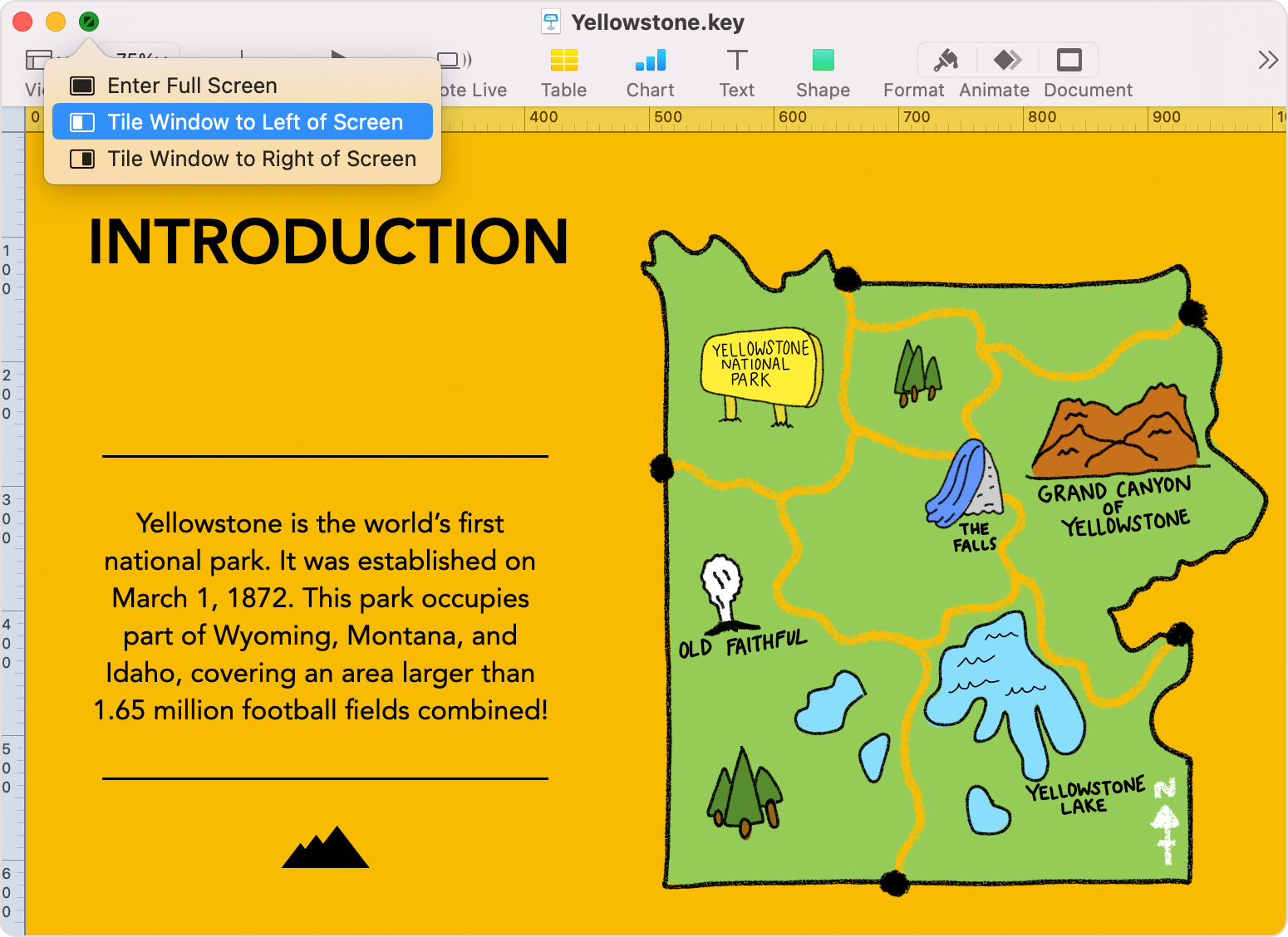
  3. A Keynote document, showing the menu that appears when holding the pointer over the full-screen button

  4. Then click a window on the other side of the screen to begin using both windows side by side.

macOS Mojave, High Sierra, Sierra, or El Capitan

  1. Click and hold the full-screen button   in the upper-left corner of a window. 
  2. As you hold the button, the window shrinks and you can drag it to the left or right side of the screen.
  3. Release the button, then click a window on the other side of the screen to begin using both windows side by side.


If you can’t enter Split View

  • In macOS Ventura or later, choose Apple menu  > System Settings, click Desktop & Dock in the sidebar, then scroll down on the right and make sure that “Displays have separate Spaces” is turned on.
  • In earlier versions of macOS, choose Apple menu  > System Preferences, click Mission Control, then make sure that “Displays have separate Spaces” is selected.


Work in Split View

In Split View, you can use both apps side by side, without the distraction of other apps.

  • Choose a window to work in by clicking anywhere in that window. 
  • Show the menu bar by moving the pointer to the top of the screen.
  • Swap window positions by dragging a window to the other side.
  • Adjust window width by dragging the vertical line between the windows.
  • Switch to other apps or your desktop with Mission Control, or use a Multi-Touch gesture such as swiping left or right with four fingers on your trackpad.


Exit Split View

  1. Move the pointer to the top of the screen to reveal the window buttons.
  2. Click the full-screen button  in either window. That window exits Split View.
  3. The other window switches to full-screen view. You can switch to the full-screen window with Mission Control, or use a Multi-Touch gesture such as swiping left or right with four fingers on your trackpad."


We hope this helps.


Cheers!


1 reply
Question marked as Top-ranking reply

Mar 15, 2023 2:49 PM in response to AwesomePizza

Hello AwesomePizza,


Thank you for reaching out to Apple Support Communities, and we'll be happy to help in any way we can. We understand you'd like to use Split View on your Mac. Try these steps to see if they accomplish what you're asking for: Use two Mac apps side by side in Split View - Apple Support


"With Split View, you can fill your Mac screen with two apps, without having to manually move and resize windows. 


Image showing two windows side by side

Enter Split View

Follow the appropriate steps, depending on which version of macOS you're using.

macOS Catalina or later

  1. Hold your pointer over the full-screen button  in the upper-left corner of a window. Or click and hold the button.
  2. Choose ”Tile Window to Left of Screen” or ”Tile Window to Right of Screen” from the menu. The window then fills that side of the screen.
  3. A Keynote document, showing the menu that appears when holding the pointer over the full-screen button

  4. Then click a window on the other side of the screen to begin using both windows side by side.

macOS Mojave, High Sierra, Sierra, or El Capitan

  1. Click and hold the full-screen button   in the upper-left corner of a window. 
  2. As you hold the button, the window shrinks and you can drag it to the left or right side of the screen.
  3. Release the button, then click a window on the other side of the screen to begin using both windows side by side.


If you can’t enter Split View

  • In macOS Ventura or later, choose Apple menu  > System Settings, click Desktop & Dock in the sidebar, then scroll down on the right and make sure that “Displays have separate Spaces” is turned on.
  • In earlier versions of macOS, choose Apple menu  > System Preferences, click Mission Control, then make sure that “Displays have separate Spaces” is selected.


Work in Split View

In Split View, you can use both apps side by side, without the distraction of other apps.

  • Choose a window to work in by clicking anywhere in that window. 
  • Show the menu bar by moving the pointer to the top of the screen.
  • Swap window positions by dragging a window to the other side.
  • Adjust window width by dragging the vertical line between the windows.
  • Switch to other apps or your desktop with Mission Control, or use a Multi-Touch gesture such as swiping left or right with four fingers on your trackpad.


Exit Split View

  1. Move the pointer to the top of the screen to reveal the window buttons.
  2. Click the full-screen button  in either window. That window exits Split View.
  3. The other window switches to full-screen view. You can switch to the full-screen window with Mission Control, or use a Multi-Touch gesture such as swiping left or right with four fingers on your trackpad."


We hope this helps.


Cheers!


This thread has been closed by the system or the community team. You may vote for any posts you find helpful, or search the Community for additional answers.

Drag window to the left side of the screen or to the right side to pin it for split view

Welcome to Apple Support Community
A forum where Apple customers help each other with their products. Get started with your Apple Account.