Up Next on Apple TV

Up Next on my Samsung Smart TV shows numerous programs I presumably started watching. I have not started any of these programs, but it looks like someone has. I live alone, so no one has access to my TV. Why are all these shows already started? Some are over half watched!

UNU7090,

Posted on Mar 18, 2023 10:03 AM

Reply
Question marked as Top-ranking reply

Posted on Mar 20, 2023 4:30 PM

Hi gaylyns,


We recommend reviewing where your Apple ID is signed in to determine if your Apple TV+ could be in use anywhere else. Here's how: Check your Apple ID device list to find where you're signed in - Apple Support


Use the web to find where you're signed in

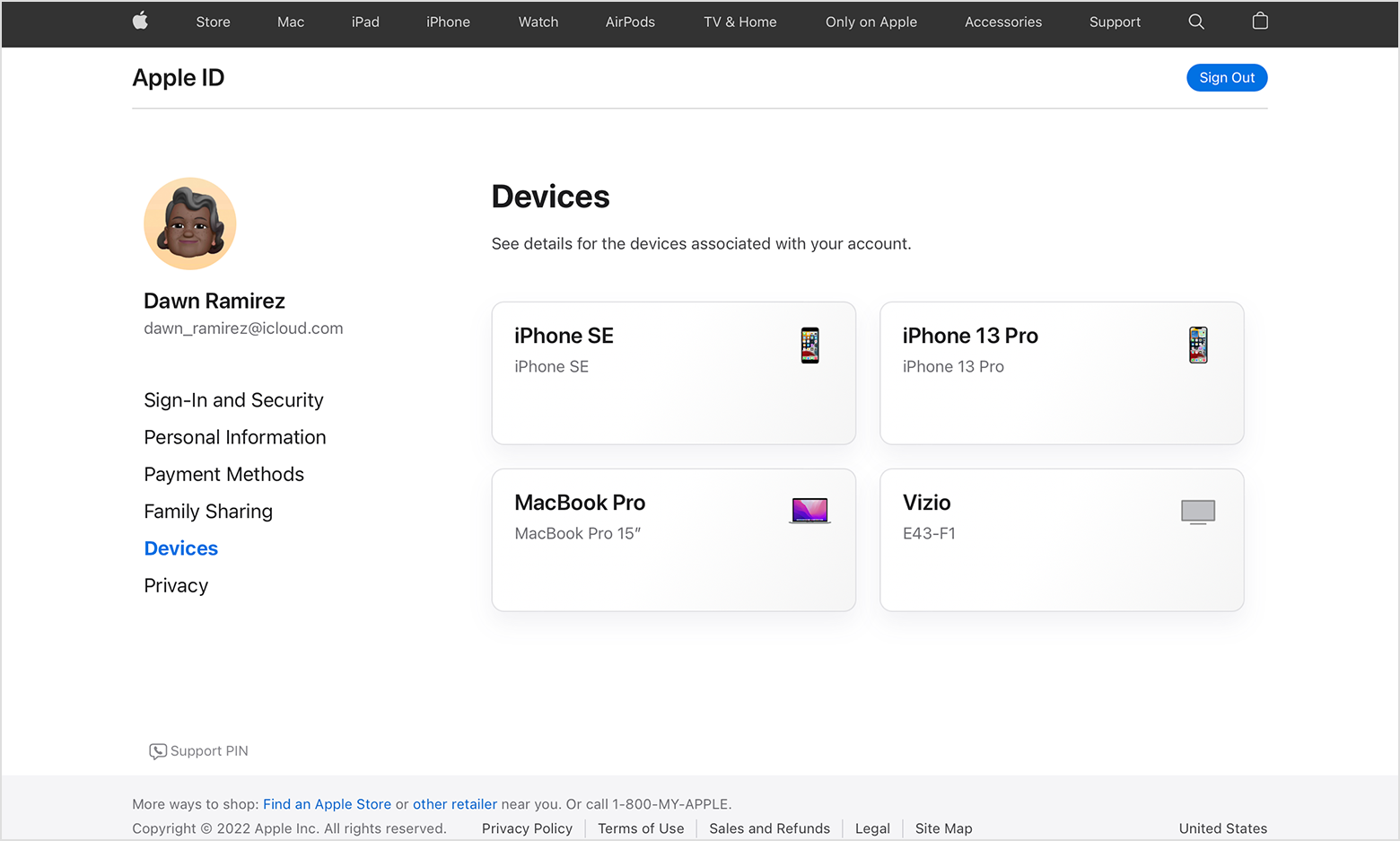
From the Devices section of your Apple ID account page, you can find all of the devices that you're currently signed in to with your Apple ID, including Android devices, consoles, and smart TVs: 
1. Sign in to appleid.apple.com,* then select Devices.
Find which devices that you're signed in to with your Apple ID on the web
2. If you don’t see your devices right away, click View Details and answer your security questions.
3. Click any device name to view that device's information, such as the device model, serial number, OS version, and whether it's a trusted device that can be used to receive Apple ID verification codes. The information might vary depending on the device type.


Regards.

1 reply
Question marked as Top-ranking reply

Mar 20, 2023 4:30 PM in response to gaylyns

Hi gaylyns,


We recommend reviewing where your Apple ID is signed in to determine if your Apple TV+ could be in use anywhere else. Here's how: Check your Apple ID device list to find where you're signed in - Apple Support


Use the web to find where you're signed in

From the Devices section of your Apple ID account page, you can find all of the devices that you're currently signed in to with your Apple ID, including Android devices, consoles, and smart TVs: 
1. Sign in to appleid.apple.com,* then select Devices.
Find which devices that you're signed in to with your Apple ID on the web
2. If you don’t see your devices right away, click View Details and answer your security questions.
3. Click any device name to view that device's information, such as the device model, serial number, OS version, and whether it's a trusted device that can be used to receive Apple ID verification codes. The information might vary depending on the device type.


Regards.

This thread has been closed by the system or the community team. You may vote for any posts you find helpful, or search the Community for additional answers.

Up Next on Apple TV

Welcome to Apple Support Community
A forum where Apple customers help each other with their products. Get started with your Apple Account.