How do I make a new Appel ID?

How do I make a new Appel ID

Earlier iPhone models

Posted on Mar 20, 2023 9:43 AM

Reply
Question marked as Top-ranking reply

Posted on Mar 21, 2023 4:21 PM

Hello Kylebubbels,


We would like to see how we can help you with creating a new Apple ID. Follow the steps in this link for all the possible ways to create an Apple ID: How to create a new Apple ID - Apple Support


"Create your Apple ID when you set up your device
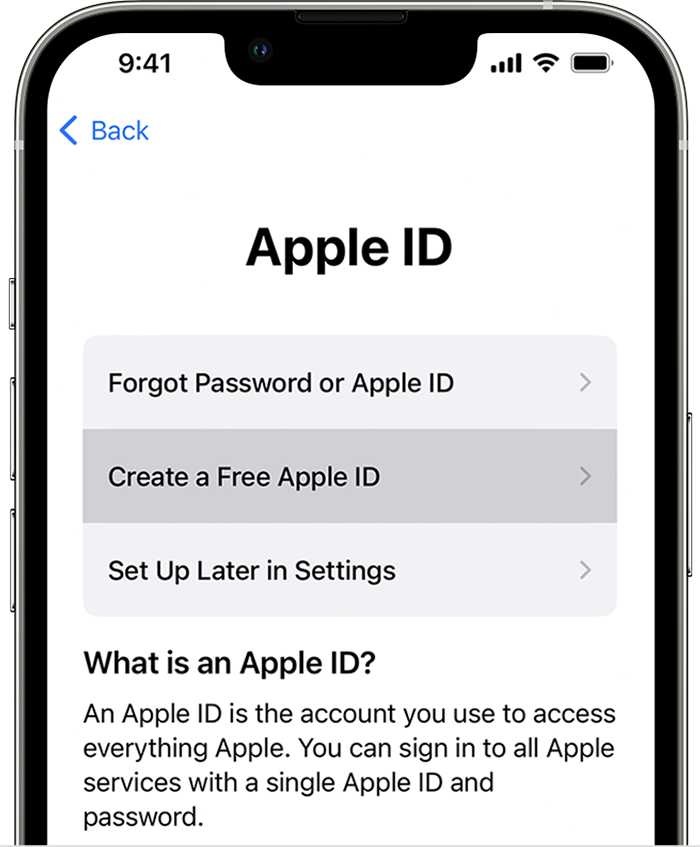
  1. Tap "Forgot password or don't have an Apple ID?".
  2. Tap Create a Free Apple ID.
  3. Create an Apple ID when setting up a new iPhone

  4. Select your birthday and enter your name. Tap Next.
  5. Tap "Use your current email address", or tap "Get a free iCloud email address."
  6. Follow the onscreen steps to verify your email address, create a strong password, set your device region, and set up two-factor authentication. If you choose to skip this step, you'll be prompted to do this later in Settings.

Create your Apple ID using the App Store on your device

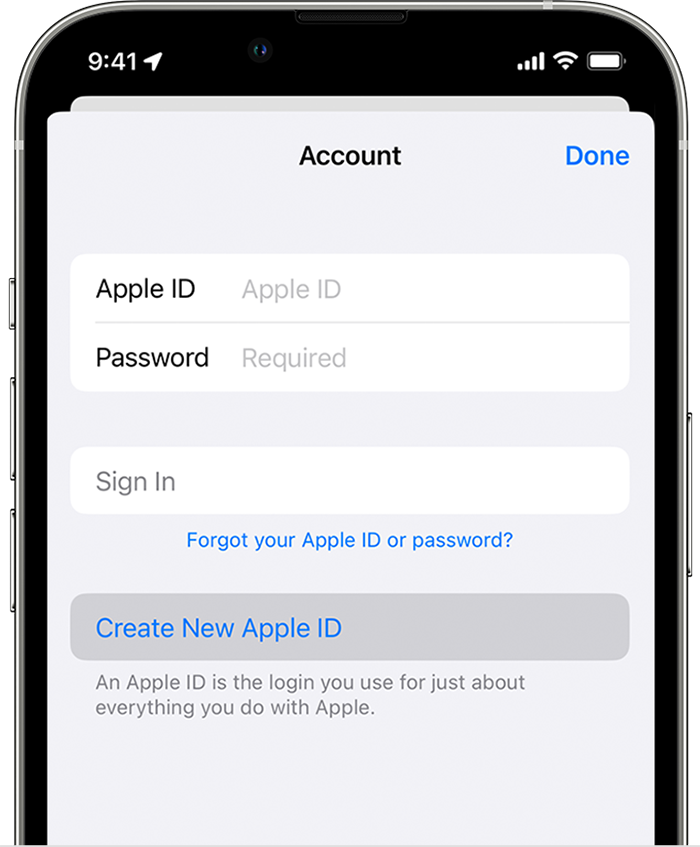
  1. Open the App Store and tap the sign-in button .
  2. Tap Create New Apple ID. If you don't see this option, make sure that you're signed out of iCloud.
  3. Create an Apple ID in the App Store on iPhone

  4. Follow the onscreen steps to provide an email address, create a strong password, and set your device region. The email address that you provide will be your new Apple ID.*
  5. Enter your credit card and billing information, then tap Next. You can also choose None. Learn what to do if None isn't showing or you can't select it. You won't be charged until you make a purchase. 
  6. Confirm your phone number. This can help to verify your identity and recover your account if needed. Tap Next.
  7. Check your email for a verification email from Apple and verify your email address.

After you verify your email address, you can use your Apple ID to sign in to the iTunes Store, App Store, and other Apple services such as iCloud.

* In China mainland, you might be required to provide a +86 phone number for your Apple ID. You can change the number later, or change your country or region to a location that doesn't require it. This number is only used for verification purposes.

Apple IDs can be created on an iOS device with iOS 9 or later.


Create your Apple ID on Mac
  1. Choose Apple menu  > System Settings. In earlier versions of macOS, choose Apple menu  > System Preferences.
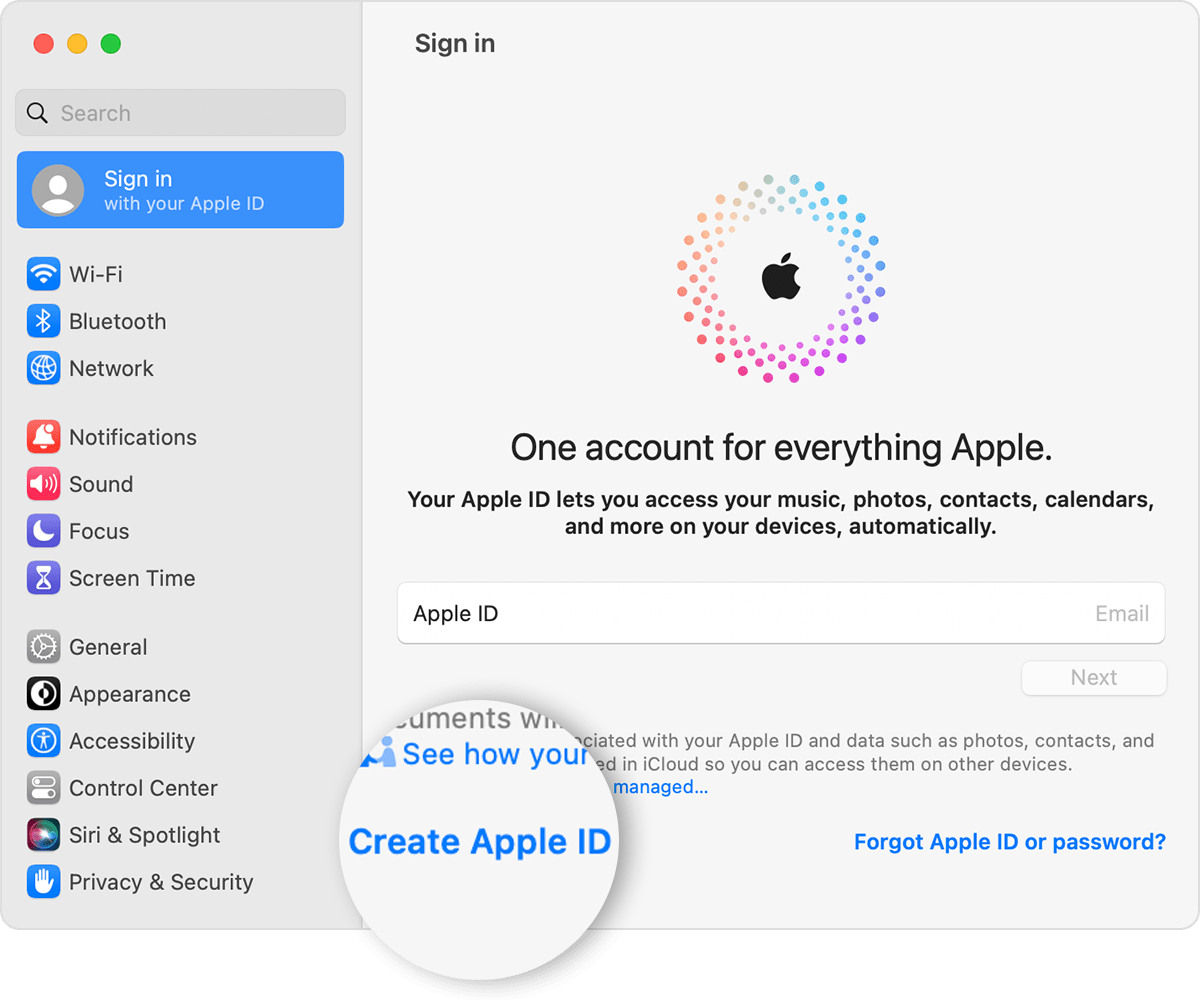
  2. Click Sign In with your Apple ID from the sidebar. In earlier versions of macOS, click Sign In.
  3. Click Create Apple ID, then follow the onscreen steps to provide an email address, create a strong password, and set your device region. The email address that you provide will be your new Apple ID.*
  4. On a Mac, create an Apple ID in System Settings

  5. Enter your credit card and billing information, then click Continue. You can also choose None. Learn what to do if None isn't showing or you can't select it. You won't be charged until you make a purchase.
  6. Check your email for a verification email from Apple and verify your email address.

After you verify your email address, you can use your new Apple ID to sign in to the App Store and other Apple services such as iCloud. 

* In China mainland, you might be required to provide a +86 phone number for your Apple ID. You can change the number later, or change your country or region to a location that doesn't require it. This number is only used for verification purposes.

Apple IDs can be created on a Mac with OS X Capitan or later.


Create your Apple ID on a Windows PC

  1. Open iTunes for Windows. Make sure that you have the latest version.
  2. From the menu bar at the top of your computer screen or at the top of the iTunes window, choose Account > Sign In. Then click Create New Apple ID.
  3. Follow the onscreen steps to provide an email address, create a strong password, and set your device region. The email address that you provide will be your new Apple ID.*
  4. Enter your credit card and billing information, then click Continue. You can also choose None, and learn what to do if None isn't showing or you can't select it. You won't be charged until you make a purchase.
  5. Check your email for a verification email from Apple and verify your email address.

* In China mainland, you might be required to provide a +86 phone number for your Apple ID. You can change the number later, or change your country or region to a location that doesn't require it. This number is only used for verification purposes.


Create your Apple ID on another device

To create your Apple ID on an Apple TV, Android device, smart TV, or streaming device, you can usually follow the steps provided onscreen and enter your full name, date of birth, an email address or phone number, and a payment method. If you set up the Apple TV app on your smart TV, you might be redirected to activate.apple.com to create your Apple ID. You can also use the steps below to create your Apple ID on the web.

Create your Apple ID on the web
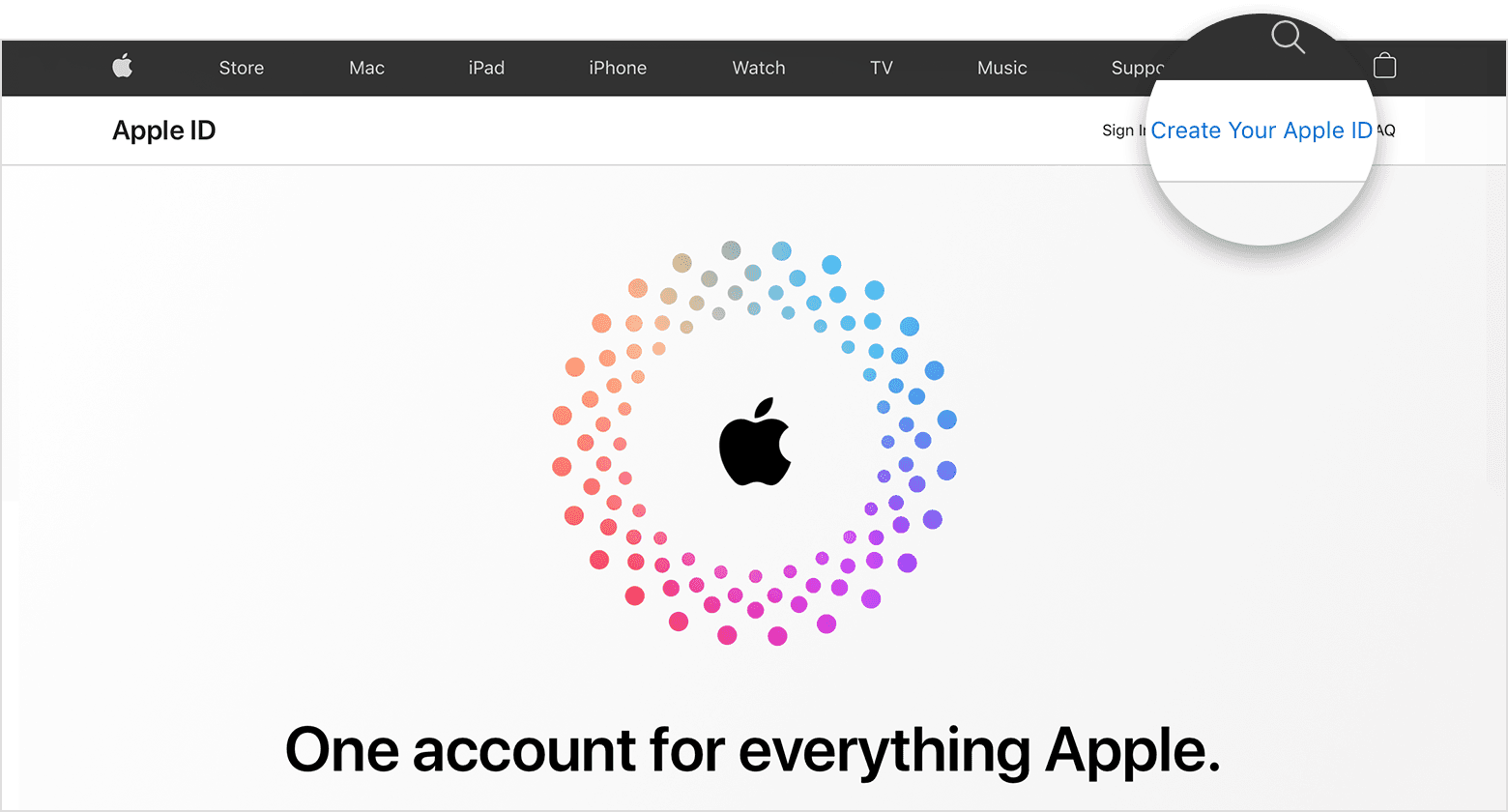
  1. Go to appleid.apple.com and click Create Your Apple ID.
  2. A screenshot of appleid.apple.com, which features an Apple logo in the center of the screen surrounded by concentric colored circles.

  3. Follow the onscreen steps to provide an email address, create a strong password, and set your device region. The email address that you provide will be your new Apple ID.*
  4. Enter a phone number that you can always access.
  5. Check the boxes to subscribe to Apple Updates if you'd like. This keeps you up to date on the latest news, software, products, and services from Apple.
  6. Click Continue.
  7. Follow the onscreen steps to verify your email address and phone number. 

After you verify your email address, you can use your new Apple ID to sign in to the iTunes Store and other Apple services such as iCloud."


Cheers!

1 reply
Question marked as Top-ranking reply

Mar 21, 2023 4:21 PM in response to Kylebubbels

Hello Kylebubbels,


We would like to see how we can help you with creating a new Apple ID. Follow the steps in this link for all the possible ways to create an Apple ID: How to create a new Apple ID - Apple Support


"Create your Apple ID when you set up your device

  1. Tap "Forgot password or don't have an Apple ID?".
  2. Tap Create a Free Apple ID.
  3. Create an Apple ID when setting up a new iPhone

  4. Select your birthday and enter your name. Tap Next.
  5. Tap "Use your current email address", or tap "Get a free iCloud email address."
  6. Follow the onscreen steps to verify your email address, create a strong password, set your device region, and set up two-factor authentication. If you choose to skip this step, you'll be prompted to do this later in Settings.

Create your Apple ID using the App Store on your device

  1. Open the App Store and tap the sign-in button .
  2. Tap Create New Apple ID. If you don't see this option, make sure that you're signed out of iCloud.
  3. Create an Apple ID in the App Store on iPhone

  4. Follow the onscreen steps to provide an email address, create a strong password, and set your device region. The email address that you provide will be your new Apple ID.*
  5. Enter your credit card and billing information, then tap Next. You can also choose None. Learn what to do if None isn't showing or you can't select it. You won't be charged until you make a purchase. 
  6. Confirm your phone number. This can help to verify your identity and recover your account if needed. Tap Next.
  7. Check your email for a verification email from Apple and verify your email address.

After you verify your email address, you can use your Apple ID to sign in to the iTunes Store, App Store, and other Apple services such as iCloud.

* In China mainland, you might be required to provide a +86 phone number for your Apple ID. You can change the number later, or change your country or region to a location that doesn't require it. This number is only used for verification purposes.

Apple IDs can be created on an iOS device with iOS 9 or later.


Create your Apple ID on Mac

  1. Choose Apple menu  > System Settings. In earlier versions of macOS, choose Apple menu  > System Preferences.
  2. Click Sign In with your Apple ID from the sidebar. In earlier versions of macOS, click Sign In.
  3. Click Create Apple ID, then follow the onscreen steps to provide an email address, create a strong password, and set your device region. The email address that you provide will be your new Apple ID.*
  4. On a Mac, create an Apple ID in System Settings

  5. Enter your credit card and billing information, then click Continue. You can also choose None. Learn what to do if None isn't showing or you can't select it. You won't be charged until you make a purchase.
  6. Check your email for a verification email from Apple and verify your email address.

After you verify your email address, you can use your new Apple ID to sign in to the App Store and other Apple services such as iCloud. 

* In China mainland, you might be required to provide a +86 phone number for your Apple ID. You can change the number later, or change your country or region to a location that doesn't require it. This number is only used for verification purposes.

Apple IDs can be created on a Mac with OS X Capitan or later.


Create your Apple ID on a Windows PC

  1. Open iTunes for Windows. Make sure that you have the latest version.
  2. From the menu bar at the top of your computer screen or at the top of the iTunes window, choose Account > Sign In. Then click Create New Apple ID.
  3. Follow the onscreen steps to provide an email address, create a strong password, and set your device region. The email address that you provide will be your new Apple ID.*
  4. Enter your credit card and billing information, then click Continue. You can also choose None, and learn what to do if None isn't showing or you can't select it. You won't be charged until you make a purchase.
  5. Check your email for a verification email from Apple and verify your email address.

* In China mainland, you might be required to provide a +86 phone number for your Apple ID. You can change the number later, or change your country or region to a location that doesn't require it. This number is only used for verification purposes.


Create your Apple ID on another device

To create your Apple ID on an Apple TV, Android device, smart TV, or streaming device, you can usually follow the steps provided onscreen and enter your full name, date of birth, an email address or phone number, and a payment method. If you set up the Apple TV app on your smart TV, you might be redirected to activate.apple.com to create your Apple ID. You can also use the steps below to create your Apple ID on the web.

Create your Apple ID on the web

  1. Go to appleid.apple.com and click Create Your Apple ID.
  2. A screenshot of appleid.apple.com, which features an Apple logo in the center of the screen surrounded by concentric colored circles.

  3. Follow the onscreen steps to provide an email address, create a strong password, and set your device region. The email address that you provide will be your new Apple ID.*
  4. Enter a phone number that you can always access.
  5. Check the boxes to subscribe to Apple Updates if you'd like. This keeps you up to date on the latest news, software, products, and services from Apple.
  6. Click Continue.
  7. Follow the onscreen steps to verify your email address and phone number. 

After you verify your email address, you can use your new Apple ID to sign in to the iTunes Store and other Apple services such as iCloud."


Cheers!

This thread has been closed by the system or the community team. You may vote for any posts you find helpful, or search the Community for additional answers.

How do I make a new Appel ID?

Welcome to Apple Support Community
A forum where Apple customers help each other with their products. Get started with your Apple Account.