Hello Lyndabar1,
If you want to save a copy of a Pages document in another format, please check out the information in the following link, which will guide you through that process and should help: Export to Word, PDF, or another file format in Pages on Mac
Save a copy of a Pages document in another format
1. Open the document, then choose File > Export To > [ file format] (from the File menu at the top of your screen).
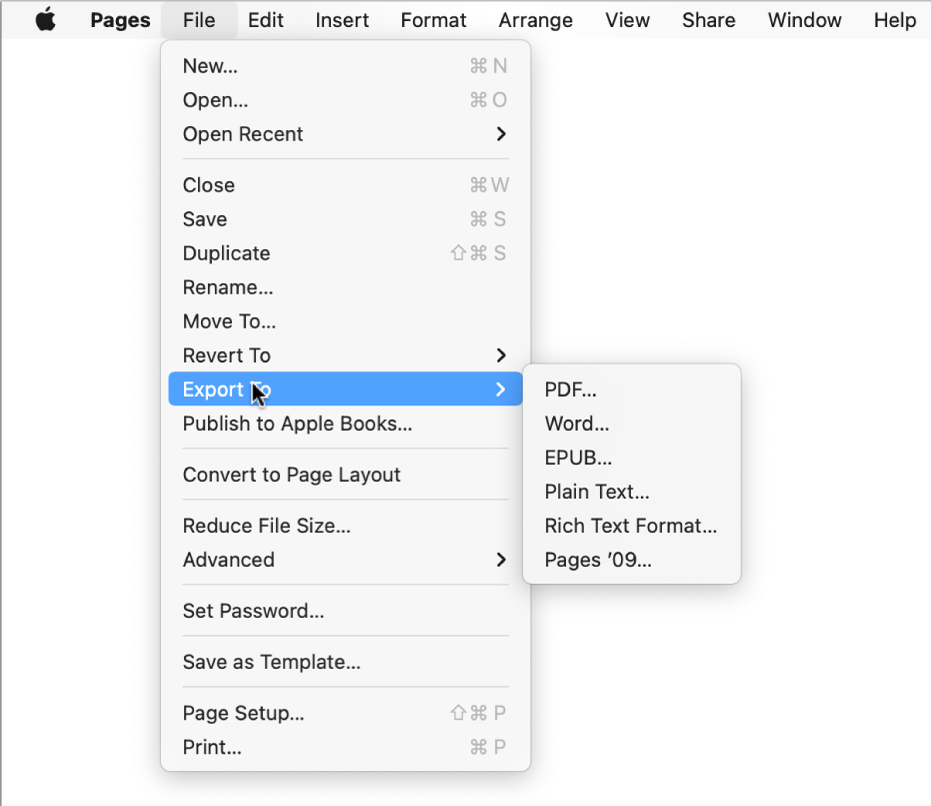
2. Specify export settings:
* PDF: These files can be opened and sometimes edited with applications like Preview and Adobe Acrobat. Click the Image Quality pop-up menu, then choose an option (the higher the image quality, the larger the file size). If you added image, drawing, audio, or video descriptions for assistive technology (for example, VoiceOver), they’re automatically exported. To include smart annotations or comments, select the corresponding checkbox. To include accessibility tags for large tables, click Advanced Options, then choose On.
* Word: If the file needs to be compatible with an older version of Microsoft Word (1997-2004), click Advanced Options, then choose .doc from the pop-up menu.
* EPUB: Use this format to make your document readable in an ebook reader (such as Apple Books). Enter the title and author name, then choose a cover option.
For word-processing documents only, choose a layout type. A fixed layout preserves the layout of your document and is best for documents with multiple columns or lots of images. A reflowable layout adapts to the screen size and orientation and lets users change the font size. It’s best for documents with lots of text.
To set optional features, click the disclosure arrow next to Advanced Options, then choose a category, specify the document’s language, set the view to one page or two pages, and choose whether or not to include the table of contents or embed fonts.
* Plain Text (TXT): Body text is exported as unformatted text. Text boxes, shapes, images, lines, tables, and charts aren’t exported. Page layout documents can’t be exported in TXT format.
* Tip: To see if you have a word-processing or page layout document, click  in the toolbar. If there’s a Bookmarks tab at the top of the sidebar, it’s a word-processing document.
* Rich Text Format (RTF): Body text and tables are exported as formatted (RTF) text and tables. If the document has text boxes, shapes, lines, and charts that can be exported, they’re exported as images, and the document is exported in RTFD format. Other applications may not be able to open an RTFD file. Page layout documents can’t be exported in RTF or RTFD format.
* Pages ’09: This format can be opened by Pages 4.0 through 4.3 on a Mac.
3. If there’s a password checkbox, do one of the following:
* Set a password: Select the “Require password to open” checkbox, then enter a password. It applies only to the exported copy.
* Keep the original document password: Make sure the “Require password to open” checkbox is selected.
* Use a different password for the exported copy: Select the “Require password to open” checkbox, click Change Password, then set a new password.
* Export the copy without a password: Deselect the “Require password to open” checkbox.
4. Click Next, then type a name for the document (without the filename extension, such as .pdf or .epub, which is appended to the name automatically).
5. Enter one or more tags (optional).
6. To choose where to save the exported copy, click the Where pop-up menu, choose a location, then click Export.
Thanks!


