I keep getting emails to pay for iCloud. Isn’t that included automatically?
I keep getting emails to pay for iCloud. Isn’t that done automatically?
iMac 21.5″, macOS 10.13
I keep getting emails to pay for iCloud. Isn’t that done automatically?
iMac 21.5″, macOS 10.13
Hello middleann,
Thank you for posting to the Apple Support Communities.
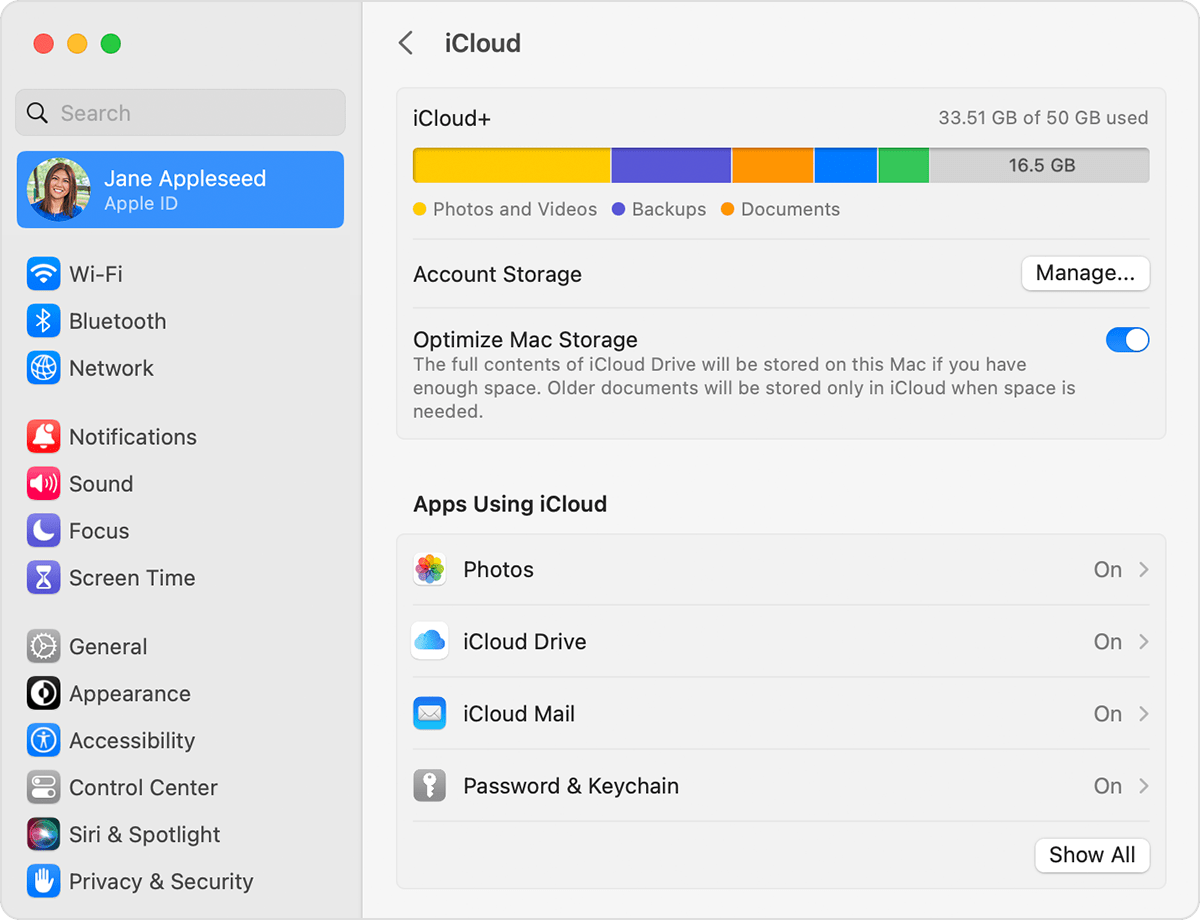
You can verify you're paying for iCloud storage by checking the storage settings. To complete this on a Mac, follow the steps below:
1. Choose Apple menu > System Settings. In macOS Monterey or earlier, choose Apple menu > System Preferences.
2. Click Apple ID.
3. Click iCloud.
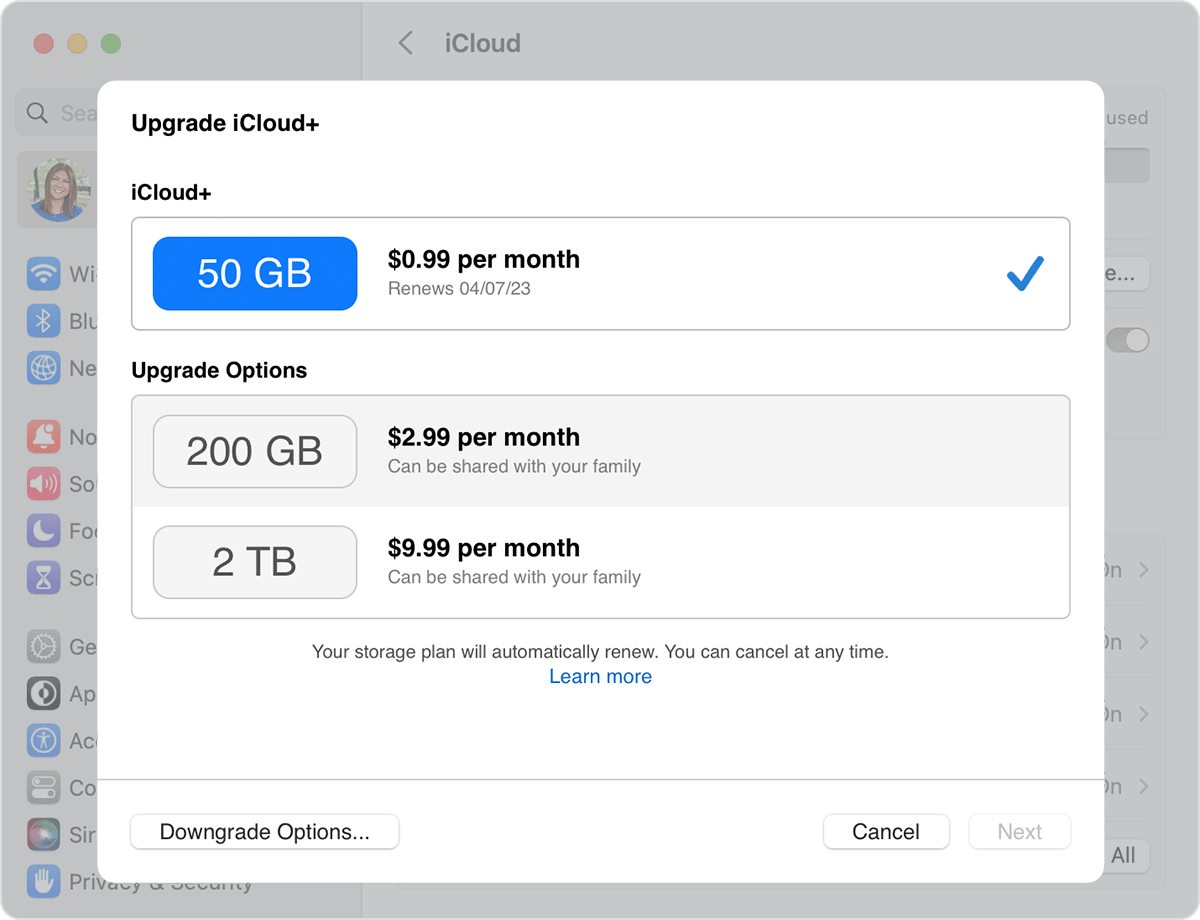
4. Click Manage.
5. Click Change Storage Plan.
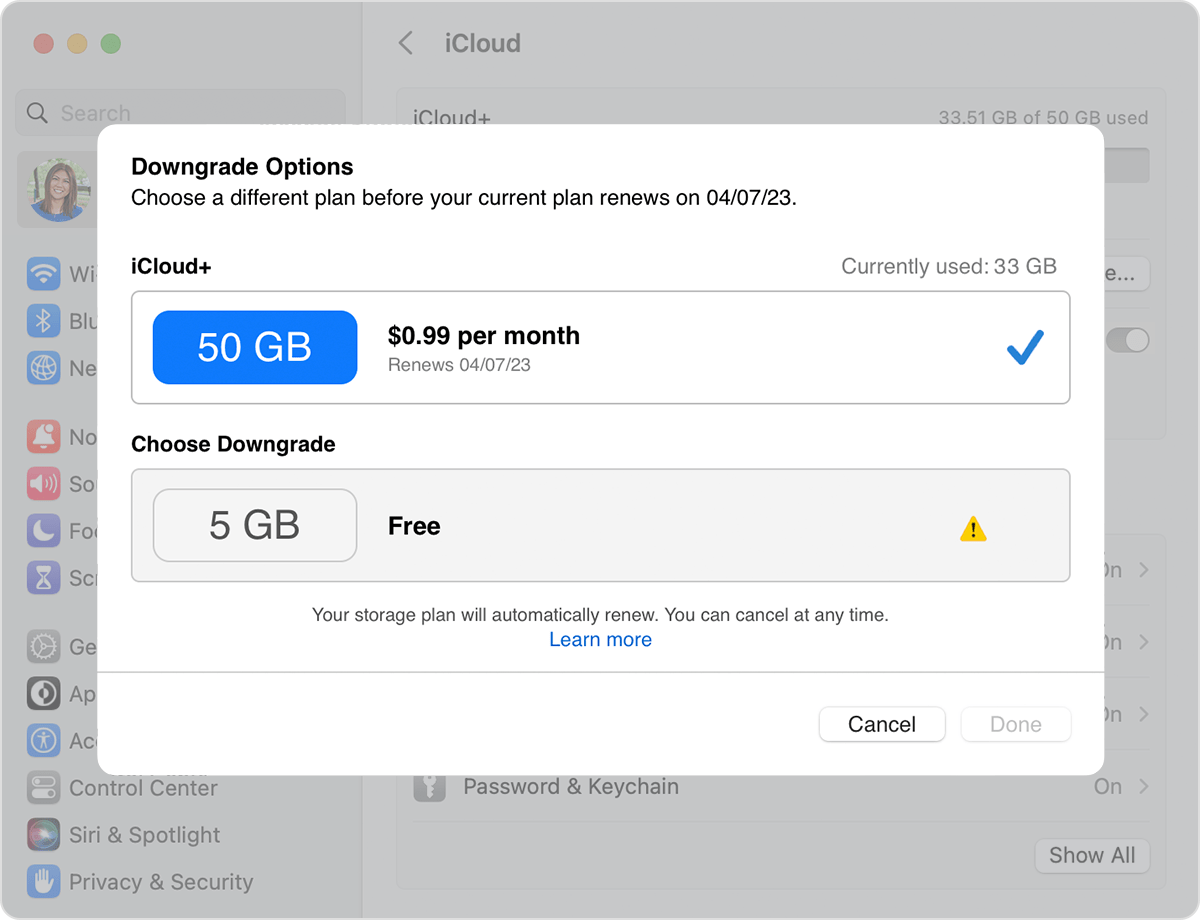
6. Click Downgrade Options.
7. If prompted, enter your Apple ID password, then click Manage.
8. Choose a different plan:
• To downgrade your plan, choose a new storage amount.
* To cancel iCloud+, choose the free 5GB plan or choose None.
9. Click Done. If you can't click Done, make sure that you're signed in with the same Apple ID that you use for your iCloud+ plan. You can also try following these steps on a different device. If you still need help, contact Apple Support.
This information is from Downgrade or cancel your iCloud+ plan.
If you received an unexpected email about a purchase or payment issue, please be sure to confirm that the email is legitimate and not a phishing attempt. This next article has tips to help with this: Recognize and avoid phishing messages, phony support calls, and other scams.
You can also contact Apple Support directly with additional questions.
Have a great day!
Hello middleann,
Thank you for posting to the Apple Support Communities.
You can verify you're paying for iCloud storage by checking the storage settings. To complete this on a Mac, follow the steps below:
1. Choose Apple menu > System Settings. In macOS Monterey or earlier, choose Apple menu > System Preferences.
2. Click Apple ID.
3. Click iCloud.
4. Click Manage.
5. Click Change Storage Plan.
6. Click Downgrade Options.
7. If prompted, enter your Apple ID password, then click Manage.
8. Choose a different plan:
• To downgrade your plan, choose a new storage amount.
* To cancel iCloud+, choose the free 5GB plan or choose None.
9. Click Done. If you can't click Done, make sure that you're signed in with the same Apple ID that you use for your iCloud+ plan. You can also try following these steps on a different device. If you still need help, contact Apple Support.
This information is from Downgrade or cancel your iCloud+ plan.
If you received an unexpected email about a purchase or payment issue, please be sure to confirm that the email is legitimate and not a phishing attempt. This next article has tips to help with this: Recognize and avoid phishing messages, phony support calls, and other scams.
You can also contact Apple Support directly with additional questions.
Have a great day!
I keep getting emails to pay for iCloud. Isn’t that included automatically?