How do I add people to my Contacts Only on Airdrop?

How do I add people to my Contacts Only on Airdrop?


[Re-Titled by Moderator]

iPhone 11, iOS 16

Posted on Apr 1, 2023 10:08 AM

Reply
Question marked as Top-ranking reply

Posted on Apr 1, 2023 10:11 AM

Only on AirDrop? I don't think that is required.


If you add a contact or not you can receive files from anyone if you enable "Everyone"
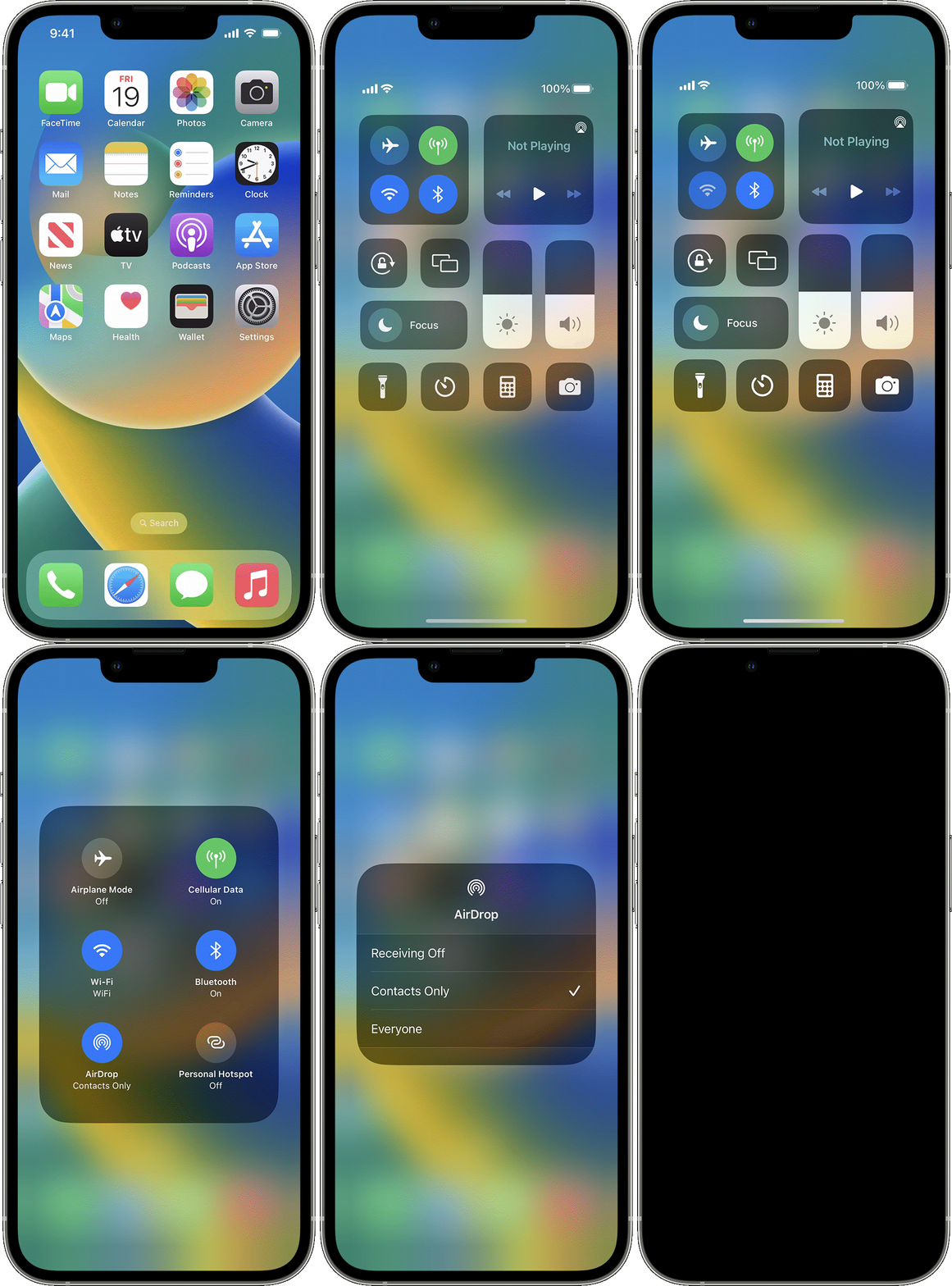


How to adjust AirDrop settings

To choose who can see your device and send you content in AirDrop:

  1. Go to Settings, then tap General.
  2. Tap AirDrop, then choose an option.

You can also set your AirDrop options in Control Center:

  1. On iPhone X or later, swipe down from the upper-right corner of the screen to open Control Center. Or follow the same motion to open Control Center on your iPad with iOS 12 or later or iPadOS. On your iPhone 8 or earlier, swipe up from the bottom of the screen.
  2. Press firmly or touch and hold the network settings card in the upper-left corner.
  3. Touch and hold the AirDrop button , then choose one of these options:
    • Receiving Off: You won't receive AirDrop requests.
    • Contacts Only: Only your contacts can see your device.
    • Everyone: All nearby Apple devices using AirDrop can see your device. When you set your AirDrop option to Everyone in iOS 16.2 or later, your option reverts to Contacts Only after 10 minutes.

If you see Receiving Off and can't tap to change it:

  1. Go to Settings > Screen Time.
  2. Tap Content & Privacy Restrictions.
  3. Tap Allowed Apps and make sure that AirDrop is turned on.

The Contacts Only option is available on devices that support iOS 10 and later, iPadOS, or macOS Sierra 10.12 and later. If AirDrop is set to Contacts Only on your device with an earlier software version, you'll need to adjust AirDrop settings to the Everyone option in Settings or from Control Center. You can select the Everyone option while using AirDrop and disable it when not in use.

1 reply
Question marked as Top-ranking reply

Apr 1, 2023 10:11 AM in response to lucifer_xmorningstar

Only on AirDrop? I don't think that is required.


If you add a contact or not you can receive files from anyone if you enable "Everyone"


How to adjust AirDrop settings

To choose who can see your device and send you content in AirDrop:

  1. Go to Settings, then tap General.
  2. Tap AirDrop, then choose an option.

You can also set your AirDrop options in Control Center:

  1. On iPhone X or later, swipe down from the upper-right corner of the screen to open Control Center. Or follow the same motion to open Control Center on your iPad with iOS 12 or later or iPadOS. On your iPhone 8 or earlier, swipe up from the bottom of the screen.
  2. Press firmly or touch and hold the network settings card in the upper-left corner.
  3. Touch and hold the AirDrop button , then choose one of these options:
    • Receiving Off: You won't receive AirDrop requests.
    • Contacts Only: Only your contacts can see your device.
    • Everyone: All nearby Apple devices using AirDrop can see your device. When you set your AirDrop option to Everyone in iOS 16.2 or later, your option reverts to Contacts Only after 10 minutes.

If you see Receiving Off and can't tap to change it:

  1. Go to Settings > Screen Time.
  2. Tap Content & Privacy Restrictions.
  3. Tap Allowed Apps and make sure that AirDrop is turned on.

The Contacts Only option is available on devices that support iOS 10 and later, iPadOS, or macOS Sierra 10.12 and later. If AirDrop is set to Contacts Only on your device with an earlier software version, you'll need to adjust AirDrop settings to the Everyone option in Settings or from Control Center. You can select the Everyone option while using AirDrop and disable it when not in use.

This thread has been closed by the system or the community team. You may vote for any posts you find helpful, or search the Community for additional answers.

How do I add people to my Contacts Only on Airdrop?

Welcome to Apple Support Community
A forum where Apple customers help each other with their products. Get started with your Apple Account.