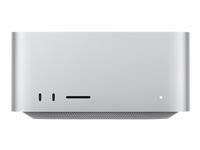
When will connectivity be resolved on MacStudio

I have had my MacStudio for almost a year. For the entire time I have had to deal with connectivity issues daily. Several times each day while browsing, the browser just hangs and stops loading pages. When this happens I turn off the wi-fi and turn it back on....which usually resolves the problem (sometimes after several attempts).


I have a personal Windows machine....no issues ever.

I have a work Windows machine....no issues ever.

I have 2 iPads....no issues ever.

My girlfriend has a MacBook Pro.....no issues ever.

Two iPhone 14's in the house.....no issues ever.

About 8 AppleTV's in the house....no issues ever.

In fact, I have probably 20 - 30 other devices in the house....NO ISSUES EVER.


The only device I ever have an issue with is my MacStudio and I'm over it. This has been by far the worst computer I have ever owned, as it can't do simple web browsing. I get e-mail on my phone right away. On my MacStudio there's often a long delay before messages are received.


There's no special configuration....it's configured for DHCP. It's not like there's are uncommon settings I am using. It's a simple network connection. I keep hoping that with each update that comes out it will once day just be resolved. As it is, I would rather use my $300 Windows machine for daily use than my $2000 Mac.

Mac Studio, macOS 13.2

Posted on Apr 12, 2023 4:40 AM

Reply
Question marked as Top-ranking reply

Posted on Apr 14, 2023 7:08 AM

Like the Mac mini, the Wireless antenna is built into the bottom of the Mac Studio. The Location, the Orientation, the Surface that the Mac Studio is sitting on, plus High speed USB/Thunderbolt cables and devices can all cause weak and intermittent Wi-Fi and Bluetooth.


see > Resolve Wi-Fi and Bluetooth issues caused by wireless interference - Apple Support


How to reduce wireless interference


These general steps can help achieve a cleaner, stronger wireless signal:

  • Bring your Wi-Fi device closer to your Wi-Fi router. Bring the Bluetooth devices that are connecting to each other closer together. 
  • Avoid using your wireless devices near common sources of interference, such as power cables, microwave ovens, fluorescent lights, wireless video cameras, and cordless phones.
  • Reduce the number of active devices that use the same wireless frequency band. Both Bluetooth and Wi-Fi devices use the 2.4 GHz band, but many Wi-Fi devices can use the 5 GHz band instead. If your Wi-Fi router supports both bands, it might help to connect more of your Wi-Fi devices to the 5GHz band. Some dual-band routers manage this for you automatically.
  • Configure your Wi-Fi router to use a different Wi-Fi channel, or have it scan for the channel with the least interference. Most routers perform this scan automatically on startup or when reset.


If you're using USB 3 or Thunderbolt 3 devices with your computer, you can limit their potential to interfere with nearby wireless devices:

  • Use a high-quality, shielded USB or Thunderbolt 3 cable with each device.
  • Move your USB 3 or Thunderbolt 3 devices—including any USB hubs—farther away from your wireless devices.
  • Avoid placing USB 3 or Thunderbolt 3 devices on top of your Mac.
  • Turn off any USB 3 devices that aren't in use.


Avoid physical obstructions in the path of your wireless signal. For example, a metal surface between your Bluetooth mouse and computer could cause the mouse to perform poorly, and a metal-reinforced concrete floor between your Wi-Fi router and Wi-Fi device could cause poor Wi-Fi performance.

  • Low interference potential: wood, glass, and many synthetic materials
  • Medium interference potential: water, bricks, marble
  • High interference potential: plaster, concrete, bulletproof glass
  • Very high interference potential: metal


Similar questions

11 replies
Question marked as Top-ranking reply

Apr 14, 2023 7:08 AM in response to midabe

Like the Mac mini, the Wireless antenna is built into the bottom of the Mac Studio. The Location, the Orientation, the Surface that the Mac Studio is sitting on, plus High speed USB/Thunderbolt cables and devices can all cause weak and intermittent Wi-Fi and Bluetooth.


see > Resolve Wi-Fi and Bluetooth issues caused by wireless interference - Apple Support


How to reduce wireless interference


These general steps can help achieve a cleaner, stronger wireless signal:

  • Bring your Wi-Fi device closer to your Wi-Fi router. Bring the Bluetooth devices that are connecting to each other closer together. 
  • Avoid using your wireless devices near common sources of interference, such as power cables, microwave ovens, fluorescent lights, wireless video cameras, and cordless phones.
  • Reduce the number of active devices that use the same wireless frequency band. Both Bluetooth and Wi-Fi devices use the 2.4 GHz band, but many Wi-Fi devices can use the 5 GHz band instead. If your Wi-Fi router supports both bands, it might help to connect more of your Wi-Fi devices to the 5GHz band. Some dual-band routers manage this for you automatically.
  • Configure your Wi-Fi router to use a different Wi-Fi channel, or have it scan for the channel with the least interference. Most routers perform this scan automatically on startup or when reset.


If you're using USB 3 or Thunderbolt 3 devices with your computer, you can limit their potential to interfere with nearby wireless devices:

  • Use a high-quality, shielded USB or Thunderbolt 3 cable with each device.
  • Move your USB 3 or Thunderbolt 3 devices—including any USB hubs—farther away from your wireless devices.
  • Avoid placing USB 3 or Thunderbolt 3 devices on top of your Mac.
  • Turn off any USB 3 devices that aren't in use.


Avoid physical obstructions in the path of your wireless signal. For example, a metal surface between your Bluetooth mouse and computer could cause the mouse to perform poorly, and a metal-reinforced concrete floor between your Wi-Fi router and Wi-Fi device could cause poor Wi-Fi performance.

  • Low interference potential: wood, glass, and many synthetic materials
  • Medium interference potential: water, bricks, marble
  • High interference potential: plaster, concrete, bulletproof glass
  • Very high interference potential: metal


Apr 17, 2023 5:43 AM in response to midabe

Packets going to the Internet are sent to the TOPMOST, working interface shown in the list at:


system preferences > Network ...


if Ethernet is not TopMost, use the gear icon under the box, choose "set service Order' and drag Ethernet TopMost. then when it is plugged in and working, Ethernet will be used, otherwise Wi-Fi will be used.


Another user already observed that the Wi-Fi antenna is at the BOTTOM of the Mac Studio. If your Router is literally above the Mac Studio, you are passing your radio signals through all the electronics of the Mac Studio. Consider moving the devices so that they are at an angle to each other, rather than directly above.


Hold down the Option key while you click on the Wi-Fi Icon in the menubar. a snapshot of current operation appears. transcribe or screenshot and post the results, similar to this older one:


.


.

Apr 12, 2023 11:07 AM in response to midabe

There are no pervasive reports of inherent Wi-Fi connectivity issues in the Mac Studio.


You Mac aha an internal environment with many different types of software running, and a "network neighborhood" - the wireless airwaves around your computer. Either or both could be contributing to poor Wi-Fi performance.


as a quick check for added software issues, restart in safe mode, and run the same test from Safe mode.

"works in safe Mode, fails in regular mode" implies "it's something you added".


as a quick check for Hardware issues, hold the Option key while you click on the Wi-Fi Icon one the menubar. You get a snapshot of Wi-Fi operating parameters like this older one. Transcribe or screenshot and post back here.


.

Apr 17, 2023 4:39 AM in response to tbirdvet

I have tried having both the ethernet connected as well as WiFi....it still does it. I have to enable WiFi in order to have features like unlocking with my Apple Watch to work. The same thing occurs and if I turn off the WiFi, the network will start working off of the ethernet connection (in other words, I don't have to turn the WiFi back on before connectivity to the internet resumes).


The computer is not smart enough to use the ethernet connection on its own if the WiFi connection becomes unresponsive. I have seen this behavior over many months (it has always and consistently worked this way). The only way I can get the system to use ethernet is to disable WiFi.


I have not tried over a period of time only using ethernet for connectivity. Again, this is because certain features only work when WiFi is enabled.

Apr 17, 2023 4:27 AM in response to Grant Bennet-Alder

I'm using a Unifi Pro 6 AC point that is located directly above my MacStudio. My speeds are greater than 1 GB. Again, the connection works 100%....until it doesn't. I will be sitting here browsing the web and everything is fine, then no connectivity. I resolve it by simply turning off WiFi and then turning it back on. My work laptop is sitting 2 feet away and has never had WiFi issues. My iPad and phone are within a couple feet and also have no issues.


I am confident this is not an interference issue.

This thread has been closed by the system or the community team. You may vote for any posts you find helpful, or search the Community for additional answers.

When will connectivity be resolved on MacStudio

Welcome to Apple Support Community
A forum where Apple customers help each other with their products. Get started with your Apple Account.