Zooming portrait mode
Is there any way to zoom in with portrait mode iphone 14 plus
iPhone 14 Plus, iOS 16
Is there any way to zoom in with portrait mode iphone 14 plus
iPhone 14 Plus, iOS 16
Hi there irshad108,
The available ways to use Portrait mode on your iPhone 14 Plus are outlined in this helpful article: Use Portrait mode on your iPhone
Some iPhone models have multiple options for Portrait mode, like 1x or 2x. Just tap the 1x or 2x button to switch between the options.
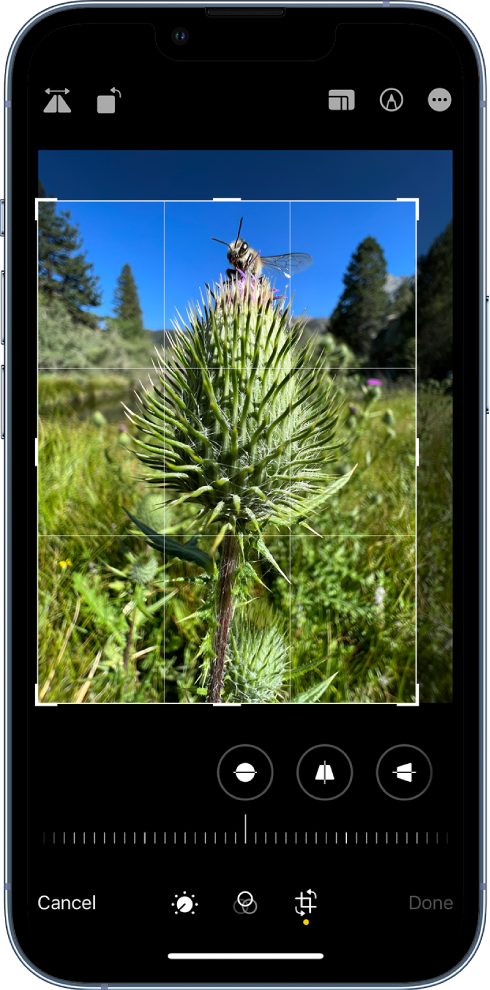
If you do not see the 1x or 2x, then you cannot zoom in while taking a picture with Portrait mode. However, you can crop and edit the photo after it has been taken with these steps from Edit photos and videos on iPhone:
Crop, rotate, or flip a photo or video
1. In Photos, tap a photo or video thumbnail to view it in full screen.
2. Tap Edit, tap, then do any of the following :
* Crop manually: Drag the rectangle corners to enclose the area you want to keep in the photo, or you can pinch the photo open or closed.
* Crop to a standard preset ratio: Tap, then choose an option such as square, 16:9, or 5:4.
* Rotate: Tapto rotate the photo 90 degrees.
* Flip: Tapto flip the image horizontally.
3. Tap Done to save your edits, or if you don’t like your changes, tap Cancel, then tap Discard Changes.
If this is something you'd like to see changed in the future, then we would encourage you to submit your feedback here: Feedback - iPhone - Apple
Take care.
Hi there irshad108,
The available ways to use Portrait mode on your iPhone 14 Plus are outlined in this helpful article: Use Portrait mode on your iPhone
Some iPhone models have multiple options for Portrait mode, like 1x or 2x. Just tap the 1x or 2x button to switch between the options.
If you do not see the 1x or 2x, then you cannot zoom in while taking a picture with Portrait mode. However, you can crop and edit the photo after it has been taken with these steps from Edit photos and videos on iPhone:
Crop, rotate, or flip a photo or video
1. In Photos, tap a photo or video thumbnail to view it in full screen.
2. Tap Edit, tap
* Crop manually: Drag the rectangle corners to enclose the area you want to keep in the photo, or you can pinch the photo open or closed.
* Crop to a standard preset ratio: Tap
* Rotate: Tap
* Flip: Tap
3. Tap Done to save your edits, or if you don’t like your changes, tap Cancel, then tap Discard Changes.
If this is something you'd like to see changed in the future, then we would encourage you to submit your feedback here: Feedback - iPhone - Apple
Take care.
Zooming portrait mode