I am not able to connect my ears pods
I am not able to connect my ears pods now. As usual iPhone EarPods is working well
I am not able to connect my ears pods now. As usual iPhone EarPods is working well
Hello Asfarearpods,
It looks like you've had the opportunity to review the details in the related article above: If you get a 'Cannot Verify AirPods' alert - Apple Support
If you are receiving that prompt, you'll want to reach out to the location where you purchased your AirPods. They'll be in the best position to assist further.
If you aren't receiving that particular message, you'll want to take the steps below:
1. Make sure that your iPhone or iPod touch has the latest version of iOS or that your iPad has the latest version of iPadOS.
2. Put both AirPods in the charging case and make sure that both AirPods are charging.
3. To make sure that Bluetooth is on, go to Settings > Bluetooth.
4. If your AirPods are connected, make sure that they're selected as your audio device. If your AirPods appear in the list of devices but they don't connect, go to the next step.
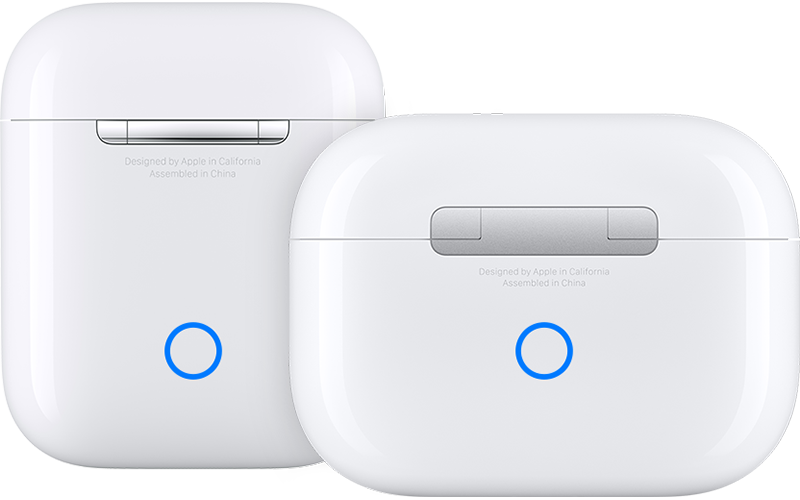
5. Close the lid, wait 15 seconds, then open the lid. Press and hold the setup button on the back of the charging case for up to 10 seconds. The status light on the front of the charging case should flash white, which means that your AirPods are ready to connect.
6. Hold the charging case, with your AirPods inside and the lid open, next to your iPhone, iPad, or iPod touch.
7. Follow the steps on the screen of your iPhone, iPad, or iPod touch.
You can also find those steps in this resource: If your AirPods won't connect - Apple Support
Should you still be unable to connect your AirPods, you'll want to reach out to Apple Support: Apple Support They'll be in the best position to look into your options further.
Take care.
Hello Asfarearpods,
It looks like you've had the opportunity to review the details in the related article above: If you get a 'Cannot Verify AirPods' alert - Apple Support
If you are receiving that prompt, you'll want to reach out to the location where you purchased your AirPods. They'll be in the best position to assist further.
If you aren't receiving that particular message, you'll want to take the steps below:
1. Make sure that your iPhone or iPod touch has the latest version of iOS or that your iPad has the latest version of iPadOS.
2. Put both AirPods in the charging case and make sure that both AirPods are charging.
3. To make sure that Bluetooth is on, go to Settings > Bluetooth.
4. If your AirPods are connected, make sure that they're selected as your audio device. If your AirPods appear in the list of devices but they don't connect, go to the next step.
5. Close the lid, wait 15 seconds, then open the lid. Press and hold the setup button on the back of the charging case for up to 10 seconds. The status light on the front of the charging case should flash white, which means that your AirPods are ready to connect.
6. Hold the charging case, with your AirPods inside and the lid open, next to your iPhone, iPad, or iPod touch.
7. Follow the steps on the screen of your iPhone, iPad, or iPod touch.
You can also find those steps in this resource: If your AirPods won't connect - Apple Support
Should you still be unable to connect your AirPods, you'll want to reach out to Apple Support: Apple Support They'll be in the best position to look into your options further.
Take care.
I am not able to connect my ears pods