Ipad -how to send email folder to a person

Help—How do i email my email folder that contains many emails to a person i need to send to and/or move my email folder to a file folder so i can send the email folder to a person via email;

iPad Pro, iPadOS 16

Posted on Apr 25, 2023 10:13 AM

Reply
Question marked as Top-ranking reply

Posted on Apr 25, 2023 10:28 AM

Export to Files


Insofar as iOS/iPadOS is capable, there are no easy ways to export email messages and/or mail folders to file storage. If looking to export bulk email for offline storage, or to bulk send to someone else, you might be well advised to explore any facilities that may be available from your Mail Provider.


The only practical method to export mail messages from iOS/iPadOS devices, to file storage, is to create a PDF-file for each email - however, this will have to be manually repeated for each mail message. For large volume of mail messages, this method is unlikely to be a practical mechanism. Export to PDF works for any App that can print…


To export a mail message, assuming that the message that you wish to export is shown on your iPad screen, tap the Reply button at bottom right of the Mail window. From the action menu, select Print.


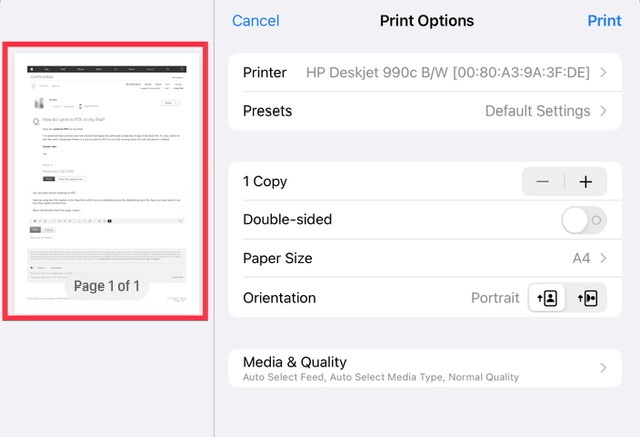
When the familiar iPad Print dialogue page is open, use a two-finger zoom gesture on the thumbnail image of the print page:


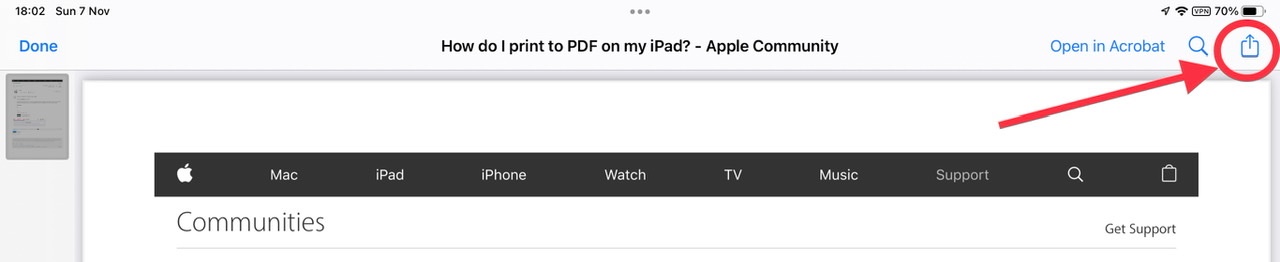
This gesture will open a PDF view of the page. From this PDF page tap the Share icon at top-right:


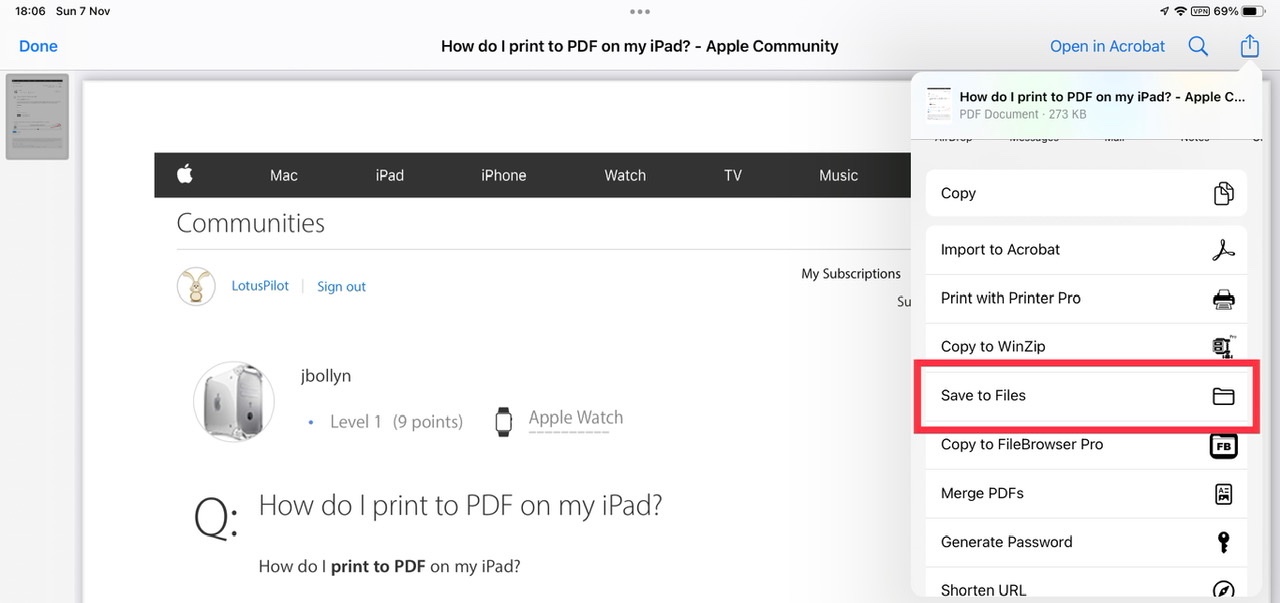
Tapping the Share icon opens the familiar Share sheet. Scroll down the page until you find the Save to Files option:


Send Mail Messages as Attachment(s)


You can attach one or multiple received email messages - although the process to attach a sent/received email to a draft email may not be immediately obvious…


To attached an existing or received email message to another:


1) When drafting a new email - or replying to a received email - tap the multitasking trigger-button (the three-dot ellipsis button) at the top of the draft message window - to expose the multitasking windowing options:




Tap the second button (split-screen, selecting left or right split) or third button (slide-over) window view. You will now have two visible windows - per your selected view, one of which will be your draft mail message editing window.


2) Using the other window, find the email message in the mailbox folder that you wish to attach to your new/reply email.


Touch-and-hold (i.e., a long touch) the mail message that you wish to attach to your draft mail; as soon as the message “pops” (you may see an action menu), simply drag the message to the insertion point of the draft mail window - and lift your finger.


The email that you dragged to the draft message window will be attached at the insertion point. Repeat for additional attachments as needed.


3) Finish drafting the email - then send or save the draft mail message as required.


Should you choose to do so, you can return the draft window to full screen or a different view; simply tap the multitasking trigger button (the ellipsis button) at the top of the draft window - then select view that you require from the button-options that you see.


NB: This description obviously applies only to the iPadOS multitasking environment. Depending upon the installed version of iPadOS, the menu triggered by the multitasking button may differ in appearance - but essentially offers the same menu options.



1 reply
Question marked as Top-ranking reply

Apr 25, 2023 10:28 AM in response to terrisquires

Export to Files


Insofar as iOS/iPadOS is capable, there are no easy ways to export email messages and/or mail folders to file storage. If looking to export bulk email for offline storage, or to bulk send to someone else, you might be well advised to explore any facilities that may be available from your Mail Provider.


The only practical method to export mail messages from iOS/iPadOS devices, to file storage, is to create a PDF-file for each email - however, this will have to be manually repeated for each mail message. For large volume of mail messages, this method is unlikely to be a practical mechanism. Export to PDF works for any App that can print…


To export a mail message, assuming that the message that you wish to export is shown on your iPad screen, tap the Reply button at bottom right of the Mail window. From the action menu, select Print.


When the familiar iPad Print dialogue page is open, use a two-finger zoom gesture on the thumbnail image of the print page:


This gesture will open a PDF view of the page. From this PDF page tap the Share icon at top-right:


Tapping the Share icon opens the familiar Share sheet. Scroll down the page until you find the Save to Files option:


Send Mail Messages as Attachment(s)


You can attach one or multiple received email messages - although the process to attach a sent/received email to a draft email may not be immediately obvious…


To attached an existing or received email message to another:


1) When drafting a new email - or replying to a received email - tap the multitasking trigger-button (the three-dot ellipsis button) at the top of the draft message window - to expose the multitasking windowing options:


Tap the second button (split-screen, selecting left or right split) or third button (slide-over) window view. You will now have two visible windows - per your selected view, one of which will be your draft mail message editing window.


2) Using the other window, find the email message in the mailbox folder that you wish to attach to your new/reply email.


Touch-and-hold (i.e., a long touch) the mail message that you wish to attach to your draft mail; as soon as the message “pops” (you may see an action menu), simply drag the message to the insertion point of the draft mail window - and lift your finger.


The email that you dragged to the draft message window will be attached at the insertion point. Repeat for additional attachments as needed.


3) Finish drafting the email - then send or save the draft mail message as required.


Should you choose to do so, you can return the draft window to full screen or a different view; simply tap the multitasking trigger button (the ellipsis button) at the top of the draft window - then select view that you require from the button-options that you see.


NB: This description obviously applies only to the iPadOS multitasking environment. Depending upon the installed version of iPadOS, the menu triggered by the multitasking button may differ in appearance - but essentially offers the same menu options.


This thread has been closed by the system or the community team. You may vote for any posts you find helpful, or search the Community for additional answers.

Ipad -how to send email folder to a person

Welcome to Apple Support Community
A forum where Apple customers help each other with their products. Get started with your Apple Account.