how to connect to iTunes
how to restate my iPhone 8 plus
iPhone 8 Plus, iOS 13
how to restate my iPhone 8 plus
iPhone 8 Plus, iOS 13
Hi lolo256,
From the article you referenced, it sounds like you may see the Restore screen on your iPhone. If this is the case, try to force your iPhone to restart with these instructions first.
If the screen persists, you'll need to follow the steps outlined in this Apple Support article:
If you can't update or restore your iPhone or iPod touch
1. Make sure that your Mac is up to date. If you're using iTunes, make sure you have the latest version of iTunes.
2. On a Mac with macOS Catalina or later, open Finder. On a Mac with macOS Mojave or earlier, or on a PC, open iTunes. If iTunes is already open, close it, then open it again. Find out which macOS your Mac is using.
3. Keep your device connected and wait until the recovery mode screen appears:
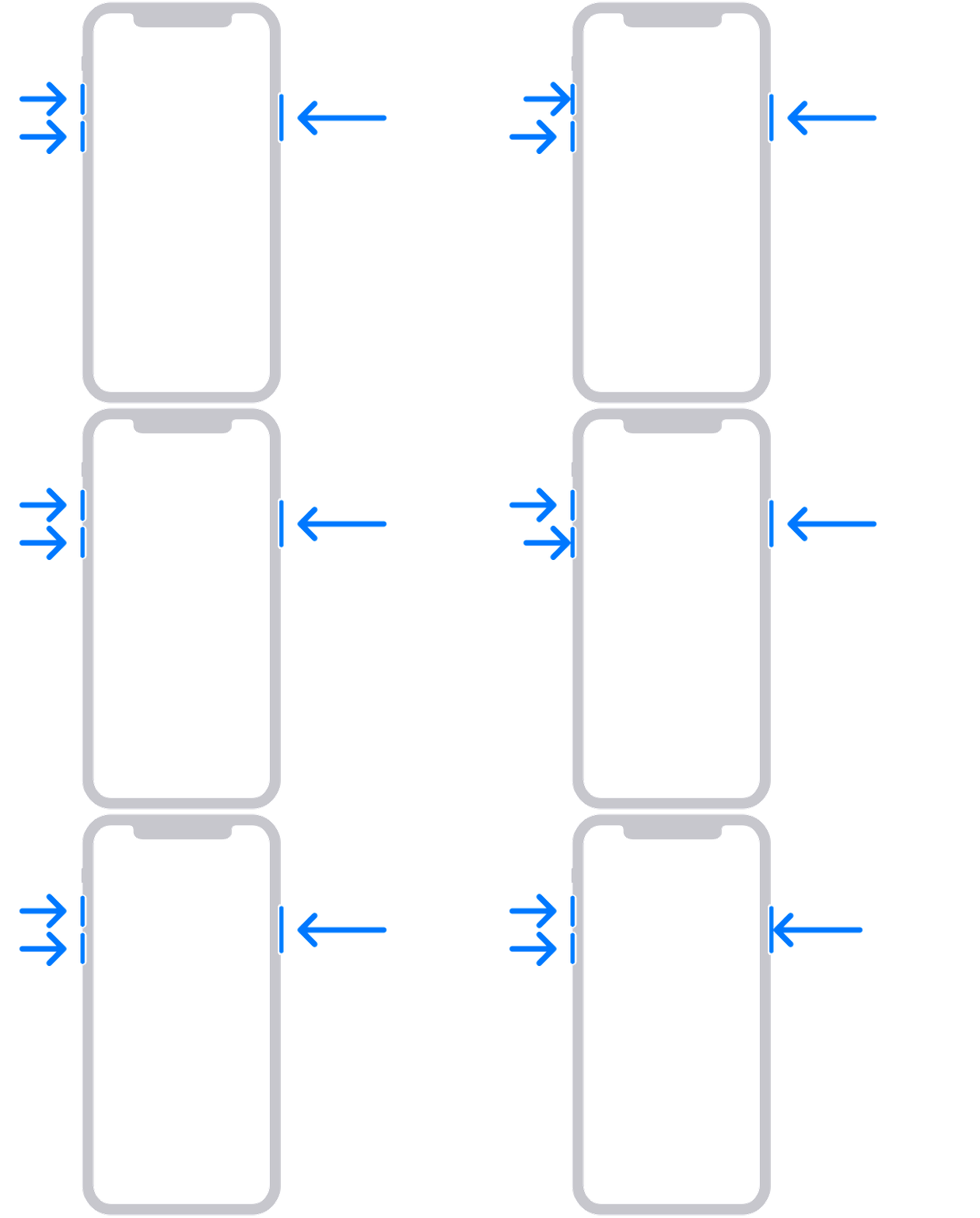
Press and quickly release the volume up button. Press and quickly release the volume down button. Then, press and hold the side button until you see the recovery mode screen.
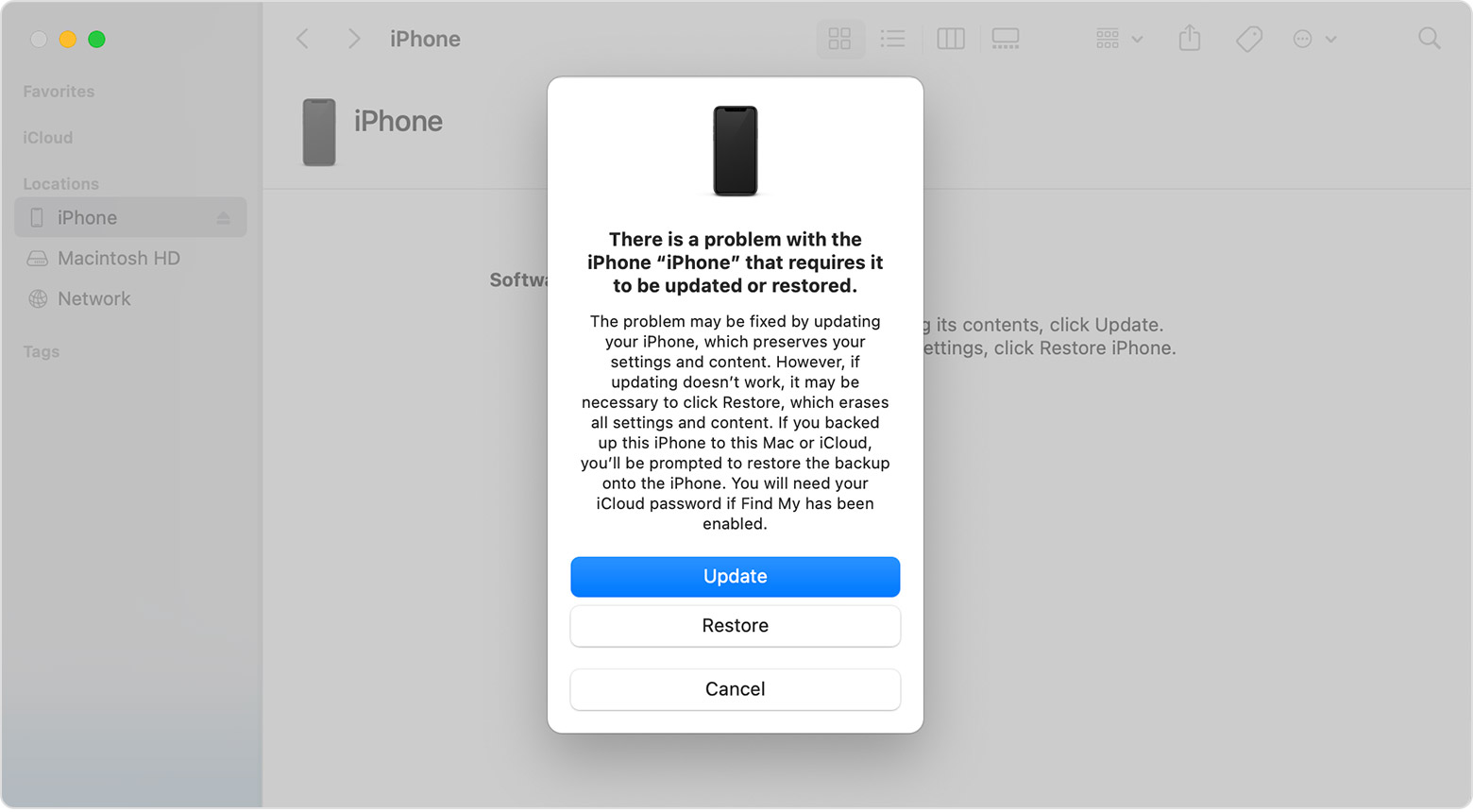
4. Locate your device on your computer. When you see the option to Restore or Update, choose Update. Your computer will try to reinstall the software without erasing your data. Wait while your computer downloads the software for your device. If the download takes more than 15 minutes and your device exits the recovery mode screen, let the download finish, then repeat step 3.
5. After the Update or Restore completes, set up your device.
It's very important that you attempt to choose to Update and not Restore first. A Restore will erase your device, an Update will reinstall the iOS software without erasing your device.
Kindest Regards.
Hi lolo256,
From the article you referenced, it sounds like you may see the Restore screen on your iPhone. If this is the case, try to force your iPhone to restart with these instructions first.
If the screen persists, you'll need to follow the steps outlined in this Apple Support article:
If you can't update or restore your iPhone or iPod touch
1. Make sure that your Mac is up to date. If you're using iTunes, make sure you have the latest version of iTunes.
2. On a Mac with macOS Catalina or later, open Finder. On a Mac with macOS Mojave or earlier, or on a PC, open iTunes. If iTunes is already open, close it, then open it again. Find out which macOS your Mac is using.
3. Keep your device connected and wait until the recovery mode screen appears:
Press and quickly release the volume up button. Press and quickly release the volume down button. Then, press and hold the side button until you see the recovery mode screen.
4. Locate your device on your computer. When you see the option to Restore or Update, choose Update. Your computer will try to reinstall the software without erasing your data. Wait while your computer downloads the software for your device. If the download takes more than 15 minutes and your device exits the recovery mode screen, let the download finish, then repeat step 3.
5. After the Update or Restore completes, set up your device.
It's very important that you attempt to choose to Update and not Restore first. A Restore will erase your device, an Update will reinstall the iOS software without erasing your device.
Kindest Regards.
how to connect to iTunes