Why is it not taking my correct password?
Why is it not accepting my correct passcode?
iPhone 13
Why is it not accepting my correct passcode?
iPhone 13
Hello Chrisluvspoodles,
Which passcode are you referring to? If the iPhone passcode is not being accepted , the following guidance offers the best path to resolution:
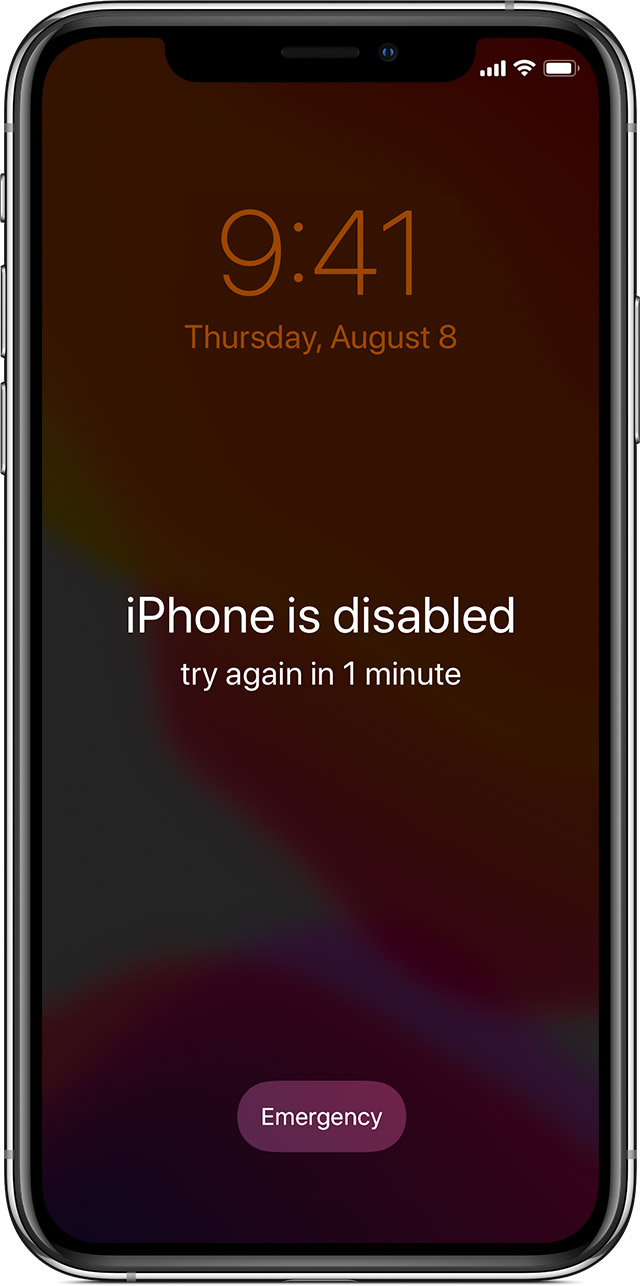
If you enter the wrong passcode on your iPhone Lock Screen too many times, an alert lets you know that your iPhone is disabled. (Learn what to do if you see "[Device] unavailable" or "Security Lockout" on your iPhone or iPad.)
If you can’t remember your passcode when you try again, use a computer to put your iPhone in recovery mode. Recovery mode allows you to erase the iPhone, giving you access to set it up again.
After you erase your iPhone, you can restore your data and settings from a backup. If you didn't back up your iPhone, you can set it up as a new device and then download any data that you have in iCloud.
Step 1: Make sure that you have a computer (Mac or PC)
This process requires a Mac or PC. If you're using a PC, make sure that it has Windows 10 or later, and that iTunes is installed. You also need the cable that came with your iPhone, or another compatible cable, to connect your iPhone to the computer.
If you don't have a computer and you can't borrow one, you need to go to an Apple Retail Store or Apple Authorized Service Provider for help.
Step 2: Turn off your iPhone
1. Unplug your iPhone from the computer if it’s connected.
2. Turn off your iPhone using the method for your iPhone model:
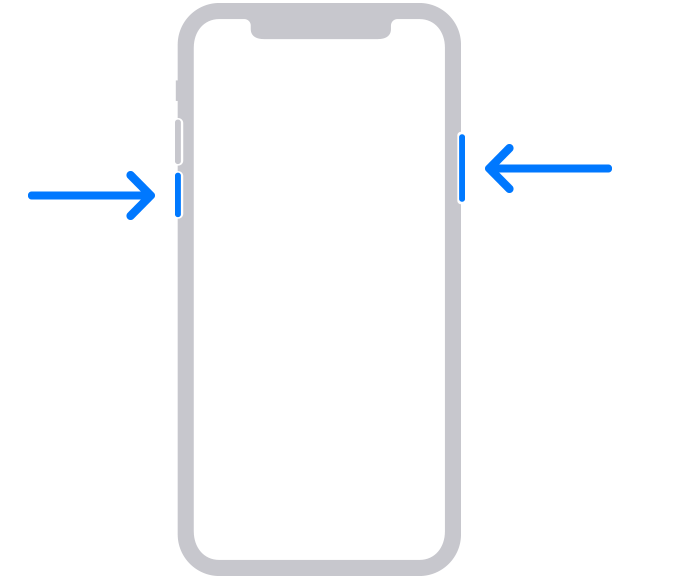
* iPhone 8, iPhone 8 Plus, iPhone X and later, including iPhone SE (2nd and 3rd generation): Press and hold both the side button and the Volume down button until the power off slider appears.
*
1. Press and hold the correct button for your iPhone while immediately connecting your iPhone to the computer. Don't let go of the button.
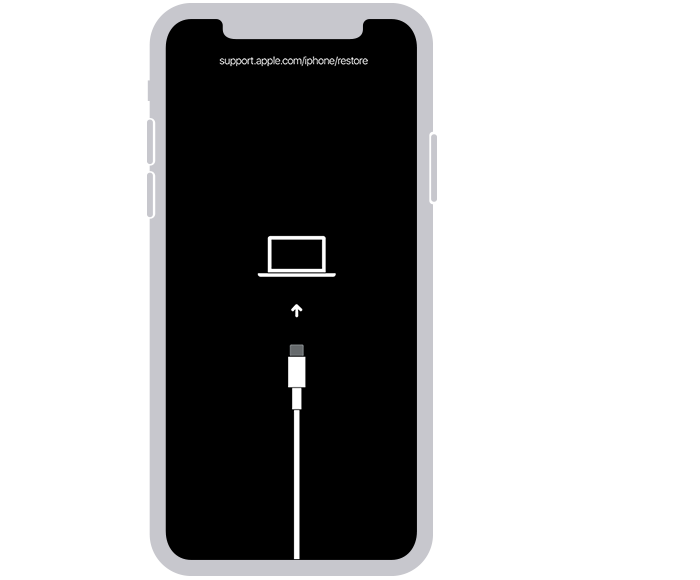
2. Keep holding the button until you see the recovery mode screen on your iPhone, then let go.
3.
4. If you see the passcode screen, you need to turn off your iPhone and start again.
If you can’t get your iPhone to show the recovery mode screen and you need help, contact Apple Support.
Step 4: Restore your iPhone
1. Locate your iPhone in the Finder or in iTunes on the computer that it’s connected to. (Learn how to find your connected iPhone.)
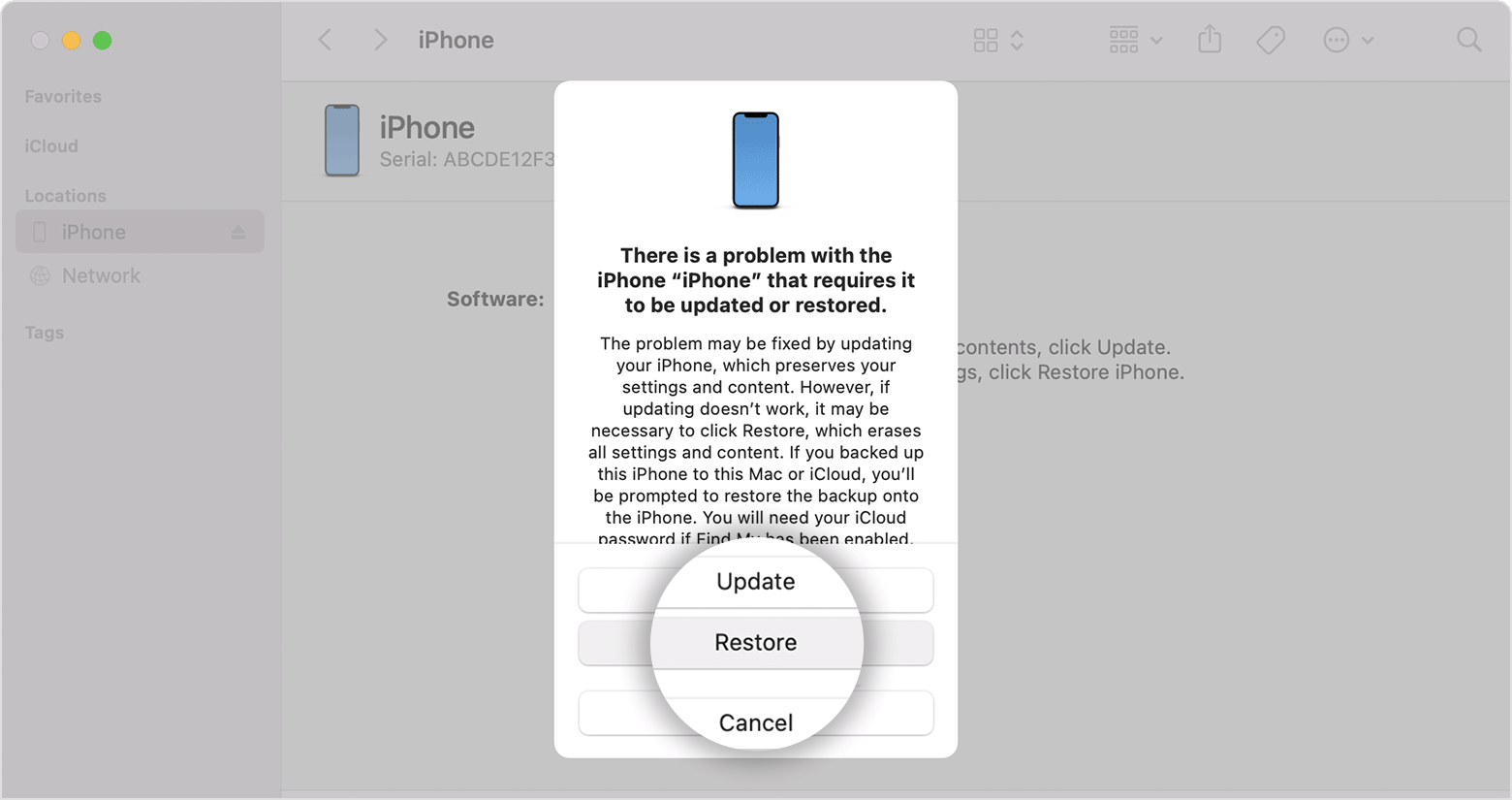
2. Choose Restore when you see the option to Restore or Update. Your computer downloads software for your iPhone and begins the restore process. If the download takes more than 15 minutes and your device exits the recovery mode screen, let the download finish, then turn off your iPhone and start again.
3.
4. Wait for the process to finish.
5. Disconnect your iPhone from the computer, then set up and use your iPhone.
If you forgot your iPhone passcode - Apple Support
Cheers.
Hello Chrisluvspoodles,
Which passcode are you referring to? If the iPhone passcode is not being accepted , the following guidance offers the best path to resolution:
If you enter the wrong passcode on your iPhone Lock Screen too many times, an alert lets you know that your iPhone is disabled. (Learn what to do if you see "[Device] unavailable" or "Security Lockout" on your iPhone or iPad.)
If you can’t remember your passcode when you try again, use a computer to put your iPhone in recovery mode. Recovery mode allows you to erase the iPhone, giving you access to set it up again.
After you erase your iPhone, you can restore your data and settings from a backup. If you didn't back up your iPhone, you can set it up as a new device and then download any data that you have in iCloud.
Step 1: Make sure that you have a computer (Mac or PC)
This process requires a Mac or PC. If you're using a PC, make sure that it has Windows 10 or later, and that iTunes is installed. You also need the cable that came with your iPhone, or another compatible cable, to connect your iPhone to the computer.
If you don't have a computer and you can't borrow one, you need to go to an Apple Retail Store or Apple Authorized Service Provider for help.
Step 2: Turn off your iPhone
1. Unplug your iPhone from the computer if it’s connected.
2. Turn off your iPhone using the method for your iPhone model:
* iPhone 8, iPhone 8 Plus, iPhone X and later, including iPhone SE (2nd and 3rd generation): Press and hold both the side button and the Volume down button until the power off slider appears.
*
1. Press and hold the correct button for your iPhone while immediately connecting your iPhone to the computer. Don't let go of the button.
2. Keep holding the button until you see the recovery mode screen on your iPhone, then let go.
3.
4. If you see the passcode screen, you need to turn off your iPhone and start again.
If you can’t get your iPhone to show the recovery mode screen and you need help, contact Apple Support.
Step 4: Restore your iPhone
1. Locate your iPhone in the Finder or in iTunes on the computer that it’s connected to. (Learn how to find your connected iPhone.)
2. Choose Restore when you see the option to Restore or Update. Your computer downloads software for your iPhone and begins the restore process. If the download takes more than 15 minutes and your device exits the recovery mode screen, let the download finish, then turn off your iPhone and start again.
3.
4. Wait for the process to finish.
5. Disconnect your iPhone from the computer, then set up and use your iPhone.
If you forgot your iPhone passcode - Apple Support
Cheers.
Why is it not taking my correct password?