I Recently got Apple Watch, the Stand goal closes very fast inaccurately.

I adjusted my stand goal to 6 hours, but I've noticed that it fills up quite quickly. For instance, this morning I woke up at 8 am and after only going downstairs, I had already achieved 3 hours toward my stand goal. It hasn't even been an hour since I got up. Is there any way to resolve this issue, or does it improve over time and adjust automatically?

Posted on May 16, 2023 7:00 AM

Reply
Question marked as Top-ranking reply

Posted on May 18, 2023 11:05 AM

Hello iBeds,


Thanks for choosing the Apple Support Communities. We understand your Stand Goal is not counting accurately. For this, we suggest calibrating your Apple Watch. Follow the instrucitons below and they may resolve the issue.


Calibrate your Apple Watch for improved Workout and Activity accuracy - Apple Support


"You can calibrate your Apple Watch to improve the accuracy of your distance, pace, and calorie measurements. Calibrating your watch can also help it learn your fitness level and stride, which improves accuracy when GPS is limited or unavailable.


Check your settings

To make sure that your Apple Watch can get the information it needs, check these settings on your iPhone:

  1. On your iPhone, open the Settings app.
  2. Tap Privacy & Security > Location Services. 
  3. Make sure that Location Services is turned on.
  4. Scroll down, then tap System Services. 
  5. Make sure that Motion Calibration & Distance is turned on.
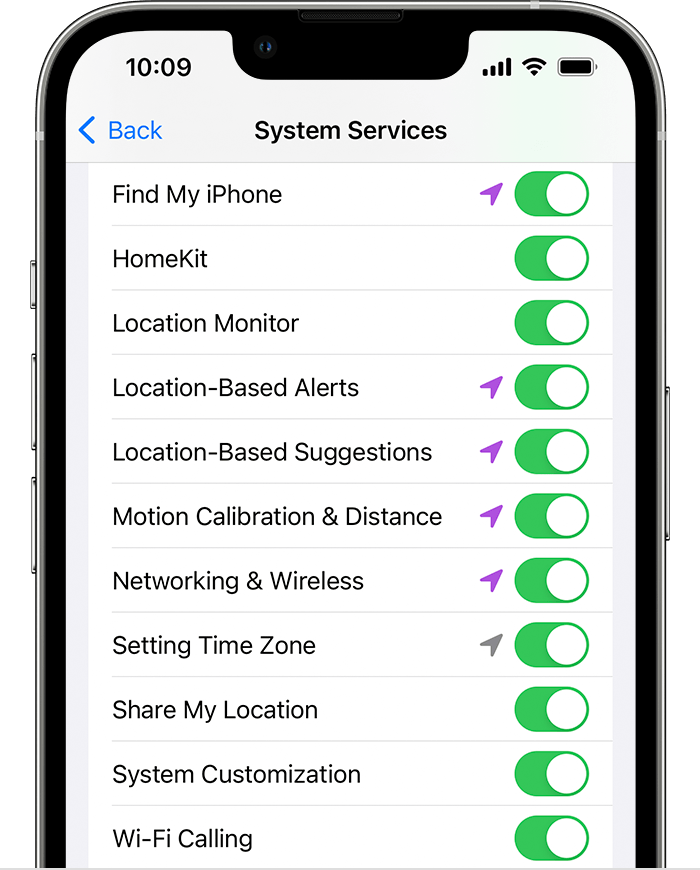
System Services screen on iPhone.


6. Continue with the steps below.


Calibrate your Apple Watch

  1. While wearing your Apple Watch, go to a flat, open outdoor area that offers good GPS reception and clear skies.
  2. If you have Apple Watch Series 2 or later, you just need your Apple Watch.* If you have Apple Watch Series 1 or earlier, bring your iPhone for GPS. Hold your iPhone in your hand, or wear it on an armband or waistband.
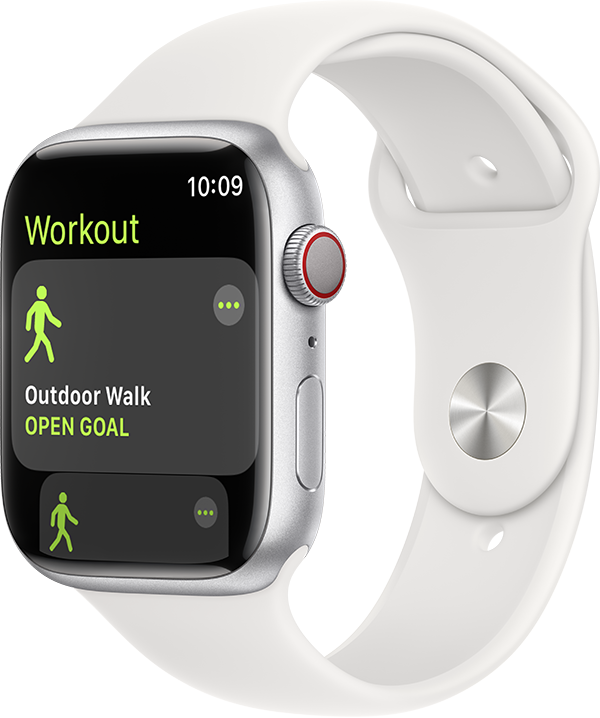
  3. Open the Workout app, then tap Outdoor Walk or Outdoor Run. To set a goal before starting, tap the ... icon.

Outdoor Walk workout on watch with white band.


4. Walk or run at your normal pace for about 20 minutes.

If you don't have time to finish the workout, you can complete 20 minutes over multiple outdoor Workout sessions. If you work out at different speeds, you should also calibrate for 20 minutes at each of the speeds that you walk or run.

Whenever you walk or run outside using the above steps, your Apple Watch continues to calibrate the accelerometer by learning your stride length at different speeds. Calibration can also improve the accuracy of your calorie calculations in the Workout app, and the calorie, distance, Move, and Exercise calculations in the Activity app. 


Improve your Workout and Activity accuracy

Your personal information, such as your height, weight, gender, and age, is one of the things your Apple Watch uses to calculate how many calories you burn and more. Learn how to update your personal information."


We hope this helps.


Cheers!


Similar questions

1 reply
Question marked as Top-ranking reply

May 18, 2023 11:05 AM in response to iBeds

Hello iBeds,


Thanks for choosing the Apple Support Communities. We understand your Stand Goal is not counting accurately. For this, we suggest calibrating your Apple Watch. Follow the instrucitons below and they may resolve the issue.


Calibrate your Apple Watch for improved Workout and Activity accuracy - Apple Support


"You can calibrate your Apple Watch to improve the accuracy of your distance, pace, and calorie measurements. Calibrating your watch can also help it learn your fitness level and stride, which improves accuracy when GPS is limited or unavailable.


Check your settings

To make sure that your Apple Watch can get the information it needs, check these settings on your iPhone:

  1. On your iPhone, open the Settings app.
  2. Tap Privacy & Security > Location Services. 
  3. Make sure that Location Services is turned on.
  4. Scroll down, then tap System Services. 
  5. Make sure that Motion Calibration & Distance is turned on.

System Services screen on iPhone.


6. Continue with the steps below.


Calibrate your Apple Watch

  1. While wearing your Apple Watch, go to a flat, open outdoor area that offers good GPS reception and clear skies.
  2. If you have Apple Watch Series 2 or later, you just need your Apple Watch.* If you have Apple Watch Series 1 or earlier, bring your iPhone for GPS. Hold your iPhone in your hand, or wear it on an armband or waistband.
  3. Open the Workout app, then tap Outdoor Walk or Outdoor Run. To set a goal before starting, tap the ... icon.

Outdoor Walk workout on watch with white band.


4. Walk or run at your normal pace for about 20 minutes.

If you don't have time to finish the workout, you can complete 20 minutes over multiple outdoor Workout sessions. If you work out at different speeds, you should also calibrate for 20 minutes at each of the speeds that you walk or run.

Whenever you walk or run outside using the above steps, your Apple Watch continues to calibrate the accelerometer by learning your stride length at different speeds. Calibration can also improve the accuracy of your calorie calculations in the Workout app, and the calorie, distance, Move, and Exercise calculations in the Activity app. 


Improve your Workout and Activity accuracy

Your personal information, such as your height, weight, gender, and age, is one of the things your Apple Watch uses to calculate how many calories you burn and more. Learn how to update your personal information."


We hope this helps.


Cheers!


This thread has been closed by the system or the community team. You may vote for any posts you find helpful, or search the Community for additional answers.

I Recently got Apple Watch, the Stand goal closes very fast inaccurately.

Welcome to Apple Support Community
A forum where Apple customers help each other with their products. Get started with your Apple Account.