This item is temporarily unavailable
Trying to install OS X Yosemite 10.10 and i keep receiving this pop up:
The item is temporarily unavailable.
Ugh, I’ve waiting like previously suggested and still same message.
Mac mini, OS X 10.10
Trying to install OS X Yosemite 10.10 and i keep receiving this pop up:
The item is temporarily unavailable.
Ugh, I’ve waiting like previously suggested and still same message.
Mac mini, OS X 10.10
Hey Comeonmanreally,
Thanks for using Apple Support Communities. We'd be happy to help out. If you're unable to install OS X Yosemite due to an error "The item is temporarily unavailable", this could mean it's not associated with your Apple ID.
Also, if this isn't the original OS which came with your Mac, you'll want to reinstall the original OS instead and then upgrade from there. For help with doing so, check out these steps:
If you're using an Intel-based Mac
If you're not using a Mac with Apple silicon, then you're using an Intel-based Mac.
1. Press the power button on your Mac to turn it on, then release the power button and immediately press and hold both the Command (⌘) key and R key until you see an Apple logo or spinning globe. If you can't start up from Recovery in this way, review the guidelines for using startup-key combinations.
2. If you're asked to select a user you know the password for, select the user, click Next, then enter their administrator password.
Reinstall macOS from macOS Recovery
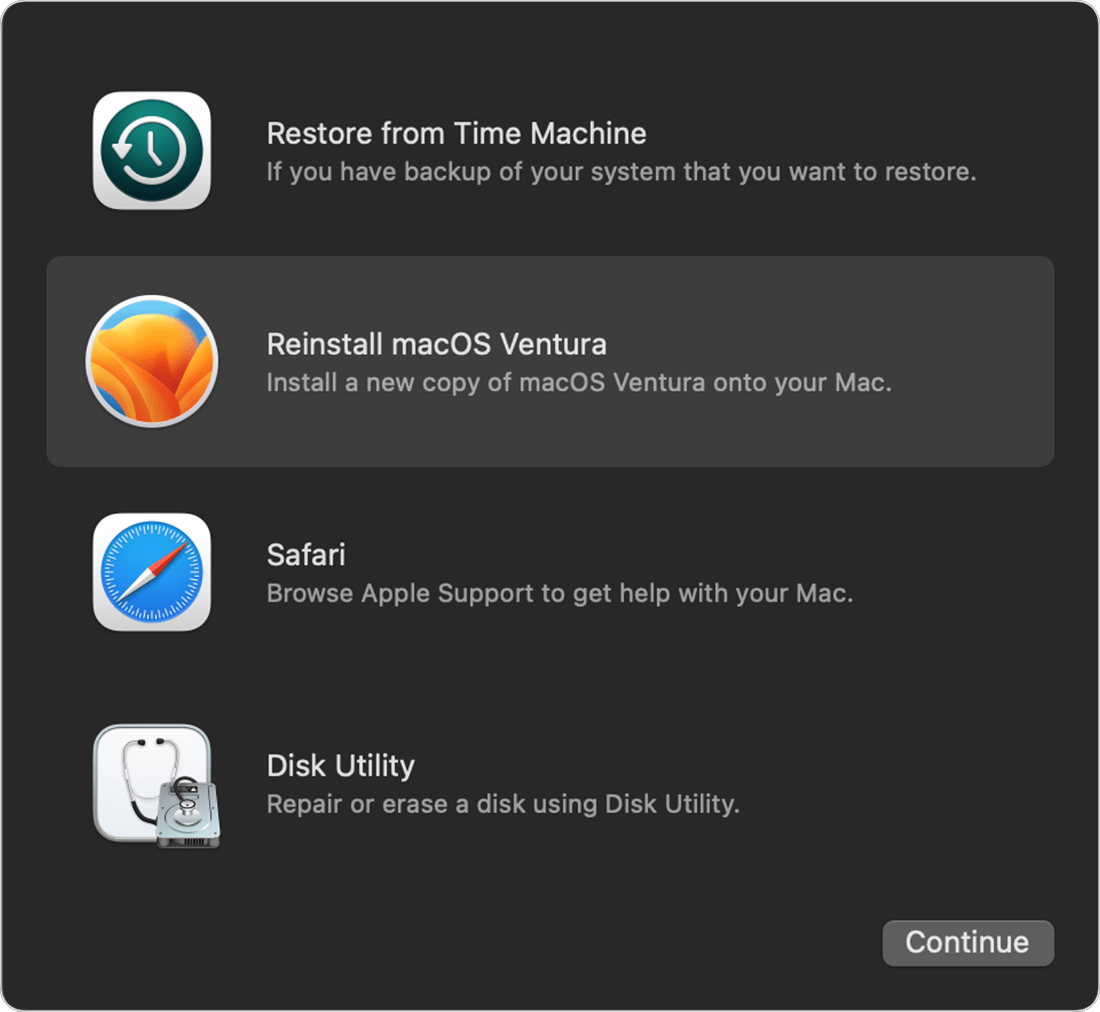
When you see a window with the option to reinstall macOS, your Mac has started up from Recovery.
1. Select the option to reinstall macOS. Reinstalling macOS doesn't remove your personal data.
2. Click Continue, then follow the onscreen instructions.
* If the installer asks to unlock your disk, enter the password that you use to log in to your Mac.
* If the installer doesn't see your disk, or it says that it can't install on your computer or volume, you might need to erase your disk first.
* If the installer offers you the choice between installing on Macintosh HD or Macintosh HD - Data, choose Macintosh HD.
* Allow installation to complete without putting your Mac to sleep or closing its lid. Your Mac might restart and show a progress bar several times, and the screen might be empty for minutes at a time.
After installation is complete, your Mac might restart to a setup assistant. If you're selling, trading in, or giving away your Mac, press Command-Q to quit the setup assistant without completing setup, then click Shut Down. When the new owner starts up the Mac, they can use their own information to complete setup.
This is outlined further here: How to reinstall macOS - Apple Support
Once the original macOS version is installed, you can upgrade using these steps: Update macOS on Mac - Apple Support
We hope this helps out.
Take care!
Hey Comeonmanreally,
Thanks for using Apple Support Communities. We'd be happy to help out. If you're unable to install OS X Yosemite due to an error "The item is temporarily unavailable", this could mean it's not associated with your Apple ID.
Also, if this isn't the original OS which came with your Mac, you'll want to reinstall the original OS instead and then upgrade from there. For help with doing so, check out these steps:
If you're using an Intel-based Mac
If you're not using a Mac with Apple silicon, then you're using an Intel-based Mac.
1. Press the power button on your Mac to turn it on, then release the power button and immediately press and hold both the Command (⌘) key and R key until you see an Apple logo or spinning globe. If you can't start up from Recovery in this way, review the guidelines for using startup-key combinations.
2. If you're asked to select a user you know the password for, select the user, click Next, then enter their administrator password.
Reinstall macOS from macOS Recovery
When you see a window with the option to reinstall macOS, your Mac has started up from Recovery.
1. Select the option to reinstall macOS. Reinstalling macOS doesn't remove your personal data.
2. Click Continue, then follow the onscreen instructions.
* If the installer asks to unlock your disk, enter the password that you use to log in to your Mac.
* If the installer doesn't see your disk, or it says that it can't install on your computer or volume, you might need to erase your disk first.
* If the installer offers you the choice between installing on Macintosh HD or Macintosh HD - Data, choose Macintosh HD.
* Allow installation to complete without putting your Mac to sleep or closing its lid. Your Mac might restart and show a progress bar several times, and the screen might be empty for minutes at a time.
After installation is complete, your Mac might restart to a setup assistant. If you're selling, trading in, or giving away your Mac, press Command-Q to quit the setup assistant without completing setup, then click Shut Down. When the new owner starts up the Mac, they can use their own information to complete setup.
This is outlined further here: How to reinstall macOS - Apple Support
Once the original macOS version is installed, you can upgrade using these steps: Update macOS on Mac - Apple Support
We hope this helps out.
Take care!
This item is temporarily unavailable