AirPlay destinations not appearing in list on Mac

I have both an Apple TV (4k, 3rd gen) and Roku connected to my TV; both those and my Mac (2021 16" MBP) are all on the same wireless network and running their latest respective OS versions. I want to screen mirror my Mac to my Apple TV, but when I went to Screen Mirroring in Control Center, my Roku was the only option listed.

I restarted my Apple TV and Mac, as a help article suggested, and once my Mac was restarted, there are now no options under Screen Mirroring at all, not even the Roku.

What am I doing wrong and how can I get my Mac to screen mirror to my Apple TV?


(Also I think I chose the wrong device when submitting this question, this is NOT in relation to my decommissioned 15" MBP.)

MacBook Pro 15″

Posted on Jun 5, 2023 7:34 AM

Reply
1 reply

Jun 7, 2023 11:12 AM in response to Apopgirl

Hello Apopgirl,


Thanks for reaching out to Apple Support Communities. We see you have some questions about AirPlay on your Mac, and we'd like to help. The following link may be able to help explain more about how to use screen mirroring with your Mac, and what devices are compatible: Use AirPlay to stream what’s on your Mac to an HDTV - Apple Support


If you need further help, please follow the steps below from this Apple resource for AirPlay issues: If screen mirroring or streaming isn't working on your AirPlay-compatible device - Apple Support


"Try these steps first

After each step, see if you still need help. 

1. Make sure that your AirPlay-compatible devices are turned on and near each other.

2. Check that the devices are updated to the latest software and are on the same Wi-Fi network. 

3. Restart the devices that you want to use with AirPlay or screen mirroring.

If you're prompted to enter a password, you might have restrictions turned on, or you might need to adjust your AirPlay password settings.


Still need help?

If you have another issue using AirPlay, learn what to do.

If your music unexpectedly stops

If your music stops playing unexpectedly, use your device or Siri to start playing music again. In some situations, the Home app might be using your HomePod,* Apple TV, or AirPlay-compatible speaker as the main audio source for streaming music (even if your HomePod* or Apple TV isn’t currently playing music). Using Siri on that device or performing another task might cause playback to stop everywhere. You can also use an iOS device or computer with iTunes as an audio source to manually stream music instead.


If you see video but don't hear audio

If you don't hear audio when streaming video from your iOS device or Mac to your Apple TV, make sure that the volume is turned up and not muted on both your iOS device and your television or receiver. 

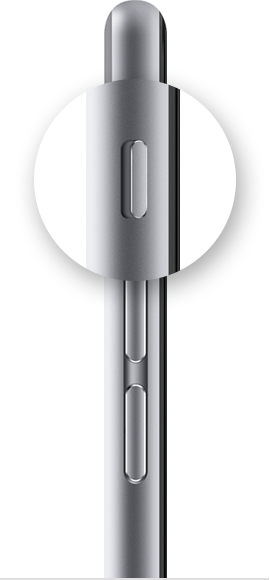
If you're streaming video from an iPhone or iPad, check the Ring/Silent switch. If it's set to silent, you'll see an orange line. Toggle the switch to turn on the ringer.


If you still can’t use AirPlay after trying these steps, contact Apple
Support"


Let us know if this helps.


Regards.

This thread has been closed by the system or the community team. You may vote for any posts you find helpful, or search the Community for additional answers.

AirPlay destinations not appearing in list on Mac

Welcome to Apple Support Community
A forum where Apple customers help each other with their products. Get started with your Apple Account.