repair library permissions

Hi everyone,


I have a new Mac mini m2 running Ventura and am trying to open the photos library from my external hd. It keeps telling me I have to repair permissions, then it says it is unable to open it. See screenshot. Strangely it was opening fine yesterday.


Any ideas? I have a new hd to start backups to but suddenly can't get into this one. Weird.


Thanks! Jon


Mac mini (M2, 2023)

Posted on Jun 13, 2023 7:39 AM

Reply
Question marked as Top-ranking reply

Posted on Jun 13, 2023 7:57 AM

First thing, how is the external drive formatted? To get full functionality (and to avoid damaging the Photos Library) an external drive must be formatted in either APFS format or Mac OS Extended (Journaled) format. Ventura seems to be even more sensitive to the formatting than previous systems.


Additionally, the drive can not have had Time Machine on it since it was formatted.


And the "Ignore ownership" box needs to be checked.


See this:

Move your Photos library to save space on your Mac - Apple Support


11 replies
Question marked as Top-ranking reply

Jun 13, 2023 7:57 AM in response to jonrlind

First thing, how is the external drive formatted? To get full functionality (and to avoid damaging the Photos Library) an external drive must be formatted in either APFS format or Mac OS Extended (Journaled) format. Ventura seems to be even more sensitive to the formatting than previous systems.


Additionally, the drive can not have had Time Machine on it since it was formatted.


And the "Ignore ownership" box needs to be checked.


See this:

Move your Photos library to save space on your Mac - Apple Support


Jun 16, 2023 3:10 AM in response to jonrlind

Jon, how is your external drive connected? Is it connected by a cable or a network volume?

If it is a network volume, try to connect the drive by a USB cable instead. Also check again, if the drive has been used for Time Machine backups or has backup software installed. You cannot disable the ownership on drives used for Time Machine or other backup software, as Richard mentioned in the first post.

Jun 14, 2023 7:25 AM in response to jonrlind

The default name for a new Library is "Photos Library.photoslibrary." (It could have a 2 or 3 if there's more than one.) Your Library would have a different name only if you intentionally named it.


Are you booting off this drive? If so, there would be no "ownership" box.


Have you tried double clicking the Library file? Or close the Photos app and Option-click on the Photos icon. This should bring up a dialog asking which Library you want to open. Perhaps you have more than one that you didn't know about? Does the Photos Library you see seem to be the right size? You can also use this dialog to create a new library and see how it behaves.


You can also use the Finder search field (not spotlight) for ".photoslibrary" to see if there are more Libraries.

Jun 16, 2023 12:01 PM in response to jonrlind

What is the format of the videos that wan't play? Most video formats are container, a package containing metadata, previews, and the video resource fork. the resource might not be copied into the container, but just a link. When we copy a video to a new drive, it can happen, the link will be broken or the resource fork left behind.


Typically, videos will not play, if we copy the library to drive with a different file system format, particularly, if the file system format is case sensitive. then Photos may not be able to find the resource and play the video. Or is your external drive encrypted?


Jun 16, 2023 10:31 PM in response to jonrlind

We can copy videos without problems between MacOS Extended and APFS, bur the videos should not be on a volume that is case-sensitive . You did not mention, if the file system format of the drive includes the option case-sensitive. If the format is treating uppercase letters and lower case letters in the filenames as different, the resource fork may not be found.


As to the codecs of your videos - you may want to check the format of the older videos according to this list for iMovie. About legacy media in iMovie for macOS - Apple Support


Jun 13, 2023 8:07 AM in response to Richard.Taylor

Hey Richard,


Thx for the reply. It is formatted correctly, APFS I believe. If not it's Extended (Journaled) at the very least. I'm running Disk Utility First Aid on it now so it's unmounted. There's a lot in there so it could take a while. I have everything backed up so I'm not too worried.


I will double check the formatting when it's done, and be sure the permissions are ignored. That latter may be the problem. I'm not sure I've ever done that. What is so weird is that it was fine yesterday, and has been forever.


Jon

Jun 16, 2023 10:31 AM in response to léonie

Hi léonie,


Thanks for jumping in. It is connected with a USB-C cable, the one that came with the new drives. I just erased and re-formatted one of the new LaCie drives to APFS and copied the correct Photos Library over to it, but nothing else. Photos is the only thing on it. There is also no Time Machine on this new drive so the "Ignore Ownership" is checked.


Now, Photos opens right up from that drive, but what's really weird is that the videos recorded before 2022 stop playing back. Everything recorded since early 2022 then plays back fine, no matter how long or short the vid is. Also, when I try to "edit" the pre-2022 videos in Quicktime, it gives me the message in the attached screenshot, and opens a Finder window to locate it. But when I search for the video by its name, the system can't find it anywhere. It's like the videos before Jan. 2022 were all replaced by a snapshot. This is copied from the original Library which I can still open on my older Mac OS Extended (Journaled) drive on which all videos will play. Right now the drives are ALL going through an OWC hub to my Mac mini m2. So even the older drive is playing everything on this set up. It's the new drives that are not playing them, or even finding them.


Any ideas?


Jon

Jun 16, 2023 5:45 PM in response to léonie

They're mostly just plain old .MOV. Mostly from my iPhones. Some really old ones are mpeg from other camera. I would sat they're 90% .MOV.


The drive is NOT encrypted. But the old drive is Extended (Journaled) and the new drive is formatted APFS. I guess that could be the issue if the new format means they can't find the original resource, but it seems like a basic Apple thing to make sure one format's content can transfer to the other. It always has before so how do I get around it? I thought about reformatting the old drive to APFS but I don't I can reformat a drive without erasing it first, can I?

Jun 17, 2023 7:03 AM in response to léonie

The various codecs all play in the older drive so that should not be a problem on the new one. I checked the legacy media and I don't have anything that isn't on that list.


I used disk utility to determine if the system is case-sensitive and all 3 layers(?) of the external drive say it is not. Same for the older drive. I attached the screenshots. I also looked at the external drives in disk utility and noticed the new one has a "container" and the older one does not (also attached). Could that be an issue?


Jun 24, 2023 7:07 AM in response to jonrlind

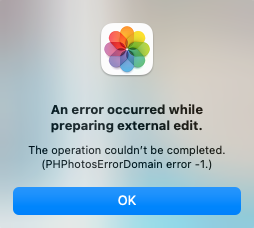
Okay, now when I'm trying to open Photos from my usual external Mac OS extended drive I'm getting an error message that the operation couldn't be completed, "PHPhotosErrorDomain error -1." WTH?


This has to be a Ventura OS issue. Nothing like this ever happened before when I used my older Mac Pro. Anyone hearing about Photos glitches on the new OS? Or the M2 chip?


Jon

This thread has been closed by the system or the community team. You may vote for any posts you find helpful, or search the Community for additional answers.

repair library permissions

Welcome to Apple Support Community
A forum where Apple customers help each other with their products. Get started with your Apple Account.
