Transcribe iPad voice memos to text
How do I transcribe IPad voice memos to text
[Re-Titled by Moderator]
iPad Pro (6th generation)
How do I transcribe IPad voice memos to text
[Re-Titled by Moderator]
iPad Pro (6th generation)
Thanks for posting in the Apple Support Communities bobc@wanadoo,
While there's not a built-in function for converting Voice Memos to written text, the following information that covers Dictation on your iPad may be helpful:
Turn on Dictation
1. Go to Settings> General > Keyboard.
2. Turn on Enable Dictation.
If you’re using an external keyboard, see Dictate text while using an Apple external keyboard.
Dictate text
1. Tap to place the insertion point where you want to insert text.
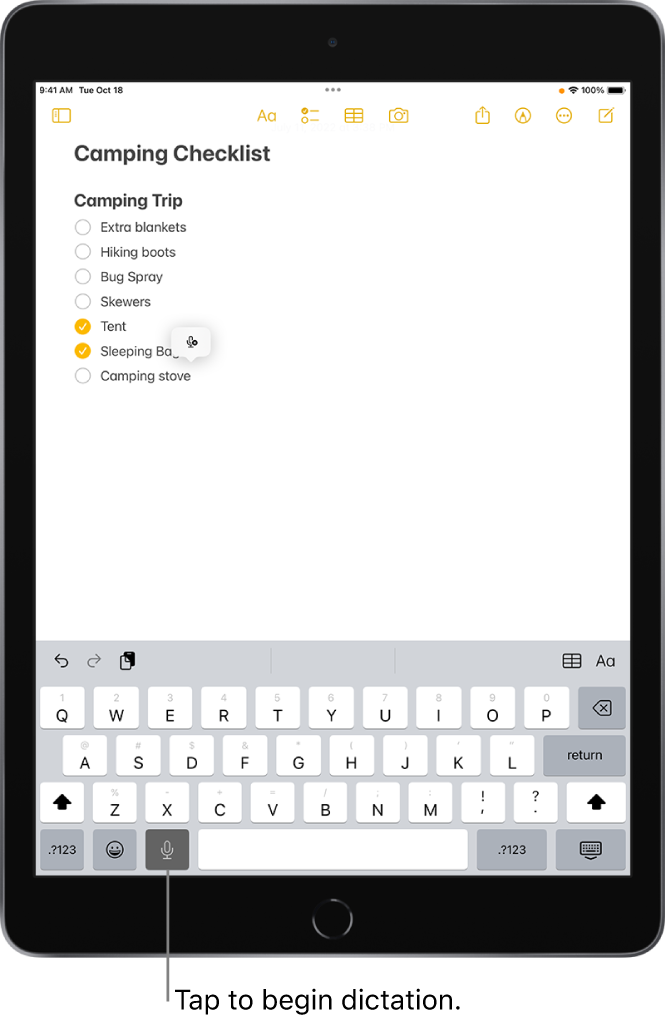
2. Tapon the onscreen keyboard or in any text field where it appears (as in Messages, for example). Then speak.
3. If you don’t see
4. As you speak to insert text, iPad automatically inserts punctuation for you.
5. Note: You can turn off automatic punctuation by going to Settings
6. As you dictate text, you can insert emoji by saying their names (for example, “mind blown emoji” or “happy emoji”).
7. When you finish, tap.
You may be able to get the text to dictate to your iPad if played back from another device.
We hope this helps!
Thanks for posting in the Apple Support Communities bobc@wanadoo,
While there's not a built-in function for converting Voice Memos to written text, the following information that covers Dictation on your iPad may be helpful:
Turn on Dictation
1. Go to Settings
2. Turn on Enable Dictation.
If you’re using an external keyboard, see Dictate text while using an Apple external keyboard.
Dictate text
1. Tap to place the insertion point where you want to insert text.
2. Tap
3. If you don’t see
4. As you speak to insert text, iPad automatically inserts punctuation for you.
5. Note: You can turn off automatic punctuation by going to Settings
6. As you dictate text, you can insert emoji by saying their names (for example, “mind blown emoji” or “happy emoji”).
7. When you finish, tap
You may be able to get the text to dictate to your iPad if played back from another device.
We hope this helps!
Transcribe iPad voice memos to text