Having problem with 15.7.7 security update.

I downloaded it, installation fails repeatedly. Went to Settings>General>Device name storage, found the update, tried to delete and re download - no luck. I have 20GB of available storage.


What do I do at this point?


iPad Air 2, 15

Posted on Jun 23, 2023 2:13 PM

Reply
Question marked as Top-ranking reply

Posted on Jun 23, 2023 4:29 PM

Begin with a forced restart of your iPad - and then attempt to remove the failing update as you have already described:


Force restart iPad (models with Face ID or with Touch ID in the top button)

If your iPad doesn’t have the Home button, do the following:

  1. Press and quickly release the volume button nearest to the top button.
  2. Press and quickly release the volume button farthest from the top button.
  3. Press and hold the top button.
  4. When the Apple logo appears, release the top button.
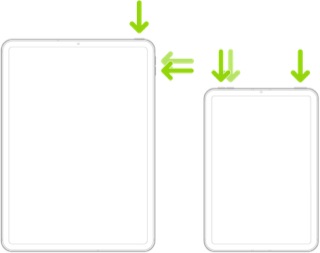


Force restart iPad (models with the Home button)

Press and hold the top button and the Home button at the same time. When the Apple logo appears, release both buttons.



These support pages outline both the available methods by which the update can be performed - and troubleshooting should you experience difficulties:

Update your iPhone, iPad or iPod touch – Apple Support

If you can't update or restore your iPhone, iPad or iPod touch – Apple Support

If your iPhone, iPad or iPod touch won’t update - Apple Support

iOS update and restore errors – Apple Support


Be aware that while an iPad may be capable of update, in some circumstances you may need to use a computer to perform the update. To do so, you will need access to either a Windows PC (with iTunes for Windows installed) or a Mac (with iTunes or Finder - as appropriate for the installed version of macOS). Ensure that your installed version of iTunes has been updated to the most recent version; the essential device drivers are included.

Download and use iTunes for Windows – Apple Support

Update to the latest version of iTunes – Apple Support

Update software on iPhone, iPad or iPod touch in iTunes on PC - Apple Support


If you have a beta profile installed, ensure this has been removed from your iPad - as, otherwise, installation of production software updates may be inhibited. This support page provides the necessary information to remove the beta from your iPad:

How to uninstall iOS beta software - Apple Support


You should note that for your iPad to install an available update, its battery must be charged to at least 50% capacity - and/or be connected to its Power Adapter. Similarly, the iPad can only be updated over a standard WiFi connection - or be updated by a PC or Mac using iTunes or Finder - over a USB connection.


3 replies
Question marked as Top-ranking reply

Jun 23, 2023 4:29 PM in response to halls120

Begin with a forced restart of your iPad - and then attempt to remove the failing update as you have already described:


Force restart iPad (models with Face ID or with Touch ID in the top button)

If your iPad doesn’t have the Home button, do the following:

  1. Press and quickly release the volume button nearest to the top button.
  2. Press and quickly release the volume button farthest from the top button.
  3. Press and hold the top button.
  4. When the Apple logo appears, release the top button.


Force restart iPad (models with the Home button)

Press and hold the top button and the Home button at the same time. When the Apple logo appears, release both buttons.


These support pages outline both the available methods by which the update can be performed - and troubleshooting should you experience difficulties:

Update your iPhone, iPad or iPod touch – Apple Support

If you can't update or restore your iPhone, iPad or iPod touch – Apple Support

If your iPhone, iPad or iPod touch won’t update - Apple Support

iOS update and restore errors – Apple Support


Be aware that while an iPad may be capable of update, in some circumstances you may need to use a computer to perform the update. To do so, you will need access to either a Windows PC (with iTunes for Windows installed) or a Mac (with iTunes or Finder - as appropriate for the installed version of macOS). Ensure that your installed version of iTunes has been updated to the most recent version; the essential device drivers are included.

Download and use iTunes for Windows – Apple Support

Update to the latest version of iTunes – Apple Support

Update software on iPhone, iPad or iPod touch in iTunes on PC - Apple Support


If you have a beta profile installed, ensure this has been removed from your iPad - as, otherwise, installation of production software updates may be inhibited. This support page provides the necessary information to remove the beta from your iPad:

How to uninstall iOS beta software - Apple Support


You should note that for your iPad to install an available update, its battery must be charged to at least 50% capacity - and/or be connected to its Power Adapter. Similarly, the iPad can only be updated over a standard WiFi connection - or be updated by a PC or Mac using iTunes or Finder - over a USB connection.

This thread has been closed by the system or the community team. You may vote for any posts you find helpful, or search the Community for additional answers.

Having problem with 15.7.7 security update.

Welcome to Apple Support Community
A forum where Apple customers help each other with their products. Get started with your Apple Account.