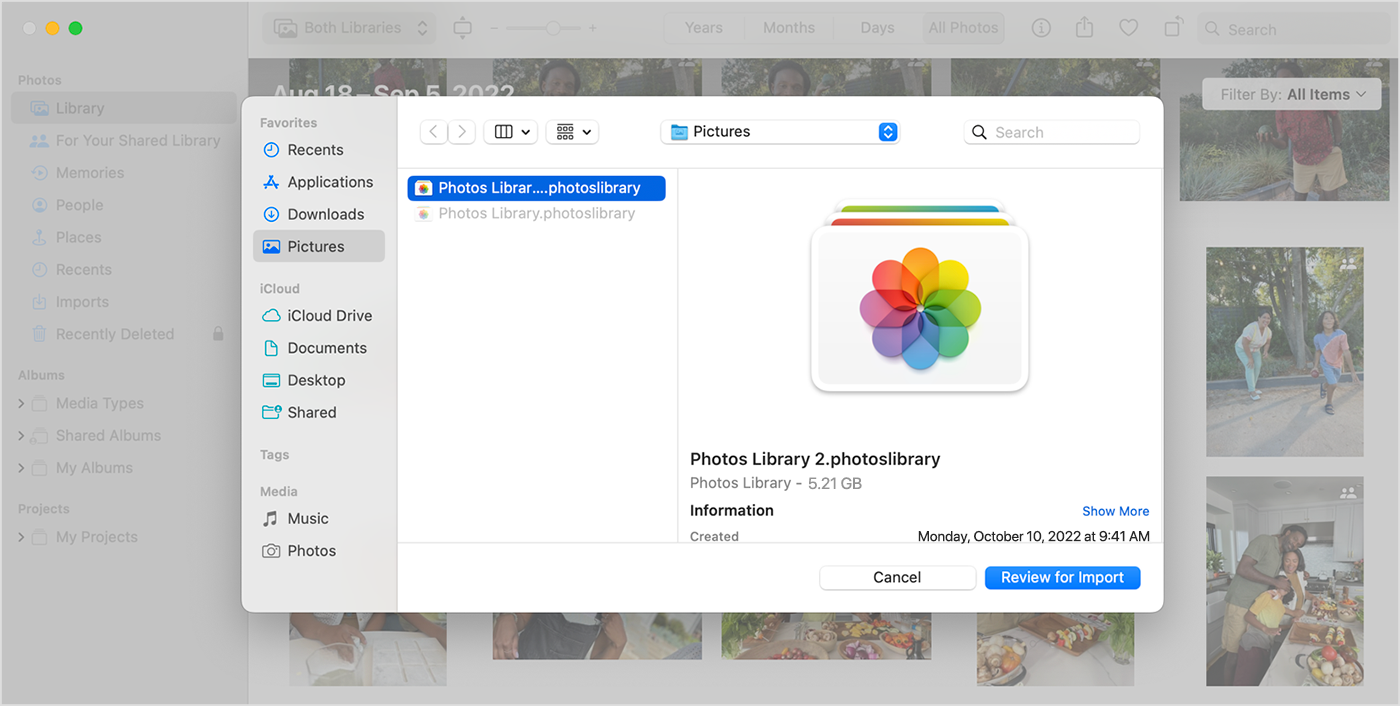
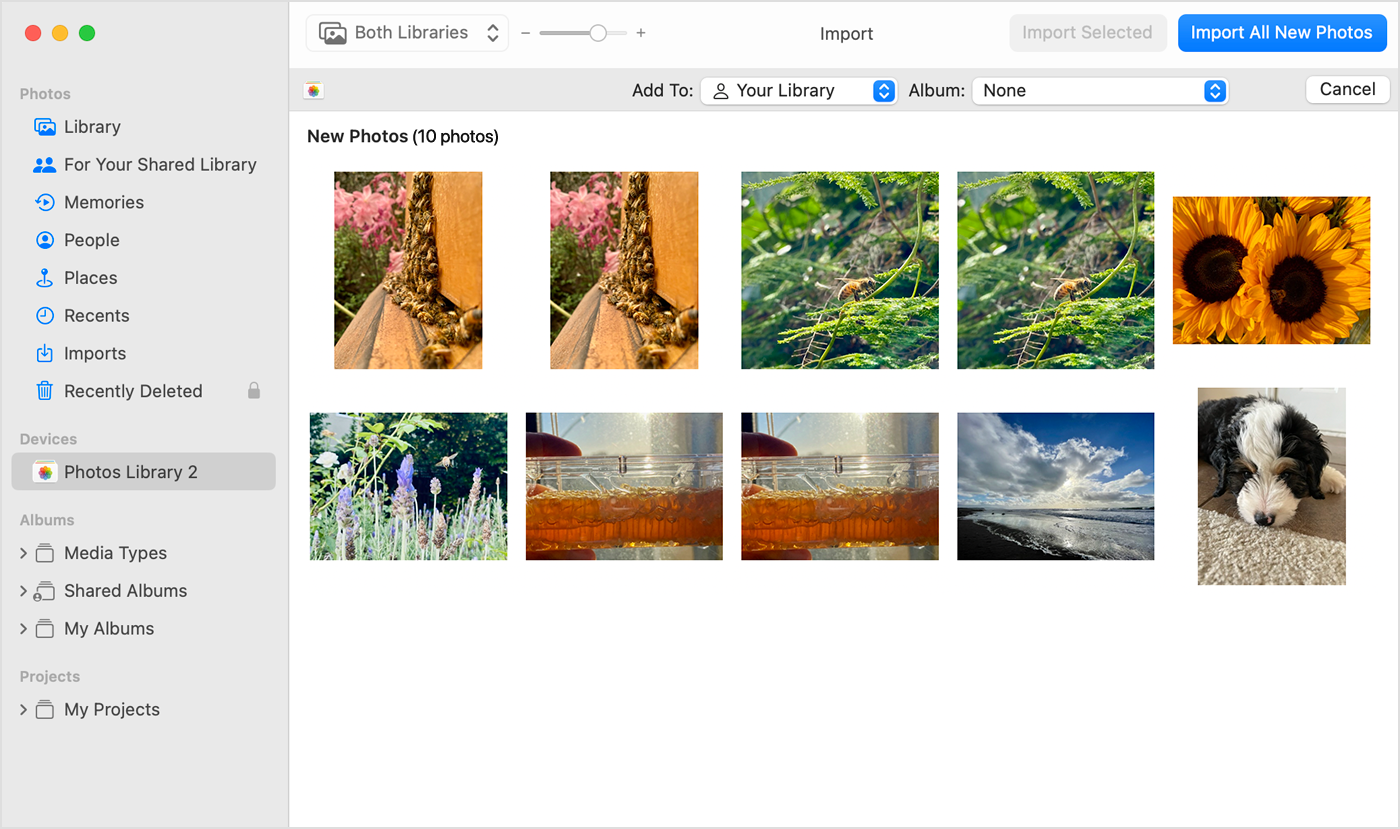
The first system version that can import an iPhoto Library to Photos is macOS 13 Ventura. Which system version is installed on your new Mac?
On older system versions you can only open iPhoto Libraries in Photos to create a Photos Library from it.
To access your iPhoto Photos and to be able to view it in Photos try the following:
- Quit Photos, if it is running.
- Hold down the options key ⌥ and launch Photos.
- Wait for the dialog to select a library to appear.
- Select the iPhoto Library you want to convert to a Photos Library and click done.
Photos will now create a new Photos Library from your iPhoto Library in the same folder as the iPhoto Library. If the library is on an external drive, you have to ensure, that disk is locally mounted, a wired connection, not a network share, and the file system format should be MacOS Extended (Journaled) or APFS. The library must not be on a Time Machine volume either
Once you upgrade the new Mac to macOS 13 Ventura you can import the items from this library into your main Photos Library. Alternately you can use the command "File > Export" in Photos to export large batches of photos from your converted library and import them to your main Photos Library.
Or do you still have iPhoto on your old Mac? Then you could run iPhoto to batch export the photos and videos to folders and import them from these folders to your new Photos Library.