Why can’t I send messages with my series 3 Apple Watch with a iPhone 14 max pro

Why can’t I send messages with my series 3 Apple Watch with a iPhone 14 max pro it won’t go through I have tried updating watch and phone and re pair nothing is working

iPhone 14 Pro Max, iOS 16

Posted on Jul 9, 2023 5:02 PM

Reply
Question marked as Top-ranking reply

Posted on Jul 10, 2023 3:00 PM

Hello Katiebug9898,


If you're unable to send messages with your Apple Watch, please be sure to go through all of the suggestions outlined in the link you came from, which may help resolve that issue: If you can’t send or receive messages on your Apple Watch


If you continue to experience an issue, the link also explains how to contact Apple Support for assistance.


If you see a red exclamation point

If you see a red exclamation point  or "not delivered" next to a message, tap the alert to try sending the message again. If the message still won't send, try the steps below. 



If you can't send or receive messages

After each step, try to send or receive a message on your Apple Watch again.

1. Check Control Center

If you see the Do Not Disturb or Airplane Mode icons on your watch face, you need to turn the settings off in Control Center.

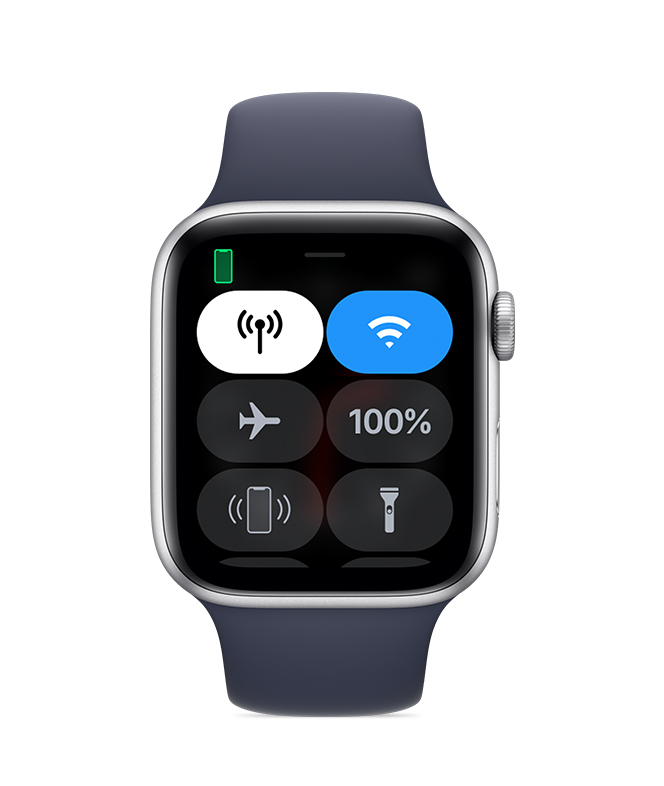
Touch and hold the bottom of the watch face, wait for Control Center to show, then swipe up. Tap the highlighted Do Not Disturb and Airplane Mode icons to turn off the settings.

Apple Watch with Do Not Disturb turned on and another with Airplane Mode turned on.

2. Check your connection

Make sure that your Apple Watch can connect to your iPhone, cellular, or Wi-Fi. To send and receive SMS/MMS from cellular models of Apple Watch, your paired iPhone must be powered on and connected to Wi-Fi or cellular, but your iPhone doesn’t need to be nearby.

Even if your iPhone isn’t connected or powered on, you can send and receive iMessages on your Apple Watch when your Apple Watch is connected to Wi-Fi or cellular.

Learn how your Apple Watch makes connections and get help if your devices disconnect.
 
Apple Watch connected to iPhone.

3. Try sending a message from your iPhone

If your iPhone can't send or receive messages, try to fix messages on your iPhone
 
4. Make sure that you signed in

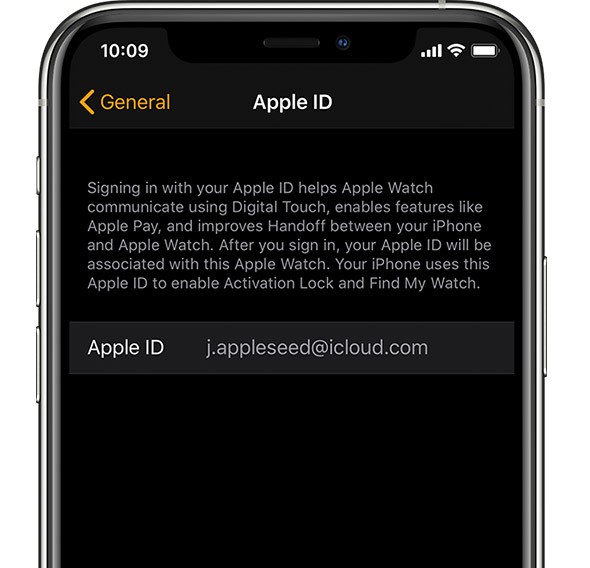
On your iPhone, open the Apple Watch app, tap the My Watch tab, then tap General > Apple ID. 
 
Signed in with j.appleseed@icloud.com.

5. Check your iMessage settings

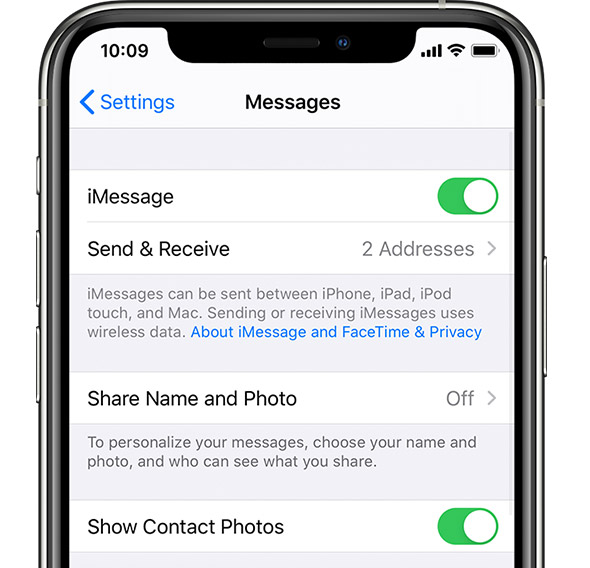
On your iPhone, go to Settings > Messages and make sure that iMessage is turned on.
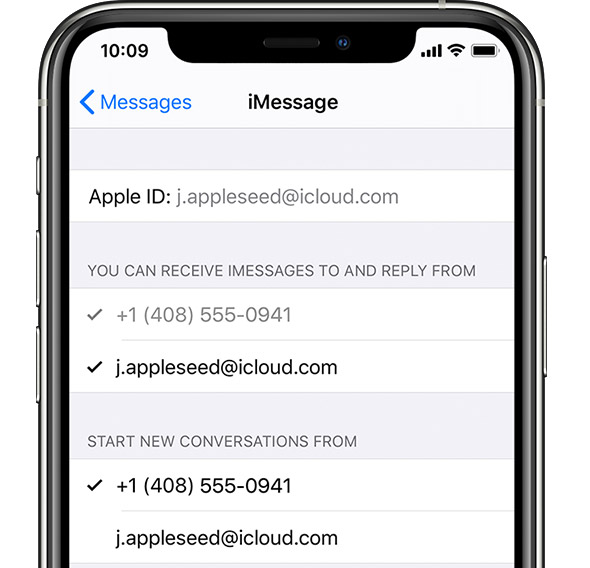
Then tap Send & Receive and make sure that you're using the same Apple ID that your Apple Watch is using. 

If you aren't signed in, sign in to iMessage with your Apple ID

John Appleseed signed in to iMessage with Apple ID.

6. Sign out of iMessage

Tap Settings > Messages > Send & Receive. Tap your Apple ID, then tap Sign Out. 

Then tap Settings > Messages. Turn iMessage off, then turn it back on

iMessage settings on iPhone.

7. Sign in to iMessage again

Tap Settings > Messages > Send & Receive > Use your Apple ID for iMessage, then sign in.
 
8. Restart your Apple Watch and iPhone

Here's how to restart your Apple Watch and iPhone.
 
9. Check for updates

Here's how to update your Apple Watch and iPhone.
 
Contact us

Before you contact us, unpair your Apple Watch, then pair it again. If you still can't send or receive messages, contact Apple Support.


Thanks!


1 reply
Question marked as Top-ranking reply

Jul 10, 2023 3:00 PM in response to Katiebug9898

Hello Katiebug9898,


If you're unable to send messages with your Apple Watch, please be sure to go through all of the suggestions outlined in the link you came from, which may help resolve that issue: If you can’t send or receive messages on your Apple Watch


If you continue to experience an issue, the link also explains how to contact Apple Support for assistance.


If you see a red exclamation point

If you see a red exclamation point  or "not delivered" next to a message, tap the alert to try sending the message again. If the message still won't send, try the steps below. 


If you can't send or receive messages

After each step, try to send or receive a message on your Apple Watch again.

1. Check Control Center

If you see the Do Not Disturb or Airplane Mode icons on your watch face, you need to turn the settings off in Control Center.

Touch and hold the bottom of the watch face, wait for Control Center to show, then swipe up. Tap the highlighted Do Not Disturb and Airplane Mode icons to turn off the settings.

Apple Watch with Do Not Disturb turned on and another with Airplane Mode turned on.

2. Check your connection

Make sure that your Apple Watch can connect to your iPhone, cellular, or Wi-Fi. To send and receive SMS/MMS from cellular models of Apple Watch, your paired iPhone must be powered on and connected to Wi-Fi or cellular, but your iPhone doesn’t need to be nearby.

Even if your iPhone isn’t connected or powered on, you can send and receive iMessages on your Apple Watch when your Apple Watch is connected to Wi-Fi or cellular.

Learn how your Apple Watch makes connections and get help if your devices disconnect.
 
Apple Watch connected to iPhone.

3. Try sending a message from your iPhone

If your iPhone can't send or receive messages, try to fix messages on your iPhone
 
4. Make sure that you signed in

On your iPhone, open the Apple Watch app, tap the My Watch tab, then tap General > Apple ID. 
 
Signed in with j.appleseed@icloud.com.

5. Check your iMessage settings

On your iPhone, go to Settings > Messages and make sure that iMessage is turned on.
Then tap Send & Receive and make sure that you're using the same Apple ID that your Apple Watch is using. 

If you aren't signed in, sign in to iMessage with your Apple ID

John Appleseed signed in to iMessage with Apple ID.

6. Sign out of iMessage

Tap Settings > Messages > Send & Receive. Tap your Apple ID, then tap Sign Out. 

Then tap Settings > Messages. Turn iMessage off, then turn it back on

iMessage settings on iPhone.

7. Sign in to iMessage again

Tap Settings > Messages > Send & Receive > Use your Apple ID for iMessage, then sign in.
 
8. Restart your Apple Watch and iPhone

Here's how to restart your Apple Watch and iPhone.
 
9. Check for updates

Here's how to update your Apple Watch and iPhone.
 
Contact us

Before you contact us, unpair your Apple Watch, then pair it again. If you still can't send or receive messages, contact Apple Support.


Thanks!


This thread has been closed by the system or the community team. You may vote for any posts you find helpful, or search the Community for additional answers.

Why can’t I send messages with my series 3 Apple Watch with a iPhone 14 max pro

Welcome to Apple Support Community
A forum where Apple customers help each other with their products. Get started with your Apple Account.