No messages appear in my Trash or Junk folder

All of the messages in my trash and junk folders have disappeared. When I delete new messages or mark them as junk they disappear from my inbox but do not appear in my trash or junk folder.


In my Apple Mail preferences I have always had (and still have) trash set to go to my All Trash folder and junk to go to my All Junk folder and both of those folders are set to never delete messages unless I manually delete them from there.


(I think my trash folder used to be labeled "Trash" instead of "All Trash" and my junk folder used to be labeled "Junk" instead of "All Junk".)


To be clear, I do have existing "All Trash" and "All Junk" folders, but now when I open them, neither one ever has any messages in it (even immediately after I have deleted messages or marked them as junk).


I have searched the web for solutions to this problem but have not seen any solutions.


How do I resolve this?


Thanks!

iMac 27″, macOS 12.6

Posted on Jul 10, 2023 5:38 PM

Reply
Question marked as Top-ranking reply

Posted on Jul 11, 2023 3:26 PM

Hello KS_on_AS,


Thank you for reaching out to Apple Support Communities, and we'll be happy to help in any way we can. We understand you're having issues with mail not going to the trash or junk folders in the Mail app. To start, have you tried searching for a specific email that was affected to see if it appears in another folder? Do they show up in the correct email boxes when you check the webmail version of the affected accounts?


Also, try the steps here to see if they resolve the issue by removing and adding an affected account: Add email accounts in Mail on Mac - Apple Support


"Use the Mail app  on your Mac to send, receive, and manage email for all of your email accounts in one location on your Mac. Simply add your existing accounts—such as iCloud, Exchange, Google, school, work, or other—in Mail.
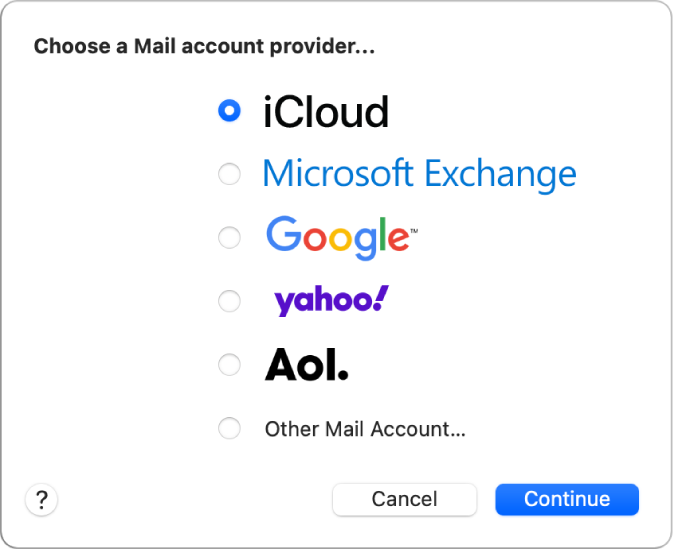
The dialog to choose an email account type, showing iCloud, Microsoft Exchange, Google, Yahoo, AOL, and Other Mail Account.

  • The first time you open Mail, you may be asked to add an account. Select an account type (such as Google for Gmail) or Other Mail Account, then enter your account information.

  • If you already added an email account, you can still add more. In Mail, choose Mail > Add Account, select an account type, then enter your account information. Make sure the Mail checkbox is selected for the account.
  • If you’re using an account on your Mac with other apps, such as Contacts or Messages, you can also use that account with Mail. In Mail, choose Mail > Accounts to open Internet Accounts settings, then click Add Account on the right.
  • You can set options for your email accounts in Mail settings."


We hope this helps.


Cheers!


1 reply
Question marked as Top-ranking reply

Jul 11, 2023 3:26 PM in response to KS_on_AS

Hello KS_on_AS,


Thank you for reaching out to Apple Support Communities, and we'll be happy to help in any way we can. We understand you're having issues with mail not going to the trash or junk folders in the Mail app. To start, have you tried searching for a specific email that was affected to see if it appears in another folder? Do they show up in the correct email boxes when you check the webmail version of the affected accounts?


Also, try the steps here to see if they resolve the issue by removing and adding an affected account: Add email accounts in Mail on Mac - Apple Support


"Use the Mail app  on your Mac to send, receive, and manage email for all of your email accounts in one location on your Mac. Simply add your existing accounts—such as iCloud, Exchange, Google, school, work, or other—in Mail.

The dialog to choose an email account type, showing iCloud, Microsoft Exchange, Google, Yahoo, AOL, and Other Mail Account.

  • The first time you open Mail, you may be asked to add an account. Select an account type (such as Google for Gmail) or Other Mail Account, then enter your account information.

  • If you already added an email account, you can still add more. In Mail, choose Mail > Add Account, select an account type, then enter your account information. Make sure the Mail checkbox is selected for the account.
  • If you’re using an account on your Mac with other apps, such as Contacts or Messages, you can also use that account with Mail. In Mail, choose Mail > Accounts to open Internet Accounts settings, then click Add Account on the right.
  • You can set options for your email accounts in Mail settings."


We hope this helps.


Cheers!


This thread has been closed by the system or the community team. You may vote for any posts you find helpful, or search the Community for additional answers.

No messages appear in my Trash or Junk folder

Welcome to Apple Support Community
A forum where Apple customers help each other with their products. Get started with your Apple Account.