Iphone doesn't reconnect to wi-fi after screen shut down

I understand that Iphones disconnect from wi-fi after the screen goes dark in order to save power. But my Iphone doesn't reconnect to the wi-fi, either never or after a long delay, when I open the phone again. This is a fairly recent issue. How do I fix this?

Posted on Jul 11, 2023 12:37 PM

Reply
Question marked as Top-ranking reply

Posted on Jul 12, 2023 11:01 AM

Hello deanfromsan jose,


Thanks for choosing the Apple Support Communities. We see you are having trouble reconnecting to Wi-Fi after waking your iPhone. Check the steps out below.


If your iPhone or iPad won't connect to a Wi-Fi network - Apple Support


"Make sure that your router is on and that you're within range

If you're too far from your Wi-Fi router, you can't get a signal, so make sure that you're within range.


Make sure that Wi-Fi is on and that you can see your network

Go to Settings > Wi-Fi and make sure that Wi-Fi is on. Tap the name of your Wi-Fi network to join. A blue checkmark beside a network name means that you're connected.

If you see Auto Join disabled under Settings > Wi-Fi > [Your Network], tap the More Info button and then tap Auto-Join.
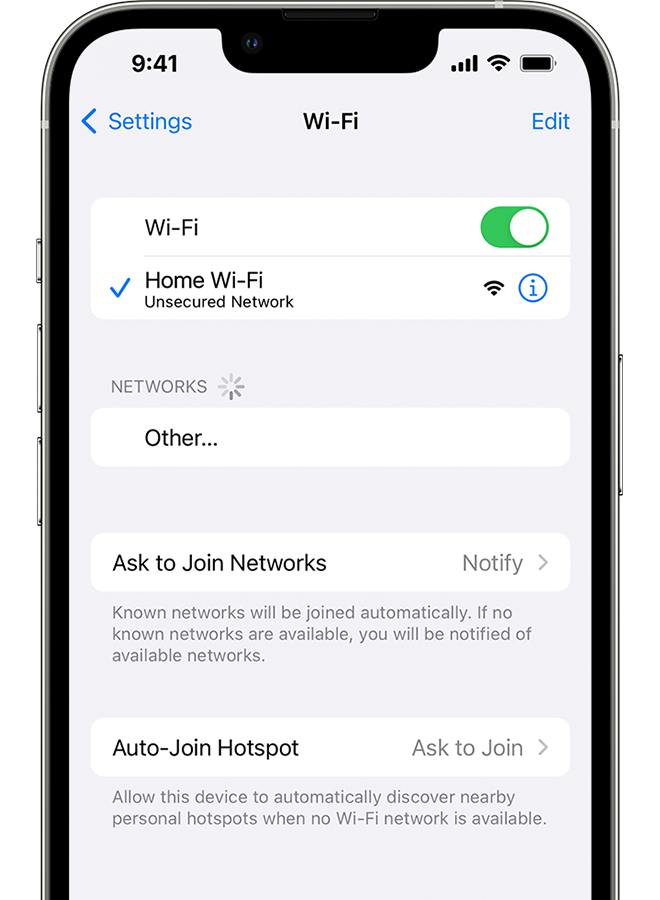
An iPhone showing the Wi-Fi screen. There's a blue a checkmark next to the Wi-Fi network's name.

If asked, enter your Wi-Fi password

If asked, enter the password for your Wi-Fi network. Get help if you don't know your password.

Even if you enter the correct password, you might see an "unable to join the network" message or an "incorrect password" message. Restart all of your devices, then try to enter your password again.


Check for issues with your Wi-Fi network

If iOS or iPadOS detects an issue with your Wi-Fi connection, you might see a Wi-Fi recommendation under the name of the Wi-Fi network that you're connected to. For example, you might see the alert "No Internet Connection." To get more information, tap the Wi-Fi network.
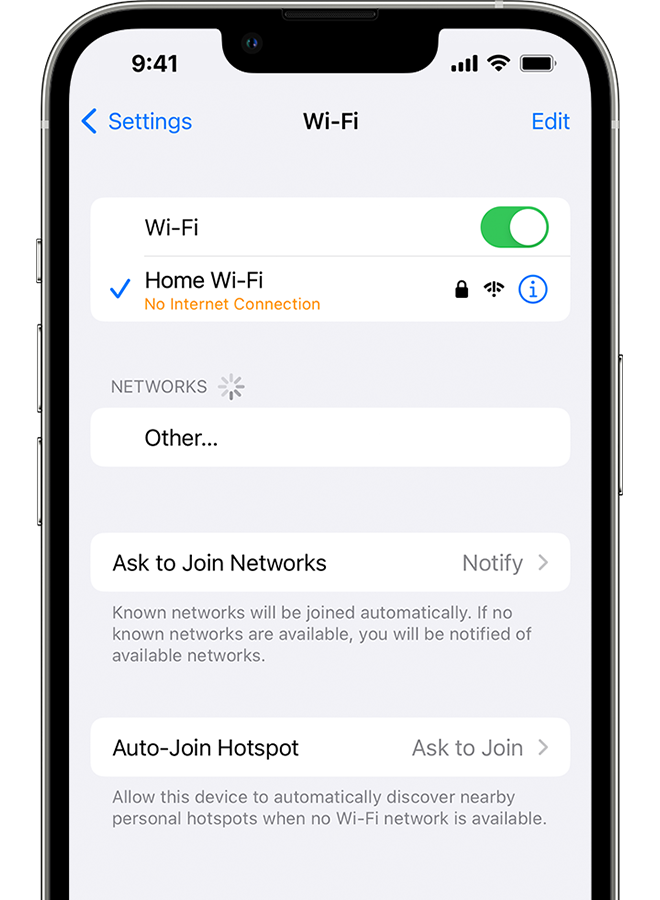
 

An iPhone showing the Wi-Fi screen. There's an alert message under the Wi-Fi network's name.

Check your cables and connections

If you still can't connect to your network or get online, make sure that your router is connected to the modem and turned on.


Restart

Restart your iOS or iPadOS device.

Restart your router and cable or DSL modem by unplugging the device and then plugging it back in.

After you restart each device, see if you fixed the issue.


Reset your network settings

If you're using iOS or iPadOS 15 or later, tap Settings > General > Transfer or Reset [Device] > Reset > Reset Network Settings.

If you're using iOS or iPadOS 14 or earlier, tap Settings > General > Reset > Reset Network Settings.

This also resets Wi-Fi networks and passwords, cellular settings, and VPN and APN settings that you've used before.
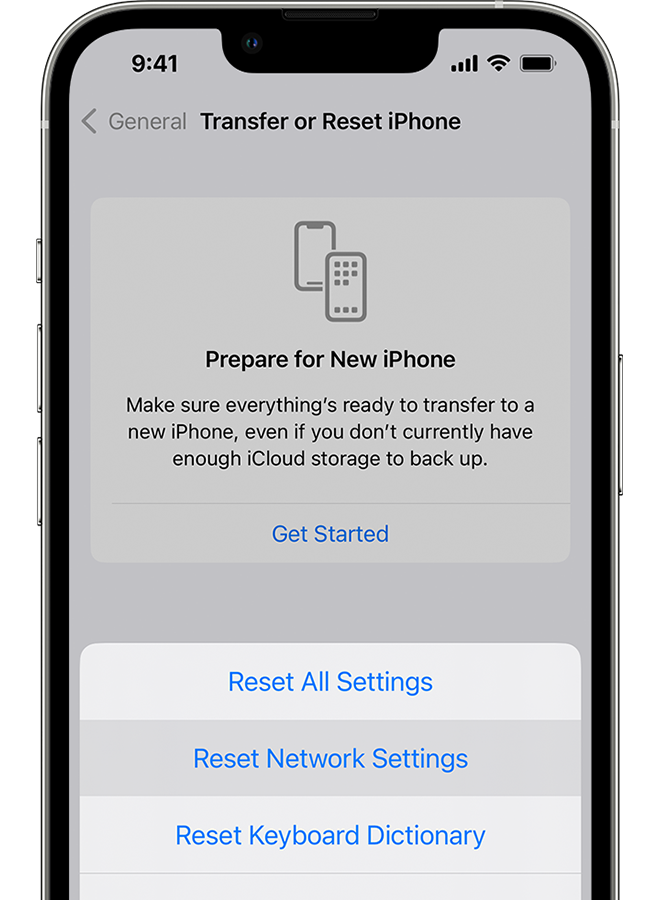
An iPhone showing the Transfer or Reset iPhone screen.

Get more help

  • If you're connected to a Wi-Fi network but you can’t get online, try to use your Wi-Fi network on other devices. If you can't get online using your other devices, there might be a service outage. Call your cable company or internet provider for help.
  • Try connecting to a Wi-Fi network in a different location. If your device can connect, you need to get help with your Wi-Fi network. If your device can't connect to any Wi-Fi networks, contact Apple.
  • Update your Wi-Fi router with the latest firmware and make sure that the router supports your Apple product. For more information, contact the router's manufacturer."


We hope this helps.


Cheers!


8 replies
Question marked as Top-ranking reply

Jul 12, 2023 11:01 AM in response to deanfromsan jose

Hello deanfromsan jose,


Thanks for choosing the Apple Support Communities. We see you are having trouble reconnecting to Wi-Fi after waking your iPhone. Check the steps out below.


If your iPhone or iPad won't connect to a Wi-Fi network - Apple Support


"Make sure that your router is on and that you're within range

If you're too far from your Wi-Fi router, you can't get a signal, so make sure that you're within range.


Make sure that Wi-Fi is on and that you can see your network

Go to Settings > Wi-Fi and make sure that Wi-Fi is on. Tap the name of your Wi-Fi network to join. A blue checkmark beside a network name means that you're connected.

If you see Auto Join disabled under Settings > Wi-Fi > [Your Network], tap the More Info button and then tap Auto-Join.

An iPhone showing the Wi-Fi screen. There's a blue a checkmark next to the Wi-Fi network's name.

If asked, enter your Wi-Fi password

If asked, enter the password for your Wi-Fi network. Get help if you don't know your password.

Even if you enter the correct password, you might see an "unable to join the network" message or an "incorrect password" message. Restart all of your devices, then try to enter your password again.


Check for issues with your Wi-Fi network

If iOS or iPadOS detects an issue with your Wi-Fi connection, you might see a Wi-Fi recommendation under the name of the Wi-Fi network that you're connected to. For example, you might see the alert "No Internet Connection." To get more information, tap the Wi-Fi network.


An iPhone showing the Wi-Fi screen. There's an alert message under the Wi-Fi network's name.

Check your cables and connections

If you still can't connect to your network or get online, make sure that your router is connected to the modem and turned on.


Restart

Restart your iOS or iPadOS device.

Restart your router and cable or DSL modem by unplugging the device and then plugging it back in.

After you restart each device, see if you fixed the issue.


Reset your network settings

If you're using iOS or iPadOS 15 or later, tap Settings > General > Transfer or Reset [Device] > Reset > Reset Network Settings.

If you're using iOS or iPadOS 14 or earlier, tap Settings > General > Reset > Reset Network Settings.

This also resets Wi-Fi networks and passwords, cellular settings, and VPN and APN settings that you've used before.

An iPhone showing the Transfer or Reset iPhone screen.

Get more help

  • If you're connected to a Wi-Fi network but you can’t get online, try to use your Wi-Fi network on other devices. If you can't get online using your other devices, there might be a service outage. Call your cable company or internet provider for help.
  • Try connecting to a Wi-Fi network in a different location. If your device can connect, you need to get help with your Wi-Fi network. If your device can't connect to any Wi-Fi networks, contact Apple.
  • Update your Wi-Fi router with the latest firmware and make sure that the router supports your Apple product. For more information, contact the router's manufacturer."


We hope this helps.


Cheers!


Jul 18, 2023 3:49 PM in response to deanfromsan jose


deanfromsan Jose,


Thank you for those details. Let's review your router settings to make sure its working as expected:


"Router settings

To ensure that your devices can connect securely and reliably to your network, apply these settings consistently to each Wi-Fi router and access point, and to each band of a dual-band, tri-band, or other multiband router. Before changing the settings, you should take these steps:

  • Back up your existing settings, in case you need to restore them.
  • Install the latest firmware updates for your router. This is generally done from the app or webpage that you use to administer the router.
  • Update the software on your other devices, such as on your Mac and on your iPhone or iPad, to ensure that they have the latest security updates and work best with each other.

After changing the settings, you might need to forget the network on each device that previously joined the network. This ensures that the device uses the router's new settings when rejoining the network."


Additional details can be found here: Recommended settings for Wi-Fi routers and access points


If the issue persists, can you provide a few more details? Doe this happen with other networks? Which iPhone and iOS version are you currently using? Also, when did you first notice this?


Cheers!

Jul 19, 2023 7:27 AM in response to deanfromsan jose

Hi there deanfromsan Jose,


How long would you say it takes to reconnect to your Wi-Fi network after waking the iPhone 8 from sleep? Also, if available, have you noticed if this happens with other Wi-Fi networks with your iPhone 8? When you wake your iPhone and go to Settings > Wi-Fi, do you see any message near your network name there? We want to make sure we fully understand how long it's taking and additional details, as it can help determine possible next steps.


If you haven't already as well, you'll also want to follow the steps in this article as VPN or certain types of software/apps can sometimes cause issues with Wi-Fi on devices: Check VPN (Virtual Private Network) and third-party software to help resolve network connectivity issues


Take care!

Jul 18, 2023 3:43 PM in response to ryane77

I have tried everything recommended in the articles. The problem is the phone takes a long time to connect, which it seems to eventually do. If I want to make a call or use an internet app, I can’t do it without waiting an inordinate amount of time. And I have to make sure it doesn’t go to sleep again. I just got a call from my doctor and since my cell service is poor in my house, I couldn’t talk to them without the cell connection dropping. My phone didn’t do this some time ago. Is my phone bad? I am using the latest IOS and other devices in the same room have no issues.

Jul 19, 2023 7:04 AM in response to Omar_A1

The problem occurs with two different routers in two locations in my home. On one of them I checked the router settings and did the "forget network" with no luck. So it is not a router issue. The phone is an iPhone 8 with the latest IOS. I have noticed this for at least a few months. Is the wi-fi supposed to connect immediately when the phone wakes up?

Jul 19, 2023 8:04 AM in response to claire504

This morning my iphone SE was on the charger and not connected to Wi-Fi, but my wife's iphone 8+ was next to it on a charger and was connected to Wi-Fi. Mine took about two minutes this morning in two separate wake-ups. This problem happens on two different networks in my home. There are no messages in the settings/Wi-Fi beside the network name. When I connect to a different network, there is a check mark next to the selected network and I see the signal strength indicator next to the network name (full strength) but I do not see the signal strength indicator next to the T-Mobile text at the top of the screen (until the phone finally connects which just now took about 3 minutes). I use a VPN (Norton 360) on all my devices.

This thread has been closed by the system or the community team. You may vote for any posts you find helpful, or search the Community for additional answers.

Iphone doesn't reconnect to wi-fi after screen shut down

Welcome to Apple Support Community
A forum where Apple customers help each other with their products. Get started with your Apple Account.