Iphone doesn't reconnect to Wi-fi

I understand that Iphones disconnect from wi-fi after the screen times out in order to save power. But when I open the screen again, it either takes a long time to reconnect to the wi-fi or doesn't connect at all. This is particularly annoying when I want to make a phone call over wi-fi as my cell signal is very weak in my home. How do I fix this?

iPhone SE (3rd generation)

Posted on Jul 11, 2023 1:12 PM

Reply
Question marked as Top-ranking reply

Posted on Jul 12, 2023 11:10 AM

Hello deanfromsan jose,


If your iPhone is disconnecting from Wi-Fi or won't reconnect to Wi-Fi after being locked, then you could take these relevant steps to try and solve the issue: If your iPhone or iPad won't connect to a Wi-Fi network


If your iPhone or iPad won't connect to a Wi-Fi network

Get help connecting to Wi-Fi on your iPhone or iPad.

1. Make sure that your router is on and that you're within range

If you're too far from your Wi-Fi router, you can't get a signal, so make sure that you're within range.
 
2. Make sure that Wi-Fi is on and that you can see your network

Go to Settings > Wi-Fi and make sure that Wi-Fi is on. Tap the name of your Wi-Fi network to join. A blue checkmark beside a network name means that you're connected.

If you see Auto Join disabled under Settings > Wi-Fi > [Your Network], tap the More Info button and then tap Auto-Join.
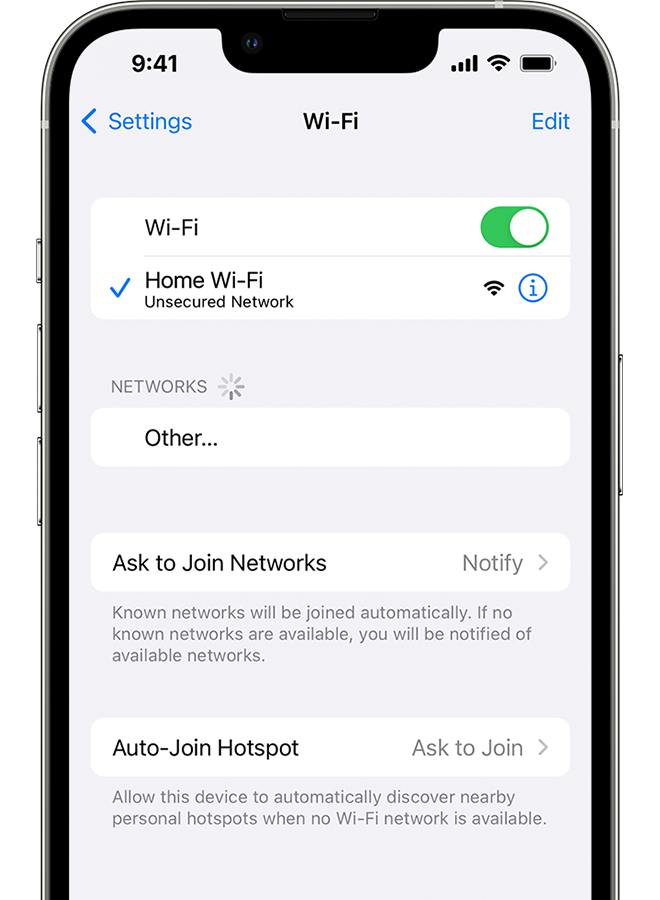
An iPhone showing the Wi-Fi screen. There's a blue a checkmark next to the Wi-Fi network's name.

3. If asked, enter your Wi-Fi password

If asked, enter the password for your Wi-Fi network. Get help if you don't know your password.

Even if you enter the correct password, you might see an "unable to join the network" message or an "incorrect password" message. Restart all of your devices, then try to enter your password again.
 
4. Check for issues with your Wi-Fi network

If iOS or iPadOS detects an issue with your Wi-Fi connection, you might see a Wi-Fi recommendation under the name of the Wi-Fi network that you're connected to. For example, you might see the alert "No Internet Connection." To get more information, tap the Wi-Fi network.
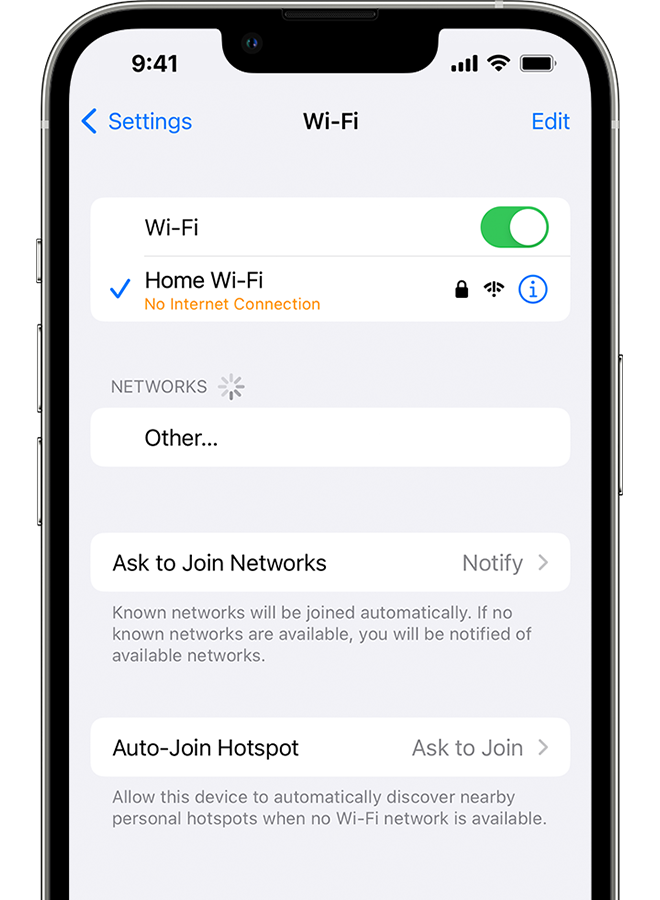
 
An iPhone showing the Wi-Fi screen. There's an alert message under the Wi-Fi network's name.

5. Check your cables and connections

If you still can't connect to your network or get online, make sure that your router is connected to the modem and turned on.
 
6. Restart

Restart your iOS or iPadOS device.

Restart your router and cable or DSL modem by unplugging the device and then plugging it back in.

After you restart each device, see if you fixed the issue.
 
7. Reset your network settings

If you're using iOS or iPadOS 15 or later, tap Settings > General > Transfer or Reset [Device] > Reset > Reset Network Settings.

If you're using iOS or iPadOS 14 or earlier, tap Settings > General > Reset > Reset Network Settings.

This also resets Wi-Fi networks and passwords, cellular settings, and VPN and APN settings that you've used before.
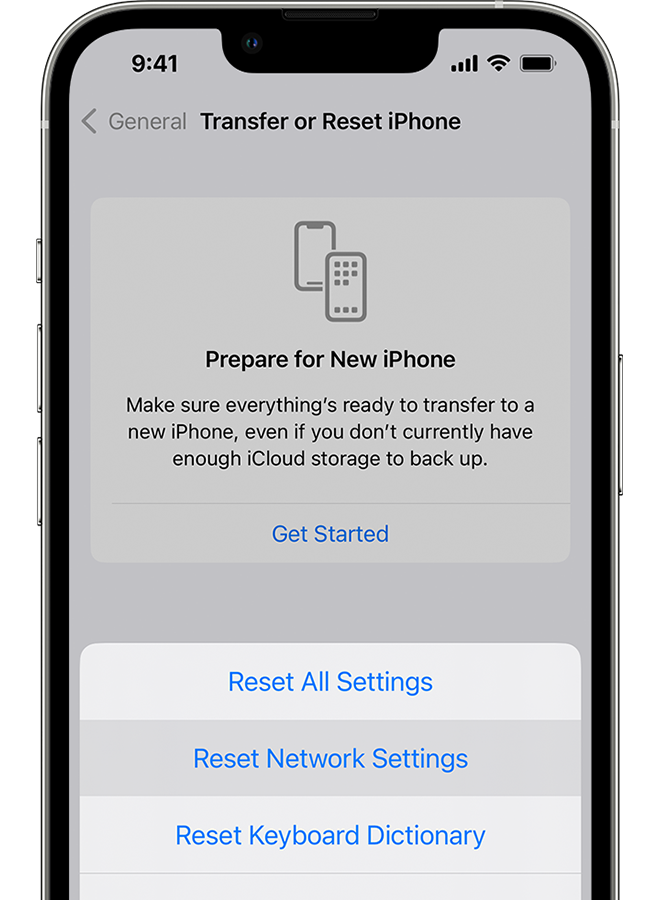
An iPhone showing the Transfer or Reset iPhone screen.

Get more help

* If you're connected to a Wi-Fi network but you can’t get online, try to use your Wi-Fi network on other devices. If you can't get online using your other devices, there might be a service outage. Call your cable company or internet provider for help.

* Try connecting to a Wi-Fi network in a different location. If your device can connect, you need to get help with your Wi-Fi network. If your device can't connect to any Wi-Fi networks, contact Apple.

* Update your Wi-Fi router with the latest firmware and make sure that the router supports your Apple product. For more information, contact the router's manufacturer.


If the issue continues to occur, make sure you've enabled Auto Join for this particular network under step 2 above. For further help, we'll need additional details. Does this occur with a specific Wi-Fi network or all Wi-Fi networks connected to the iPhone when you lock it for some time? Any recent changes to the device, around the time this issue started?


Take care.


3 replies
Question marked as Top-ranking reply

Jul 12, 2023 11:10 AM in response to deanfromsan jose

Hello deanfromsan jose,


If your iPhone is disconnecting from Wi-Fi or won't reconnect to Wi-Fi after being locked, then you could take these relevant steps to try and solve the issue: If your iPhone or iPad won't connect to a Wi-Fi network


If your iPhone or iPad won't connect to a Wi-Fi network

Get help connecting to Wi-Fi on your iPhone or iPad.

1. Make sure that your router is on and that you're within range

If you're too far from your Wi-Fi router, you can't get a signal, so make sure that you're within range.
 
2. Make sure that Wi-Fi is on and that you can see your network

Go to Settings > Wi-Fi and make sure that Wi-Fi is on. Tap the name of your Wi-Fi network to join. A blue checkmark beside a network name means that you're connected.

If you see Auto Join disabled under Settings > Wi-Fi > [Your Network], tap the More Info button and then tap Auto-Join.

An iPhone showing the Wi-Fi screen. There's a blue a checkmark next to the Wi-Fi network's name.

3. If asked, enter your Wi-Fi password

If asked, enter the password for your Wi-Fi network. Get help if you don't know your password.

Even if you enter the correct password, you might see an "unable to join the network" message or an "incorrect password" message. Restart all of your devices, then try to enter your password again.
 
4. Check for issues with your Wi-Fi network

If iOS or iPadOS detects an issue with your Wi-Fi connection, you might see a Wi-Fi recommendation under the name of the Wi-Fi network that you're connected to. For example, you might see the alert "No Internet Connection." To get more information, tap the Wi-Fi network.
 
An iPhone showing the Wi-Fi screen. There's an alert message under the Wi-Fi network's name.

5. Check your cables and connections

If you still can't connect to your network or get online, make sure that your router is connected to the modem and turned on.
 
6. Restart

Restart your iOS or iPadOS device.

Restart your router and cable or DSL modem by unplugging the device and then plugging it back in.

After you restart each device, see if you fixed the issue.
 
7. Reset your network settings

If you're using iOS or iPadOS 15 or later, tap Settings > General > Transfer or Reset [Device] > Reset > Reset Network Settings.

If you're using iOS or iPadOS 14 or earlier, tap Settings > General > Reset > Reset Network Settings.

This also resets Wi-Fi networks and passwords, cellular settings, and VPN and APN settings that you've used before.

An iPhone showing the Transfer or Reset iPhone screen.

Get more help

* If you're connected to a Wi-Fi network but you can’t get online, try to use your Wi-Fi network on other devices. If you can't get online using your other devices, there might be a service outage. Call your cable company or internet provider for help.

* Try connecting to a Wi-Fi network in a different location. If your device can connect, you need to get help with your Wi-Fi network. If your device can't connect to any Wi-Fi networks, contact Apple.

* Update your Wi-Fi router with the latest firmware and make sure that the router supports your Apple product. For more information, contact the router's manufacturer.


If the issue continues to occur, make sure you've enabled Auto Join for this particular network under step 2 above. For further help, we'll need additional details. Does this occur with a specific Wi-Fi network or all Wi-Fi networks connected to the iPhone when you lock it for some time? Any recent changes to the device, around the time this issue started?


Take care.


Jul 12, 2023 12:17 PM in response to deanfromsan jose

Hello deanfromsan jose,


We understand. The next step we would recommend is to follow this article to make sure you have the recommended settings outlined here: Recommended settings for Wi-Fi routers and access points - Apple Support


If the issue persists, we recommend following the section of the article mentioned in our previous message to resolve this which states: "If your device can't connect to any Wi-Fi networks, contact Apple."


If your iPhone or iPad won't connect to a Wi-Fi network - Apple Support


Cheers!


Jul 12, 2023 11:59 AM in response to destiny241

This happens with my IPhone on different networks and from different routers. It does not happen with my IPad on the same networks and routers. Distance from the routers is less than 10 feet. I have tried resetting the network settings with no luck. Auto join is enabled on each network. The only changes to the device are regular updates to the latest IOS. I have been aware of this problem for some months but can’t say when it started (it wasn’t always like this).

This thread has been closed by the system or the community team. You may vote for any posts you find helpful, or search the Community for additional answers.

Iphone doesn't reconnect to Wi-fi

Welcome to Apple Support Community
A forum where Apple customers help each other with their products. Get started with your Apple Account.