
Airpods Pro 2 Not Working For Incoming Phone Calls

When I receive a phone call, even though my AirPods pro 2 are indicated as the active audio device on phone app, I can't hear the incoming caller, nor can they hear me. If I then manually switch audio to the iPhone, and then back again to the AirPods, I can usually get the audio to work. The AirPods work fine with every other app. Obviously this is a bug. Has anyone found a fix for it?


By the way, I do not own any Tiles (an issue that came up in a previous discussion of a similar problem back in 2017), I'm using only a couple of other bluetooth devices (and none other than my Airpods are connected during tests), and this occurs even when I quit all apps other than the phone app. It also occurs away from my other Apple devices (like my computer and iPad). My firmware is current, and my iOS is the latest version. Tried disconnecting and reconnecting, as well as forgetting and repairing. Genius Bar techs were unable to fix it.

Posted on Jul 14, 2023 12:33 PM

Reply
Question marked as Top-ranking reply

Posted on Jul 16, 2023 7:07 AM

Hi DakineAppleUser,


Given the steps you've taken, can you confirm if one of those steps was to reset the headphones? This is a bit more involved than disconnecting or forgetting them though it does include those steps.


"You might need to reset your AirPods if they won't charge, or to fix a different issue.

  1. Put your AirPods in their charging case, and close the lid.
  2. Wait 30 seconds.
  3. Open the lid of your charging case, and put your AirPods in your ears.
  4. Go to Settings > Bluetooth. Or go to Settings > [your AirPods].
    • If your AirPods appear there as connected, tap the More Info button  next to your AirPods, tap Forget This Device, then tap again to confirm.
    • If your AirPods don't appear there, continue to the next step. 
  1. Put your AirPods in their charging case, and keep the lid open. 
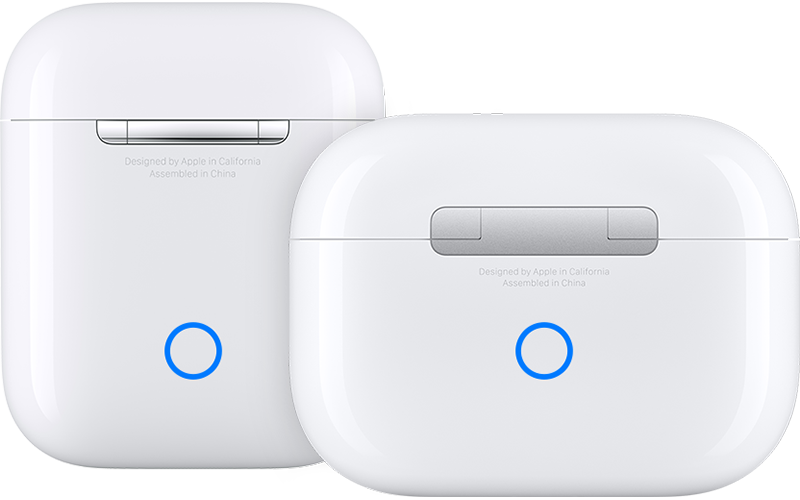
  2. Press and hold the setup button on the back of the case for about 15 seconds, until the status light on the front of the case flashes amber, then white.*
  3. AirPods charging cases
  4. Reconnect your AirPods: With your AirPods in their charging case and the lid open, place your AirPods close to your iPhone or iPad. Follow the steps on your device's screen.

AirPods can be associated with one Apple ID. If you want to use AirPods (3rd generation) or AirPods Pro (1st or 2nd generation) that someone else has used, they first need to remove the AirPods from their Apple ID"


If you have taken those specific steps above, then contact Apple Support to take a closer look at the issue.

  • Get Support


Take care.


4 replies
Question marked as Top-ranking reply

Jul 16, 2023 7:07 AM in response to DakineAppleUser

Hi DakineAppleUser,


Given the steps you've taken, can you confirm if one of those steps was to reset the headphones? This is a bit more involved than disconnecting or forgetting them though it does include those steps.


"You might need to reset your AirPods if they won't charge, or to fix a different issue.

  1. Put your AirPods in their charging case, and close the lid.
  2. Wait 30 seconds.
  3. Open the lid of your charging case, and put your AirPods in your ears.
  4. Go to Settings > Bluetooth. Or go to Settings > [your AirPods].
    • If your AirPods appear there as connected, tap the More Info button  next to your AirPods, tap Forget This Device, then tap again to confirm.
    • If your AirPods don't appear there, continue to the next step. 
  1. Put your AirPods in their charging case, and keep the lid open. 
  2. Press and hold the setup button on the back of the case for about 15 seconds, until the status light on the front of the case flashes amber, then white.*
  3. AirPods charging cases
  4. Reconnect your AirPods: With your AirPods in their charging case and the lid open, place your AirPods close to your iPhone or iPad. Follow the steps on your device's screen.

AirPods can be associated with one Apple ID. If you want to use AirPods (3rd generation) or AirPods Pro (1st or 2nd generation) that someone else has used, they first need to remove the AirPods from their Apple ID"


If you have taken those specific steps above, then contact Apple Support to take a closer look at the issue.

  • Get Support


Take care.


Jul 16, 2023 7:17 AM in response to DakineAppleUser

Some suggestions from other similar problems seen recently here in ASC


If you have an Apple Watch, spin the Digital Crown to adjust the volume on the AirPods. It looks like at least the Phone app has its own dedicated volume setting which is not shared by other apps, and the default might be rather lower than ideal.


There have been some issues with other devices or apps refusing to release control of the AirPods so Phone can use the pods. Check AirPods settings in Settings/Bluetooth, you're looking for the Connect Automatically setting.

This thread has been closed by the system or the community team. You may vote for any posts you find helpful, or search the Community for additional answers.

Airpods Pro 2 Not Working For Incoming Phone Calls

Welcome to Apple Support Community
A forum where Apple customers help each other with their products. Get started with your Apple Account.