The update of my watch has paused and will not continue
The update of my watch has paused and will not continue
Apple Watch Series 7, watchOS 8
The update of my watch has paused and will not continue
Apple Watch Series 7, watchOS 8
Hi Saba_hmm,
We recommend that you first try restarting your Apple Watch since the update paused.
Restart Apple Watch - Apple Support
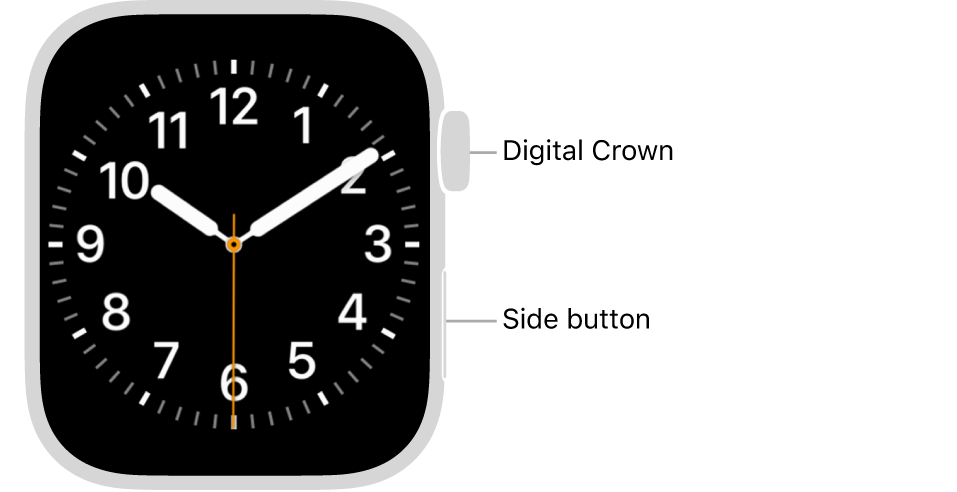
* Turn off your Apple Watch: Press and hold the side button until the sliders appear, tap, then drag the Power Off slider to the right.
* Turn on your Apple Watch: Hold down the side button until the Apple logo appears.
Note: You can’t restart your Apple Watch while it’s charging.
While a restart can seem unimportant, it can actually resolve many minor issues with the device.
After performing a restart, try updating your Apple Watch again.
Update your Apple Watch - Apple Support
If your Apple Watch has watchOS 6 or later, you can install updates without your iPhone:
1. Make sure that your watch is connected to Wi-Fi.
2. On your watch, open the Settings app.
3. Tap General > Software Update.
4. Tap Install if a software update is available, then follow the onscreen instructions.
Leave your Apple Watch on its charger while the update completes, and don't restart your Apple Watch. When the update completes, your Apple Watch restarts on its own.
Please let us know the outcome after giving the above steps a try.
Thanks for using the Apple Support Communities.
Cheers!
Hi Saba_hmm,
We recommend that you first try restarting your Apple Watch since the update paused.
Restart Apple Watch - Apple Support
* Turn off your Apple Watch: Press and hold the side button until the sliders appear, tap
* Turn on your Apple Watch: Hold down the side button until the Apple logo appears.
Note: You can’t restart your Apple Watch while it’s charging.
While a restart can seem unimportant, it can actually resolve many minor issues with the device.
After performing a restart, try updating your Apple Watch again.
Update your Apple Watch - Apple Support
If your Apple Watch has watchOS 6 or later, you can install updates without your iPhone:
1. Make sure that your watch is connected to Wi-Fi.
2. On your watch, open the Settings app.
3. Tap General > Software Update.
4. Tap Install if a software update is available, then follow the onscreen instructions.
Leave your Apple Watch on its charger while the update completes, and don't restart your Apple Watch. When the update completes, your Apple Watch restarts on its own.
Please let us know the outcome after giving the above steps a try.
Thanks for using the Apple Support Communities.
Cheers!
The update of my watch has paused and will not continue