How do I insert row only in selected columns

I cannot not figure this out for the life of me. I want to insert a row in a particular section of my sheet. I don't want the new row to go across all columns. I want the new row just above row 6 and only in columns G and H


Posted on Jul 19, 2023 7:46 AM

Reply
Question marked as Top-ranking reply

Posted on Jul 19, 2023 1:46 PM

Hi bdrum99,


A Numbers table is a grid of cells arranged in Rows and Columns.

As a general rule, values in each column are in the same category, named in the header row(s) of that column,

and the values in each row are directly related to the category in that row of the Header column(s).


The first five columns of your table follow this model, although they do not include a name for each category.


Column A contains the date of each action.

Column B (in rows 5 to 8) contains the name of the party receiving money in the recorded transaction.

Column C records the purpose of the expenditure

Column D records the amount of the transaction, and

Column E records the method of payment.


The transaction in row 3 does not match the categories used in the rest of the rows, but the replacement of 'payee' with 'purpose' is readily understood in this single row.


Columns G and H are 'summary' calculations.

There is no direct relation between the data on each row and the Dates in that row of column A, the parties on that row of column B, or the purpose listed on that row of column C.


If you want to keep them on the same table as the 'daily expenses', you could create the space for the data that would be recorded in "the new row just above row 6 and only in columns G and H" by moving the data currently in cells G4, H4, G5 and H5 up one row from their current positions, and using the resulting empty cells G5 and H5 to contain what you want in the now open space 'just above row 6 in columns G and H.


While this is a simple and workable solution to what you've described, my own choice would be to follow the models provided in the templates supplied with Numbers, and move the Summary calculations to a second table.


Using the data displayed on your example, I set up the model shown below. Using the data displayed in your screen shot, I was unable to obtain the same results as yours for the Project Ledger. Your sample appears to be missing some data regarding the total costs.
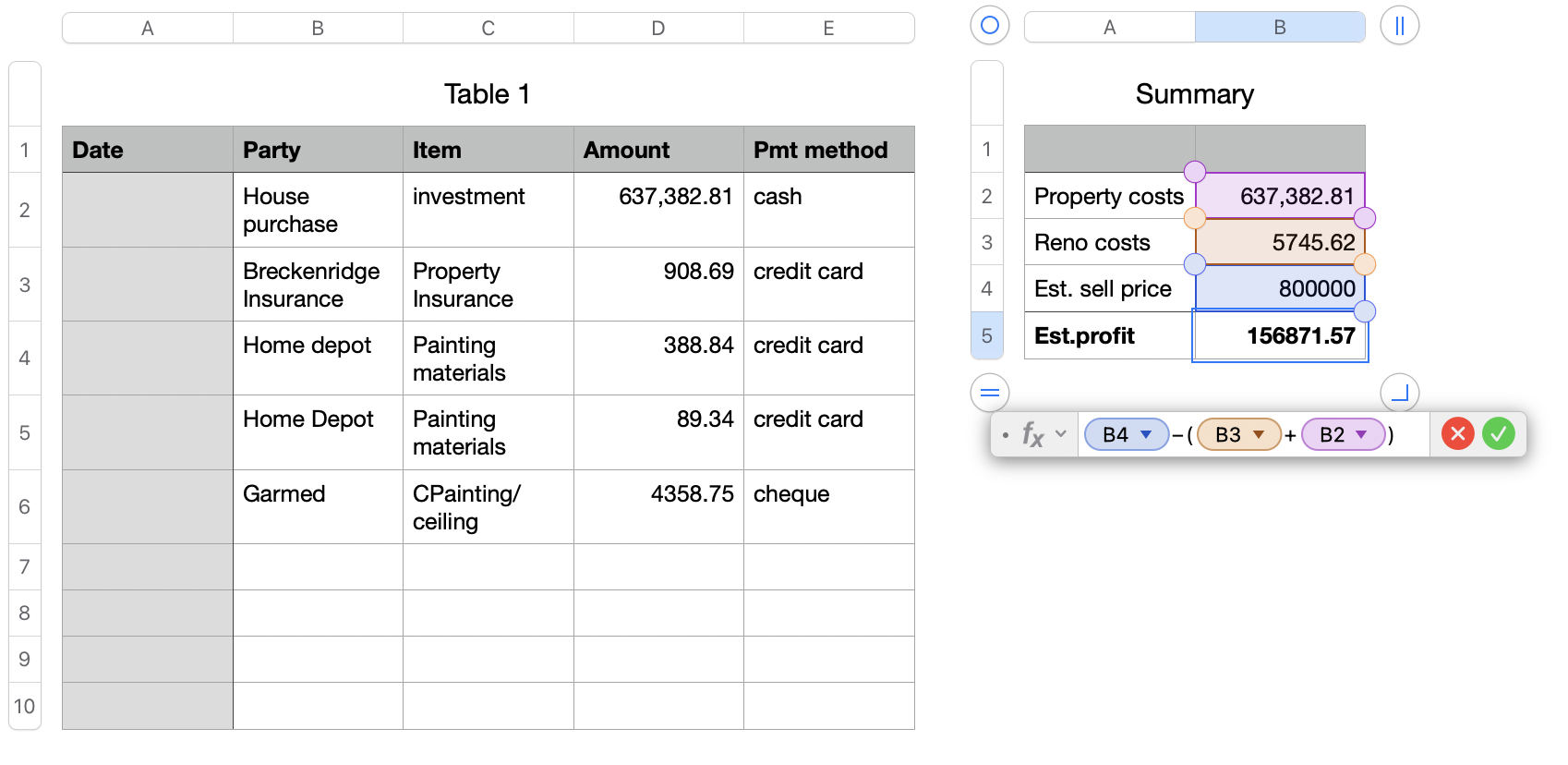


With the missing data included, this example should return the correct values.


Regards,

Barry

3 replies
Question marked as Top-ranking reply

Jul 19, 2023 1:46 PM in response to bdrum99

Hi bdrum99,


A Numbers table is a grid of cells arranged in Rows and Columns.

As a general rule, values in each column are in the same category, named in the header row(s) of that column,

and the values in each row are directly related to the category in that row of the Header column(s).


The first five columns of your table follow this model, although they do not include a name for each category.


Column A contains the date of each action.

Column B (in rows 5 to 8) contains the name of the party receiving money in the recorded transaction.

Column C records the purpose of the expenditure

Column D records the amount of the transaction, and

Column E records the method of payment.


The transaction in row 3 does not match the categories used in the rest of the rows, but the replacement of 'payee' with 'purpose' is readily understood in this single row.


Columns G and H are 'summary' calculations.

There is no direct relation between the data on each row and the Dates in that row of column A, the parties on that row of column B, or the purpose listed on that row of column C.


If you want to keep them on the same table as the 'daily expenses', you could create the space for the data that would be recorded in "the new row just above row 6 and only in columns G and H" by moving the data currently in cells G4, H4, G5 and H5 up one row from their current positions, and using the resulting empty cells G5 and H5 to contain what you want in the now open space 'just above row 6 in columns G and H.


While this is a simple and workable solution to what you've described, my own choice would be to follow the models provided in the templates supplied with Numbers, and move the Summary calculations to a second table.


Using the data displayed on your example, I set up the model shown below. Using the data displayed in your screen shot, I was unable to obtain the same results as yours for the Project Ledger. Your sample appears to be missing some data regarding the total costs.


With the missing data included, this example should return the correct values.


Regards,

Barry

Jul 19, 2023 1:52 PM in response to bdrum99

It looks like you are designing your spreadsheet with an Excel mindset. An Excel worksheet is a monolithic grid that you put everything in. Numbers is designed for smaller, independent tables. Your columns A-E appear to be go together while G-H are an entirely separate thing. In Numbers, those would be two independent tables.


Numbers does not have an "insert" feature where you can insert a cell in the middle of a row or column. But it does have a nifty feature where you can select cells, lift them out of the table, and place them in a different spot.


So, to make your one table into two so you can more easily add rows to only the columns that need it,

  1. Select columns G&H (click on the column letter G and slide over to H to select the entire two columns)
  2. Click and hold on one of the column letters and the columns will lift out of the table
  3. Drag and drop them onto a blank spot on the sheet and they will become a separate table.
  4. Delete the leftover blank columns in the original table to clean it up so it is only A-E. There is no need for empty columns in Numbers, it is just clutter.


You can do the same thing with individual cells, ranges of cells, columns, or rows. You can lift and move them to other places within the same table, into other tables, or onto the sheet to create a new table.


This thread has been closed by the system or the community team. You may vote for any posts you find helpful, or search the Community for additional answers.

How do I insert row only in selected columns

Welcome to Apple Support Community
A forum where Apple customers help each other with their products. Get started with your Apple Account.
