SalimCat,
We'd like to provide you with a few steps that may be able to assist you:
"Invite people
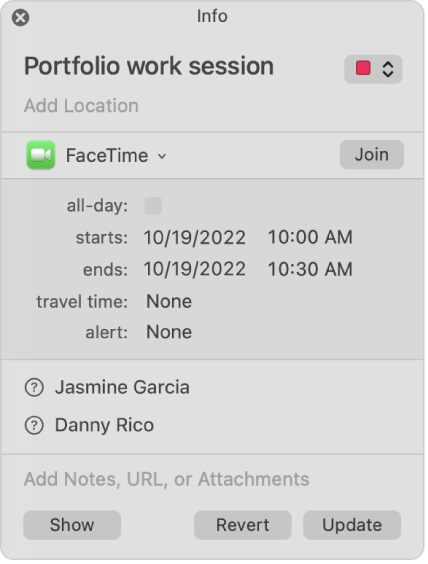
- In the Calendar app
 on your Mac, double-click or force click the event, then click Add Invitees or click next to any existing invitees. (You can also select an event, then use the Touch Bar.)
 - Enter each invitee’s name or email address, then press Return.
As you type a name or email address, Calendar tries to find a match in your Contacts and Mail apps, and on connected calendar servers. If you press Return before Calendar finds a match, or before you finish typing an email address, the invitee isn’t added.
After you enter two invitees, Calendar suggests the next invitee based on your previous interactions with people, such as who you often or recently invited together to the same meeting.
A symbol next to each invitee indicates the person’s status—for example, available, busy, or replied yes, no, or maybe. See Symbols used in Calendar.
3. If you see Check Availability below the last invitee, you can click it to see when invitees are free or busy. You only see Check Availability if your event is on a calendar service that tracks availability, such as CalDAV.
You see invitees’ free and busy time in the Availability window. To find an event time with the fewest or no conflicts, you can:
- Move the event: Drag the event block.
- See another day: Click the arrows at the top of the window.
- See the next time all invitees are available: Click Next Available Time.
4. Click Send.
To remove an invitee, select the invitee, then press the Delete key.
If you regularly invite the same set of people to events, you can create a list for them in the Contacts app. Then, when you enter the name of the list, each list member is invited to the event.
If your calendar service provider allows group email addresses, you can enter them as invitees, and all the group members are invited."
More details here: Invite people to events in Calendar on Mac
Let us know if this helps.
Best wishes!


