Since the last few updates to Safari over the past few weeks. Whenever I play a game on Pogo.com, I keep getting disconnected from the Internet before the game can end. I use a different web browser like Firefox and have no issues at all.

I keep getting disconnected from the Internet while trying to play a game. I get that message even, "You've been disconnected from the Internet. It doesn't matter what game it is, any played on Pogo.com. Any other browser works fine, I currently use Firefox and have no issues. Safari does seem to be running a little slower too. Any ideas on what I can do to correct this issue? Hopefully, there are others with the same problem who can explain it better than I do. Thank you for your time and assistance with this matter.

I currently am using a Macbook Air M1

Mike

iMac 21.5″, macOS 13.4

Posted on Jul 30, 2023 4:32 PM

Reply
Question marked as Top-ranking reply

Posted on Aug 2, 2023 2:38 PM

Hey ffmed124,


We'd recommend reviewing this article as it provides steps to help resolve issues specific to Safari: If Safari doesn't open a page or work as expected on your Mac - Apple Support


"Check Safari extensions

If you installed any Safari extensions, turn extensions off. From the menu bar in Safari, choose Safari > Settings (or Preferences). Click Extensions, then deselect each extension to turn it off. Learn more about Safari extensions.

If you find that an extension is causing the issue, make sure that the extension is up to date.

Test with a private window 

A website can store cookies, caches, and other data on your Mac, and issues with that data can affect your use of the website. To prevent the website from using that data, view it in a private window: From the menu bar in Safari, choose File > New Private Window, or press Shift-Command-N.

If that works, use the following steps to remove the website's data, including its caches and cookies. The website can then create new data as needed. If it's a website that you sign in to, make sure that you know your sign-in information before continuing.

  1. Choose Safari > Settings (or Preferences), then click Privacy.
  2. Click Manage Website Data.
  3. Select the affected website from the list shown.
  4. Click Remove.
  5. Click Done.
  6. Open the website again in a non-private browser window.

Check Safari settings

The webpage might not be compatible with one or more browser settings, which you can turn on or off as needed. From the menu bar in Safari, choose Safari > Settings (or Preferences). Then click Websites, Privacy, or Security to access these settings:

  • Privacy settings. These settings apply to all websites. For example, a website might require that you allow cross-site tracking, show your IP address, or allow cookies.
  • Security settings. These settings apply to all websites. For example, a website might require that you enable JavaScript.
  • Websites settings. These settings can be configured for specific websites. For example, a website might require that you allow pop-up windows, allow downloads, allow access to your camera or microphone, or turn off content blockers.

Check iCloud Private Relay

If you subscribe to iCloud+ and are using its Private Relay feature, try reloading the page without Private Relay: From the menu bar in Safari, choose View > Reload and Show IP Address. This menu item appears only when Private Relay is turned on for your network. Learn more about iCloud Private Relay.


Check VPN or other security software

If you installed VPN or other software that monitors or interacts with your network connections, that software could affect your use of the website or the internet. Learn about network issues related to VPN and other software


Check network settings

Certain network settings, such as custom proxy settings or custom DNS settings, can affect access to content on the internet. Even if you haven't changed these or other network settings yourself, you might have installed software that changed them for you. 

To find out whether the issue is with the network settings on your Mac, try viewing the page from a different web browser or different device on the same network. Or reset your network settings by setting up a new network location on your Mac.

If the issue affects other devices and web browsers on the same network, the issue is probably with the website, and you should contact the website developer for help. 

Learn more


Thanks!

Similar questions

3 replies
Question marked as Top-ranking reply

Aug 2, 2023 2:38 PM in response to ffmed124

Hey ffmed124,


We'd recommend reviewing this article as it provides steps to help resolve issues specific to Safari: If Safari doesn't open a page or work as expected on your Mac - Apple Support


"Check Safari extensions

If you installed any Safari extensions, turn extensions off. From the menu bar in Safari, choose Safari > Settings (or Preferences). Click Extensions, then deselect each extension to turn it off. Learn more about Safari extensions.

If you find that an extension is causing the issue, make sure that the extension is up to date.

Test with a private window 

A website can store cookies, caches, and other data on your Mac, and issues with that data can affect your use of the website. To prevent the website from using that data, view it in a private window: From the menu bar in Safari, choose File > New Private Window, or press Shift-Command-N.

If that works, use the following steps to remove the website's data, including its caches and cookies. The website can then create new data as needed. If it's a website that you sign in to, make sure that you know your sign-in information before continuing.

  1. Choose Safari > Settings (or Preferences), then click Privacy.
  2. Click Manage Website Data.
  3. Select the affected website from the list shown.
  4. Click Remove.
  5. Click Done.
  6. Open the website again in a non-private browser window.

Check Safari settings

The webpage might not be compatible with one or more browser settings, which you can turn on or off as needed. From the menu bar in Safari, choose Safari > Settings (or Preferences). Then click Websites, Privacy, or Security to access these settings:

  • Privacy settings. These settings apply to all websites. For example, a website might require that you allow cross-site tracking, show your IP address, or allow cookies.
  • Security settings. These settings apply to all websites. For example, a website might require that you enable JavaScript.
  • Websites settings. These settings can be configured for specific websites. For example, a website might require that you allow pop-up windows, allow downloads, allow access to your camera or microphone, or turn off content blockers.

Check iCloud Private Relay

If you subscribe to iCloud+ and are using its Private Relay feature, try reloading the page without Private Relay: From the menu bar in Safari, choose View > Reload and Show IP Address. This menu item appears only when Private Relay is turned on for your network. Learn more about iCloud Private Relay.


Check VPN or other security software

If you installed VPN or other software that monitors or interacts with your network connections, that software could affect your use of the website or the internet. Learn about network issues related to VPN and other software


Check network settings

Certain network settings, such as custom proxy settings or custom DNS settings, can affect access to content on the internet. Even if you haven't changed these or other network settings yourself, you might have installed software that changed them for you. 

To find out whether the issue is with the network settings on your Mac, try viewing the page from a different web browser or different device on the same network. Or reset your network settings by setting up a new network location on your Mac.

If the issue affects other devices and web browsers on the same network, the issue is probably with the website, and you should contact the website developer for help. 

Learn more


Thanks!

Jul 31, 2023 11:50 AM in response to ffmed124

Hello ffmed124,


Thank you for posting to Apple Support Communities.


A new macOS software update can help you with getting this corrected. Software updates contain the latest bug fixes and can assist with Safari and slowness.


Please be sure to back up your Mac first. Use the steps below to back up and update:


Before installing new software, it's a good idea to back up your Mac. If you have an external storage device, you can use it to back up your Mac with Time Machine.

Use Software Update
To check for new software, open Software Update. It's in System Settings (or System Preferences), which you can open from the Apple menu  in the corner of your screen:
* Choose Apple menu  > System Settings. Click General on the left side of the System Settings window, then click Software Update on the right.
* Or choose Apple menu  > System Preferences, then click Software Update.
If Software Update finds new software, click the button to install it. You will be asked to enter your administrator password. During installation, your Mac might show a progress bar or blank screen several times, and you should avoid putting it to sleep or closing its lid.
If Software Update says that your Mac is up to date, then no new software is currently available for your Mac model. Software Update shows only software that is compatible with your Mac. 
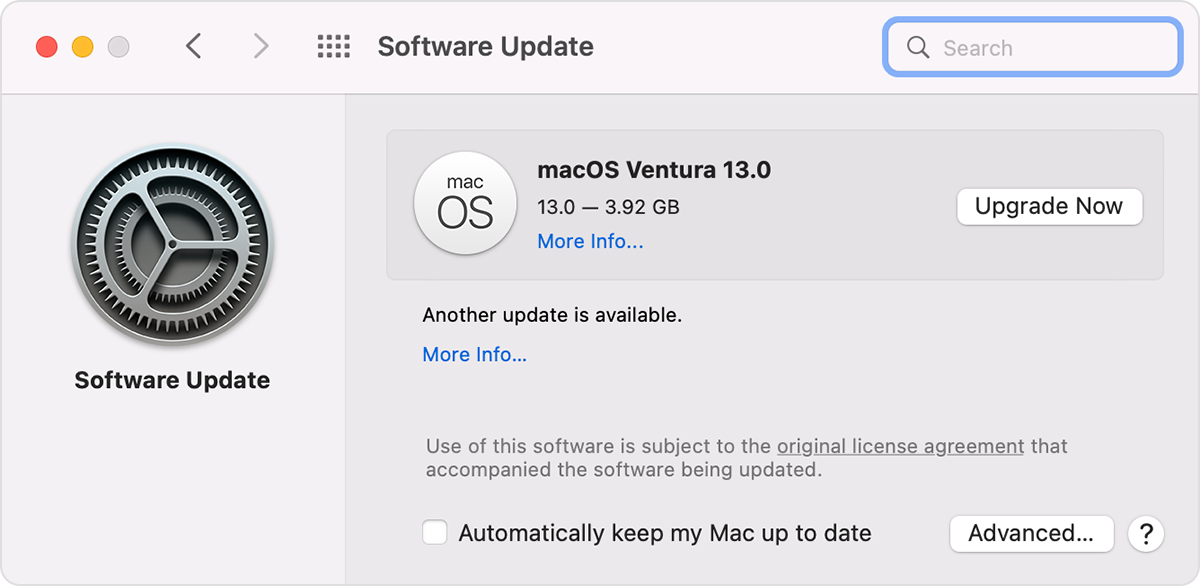
Software Update window in macOS Monterey


This information is from Update macOS on Mac - Apple Support.


Take care.

Aug 2, 2023 2:34 PM in response to 1ssmith

Hello 1ssmith,


I understand what you're telling me about updates from Apple, I always stay up to date when they send things out that need to be installed. This matter is over the past few months, Apple has sent out numerous updates to be installed including something new or fixes for other issues. I'm saying I have been playing these games on Pogo.com for years with no issues but now Safari seems to run a bit more slower and always kicks me off the internet when playing games. However when I use Firefox, I have no issues what so ever. Even in general, Safari running on the Internet seems a bit slower, lags. I wish I could explain it better for you but I'll keep watching to see if something happens just before it boots me off the Internet to forward that information too. Just wondering after all the updates that were sent out, could on of them be the cause of this like some kind of security update? I am also trying to get help from their tech team with no luck so far.


Thank you for your time in this matter.


Mike

This thread has been closed by the system or the community team. You may vote for any posts you find helpful, or search the Community for additional answers.

Since the last few updates to Safari over the past few weeks. Whenever I play a game on Pogo.com, I keep getting disconnected from the Internet before the game can end. I use a different web browser like Firefox and have no issues at all.

Welcome to Apple Support Community
A forum where Apple customers help each other with their products. Get started with your Apple Account.